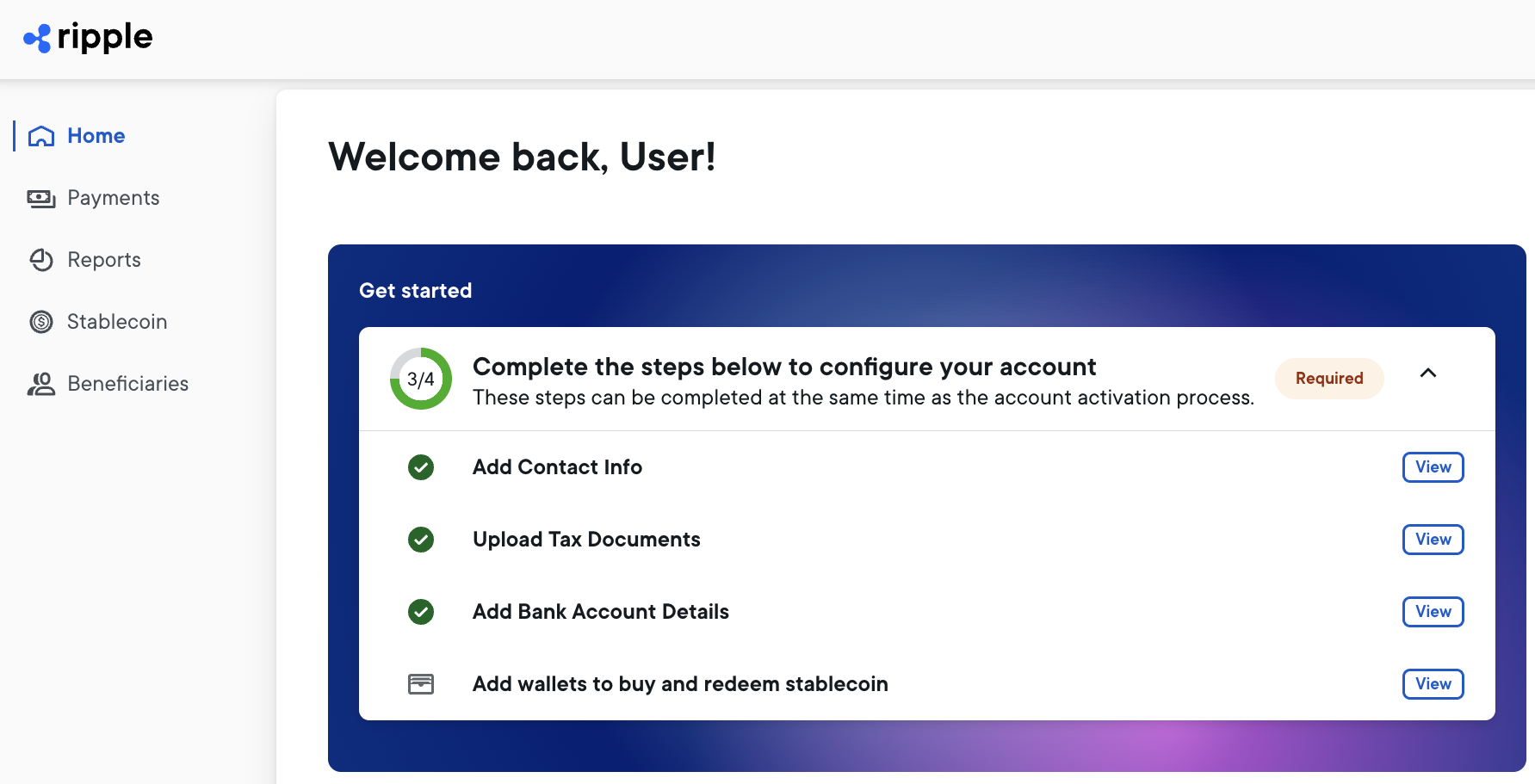
You sign in to the Payments Direct UI at home.ripple.com, using the same Ripple account that gives you access to product support.
When either Ripple or an administrator from your organization creates a new account for you, you receive two emails from Ripple:
- An email with the subject line Welcome to Ripple!, containing a link to home.ripple.com.
- An email with the subject line Set your Ripple Onboarding account password, containing a link for setting your password for the first time.
If you did not receive these emails, contact an administrator for your organization. If you are an administrator, contact technicalsupport@ripple.com.
Your password must contain:
- At least 12 characters.
- At least 3 of the following:
- Lower case letters (
a-z) - Upper case letters (
A-Z) - Numbers (
0-9) - Special characters (for example:
!@#$%^&*)
- Lower case letters (
- No more than 2 identical characters in a row.
If you forget your password, or need to reset it for any reason such as password expiration, go to home.ripple.com and select Forgot password?
To sign in, you need an authenticator app such as Google Authenticator or Microsoft Authenticator on your mobile device. You use it to generate a one-time authentication code when you sign in.
To sign in:
Go to home.ripple.com.
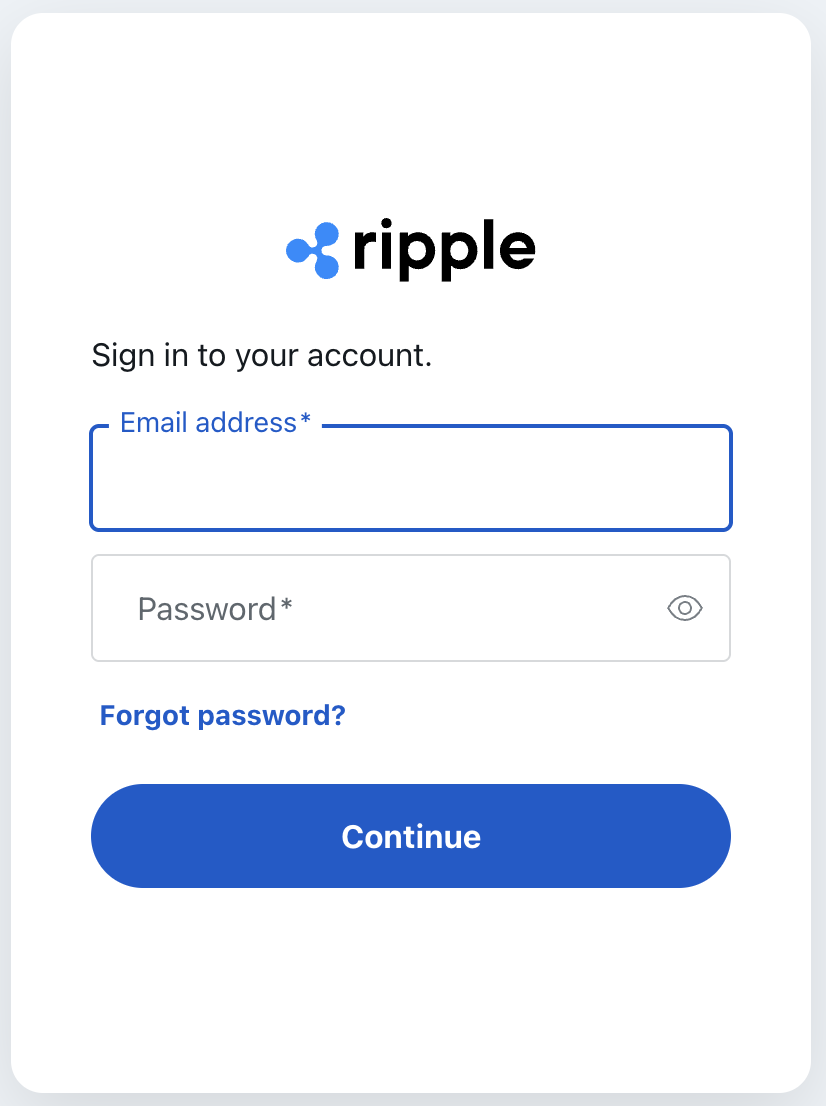
Enter the email address and password for your account, then select Continue.
When prompted for a one-time authentication code, check your authenticator app for the current code and enter it.
If you have never authenticated before, this step also displays a QR code. Scan it with your authenticator app to start generating codes.
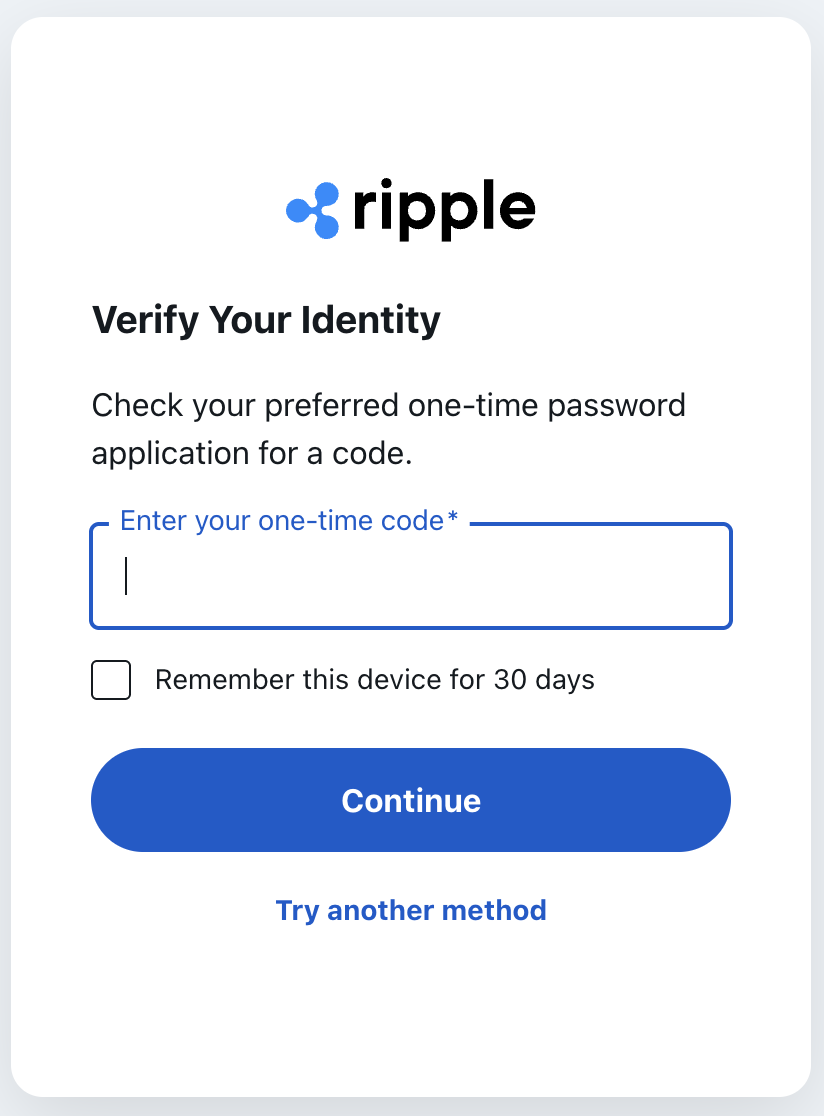
To skip this step for the next 30 days on this device, select Remember this device for 30 days.
Select Continue to complete the authentication.
When authentication is complete, the Welcome back! home page displays.