Set up asset sweeping by enabling source wallets and creating a sweep configuration, then manage, monitor, and troubleshoot your sweeps. For how sweeping works, including fee funding and native asset sweeping, see Asset sweeping.
| Action | Console role | Console procedure | API procedure |
|---|---|---|---|
| Enable source wallets | Owner, Administrator, Proposer | Enable source wallets | Update wallet settings |
| Create a sweep configuration | Owner, Administrator | Create a sweep configuration | - |
| Enable or disable a sweep | Owner, Administrator | Enable or disable a sweep | - |
| Run a sweep now | Owner, Administrator | Run a manual sweep | Trigger a sweep |
| Update a sweep | Owner, Administrator | Update a sweep | - |
| Delete a sweep | Owner, Administrator | Delete a sweep | - |
| Monitor sweep runs | Owner, Administrator, Auditor | Monitor sweep runs | Find sweep transactions |
Permissions: In the console, owners and administrators can create, update, and delete sweep configurations (workflows), and owners, administrators, and auditors can view them. Owners, administrators, and proposers can enable sweeping on a wallet. See User roles and permissions. Triggering a sweep and finding its transactions need an API credential of type TRANSACTIONS. Enabling sweeping on a wallet through the API needs a WALLETS credential.
Before you create a sweep configuration:
- For each source wallet, turn on Sweeping and Outgoing transactions.
- You must provision the Deposit wallet on the sweep blockchain.
- You must enable the wallet that you select in Fees wallet on the sweep blockchain. For blockchains that use native asset for fees, this wallet must hold enough native asset to pay transaction fees.
- Ripple Custody (Wallet) can sweep only source wallets that are eligible for the sweep blockchain.
Source wallets don't need a transaction policy, because asset sweeping bypasses transaction policies. See How source wallets work.
Required role: Owner, Administrator, or Proposer.
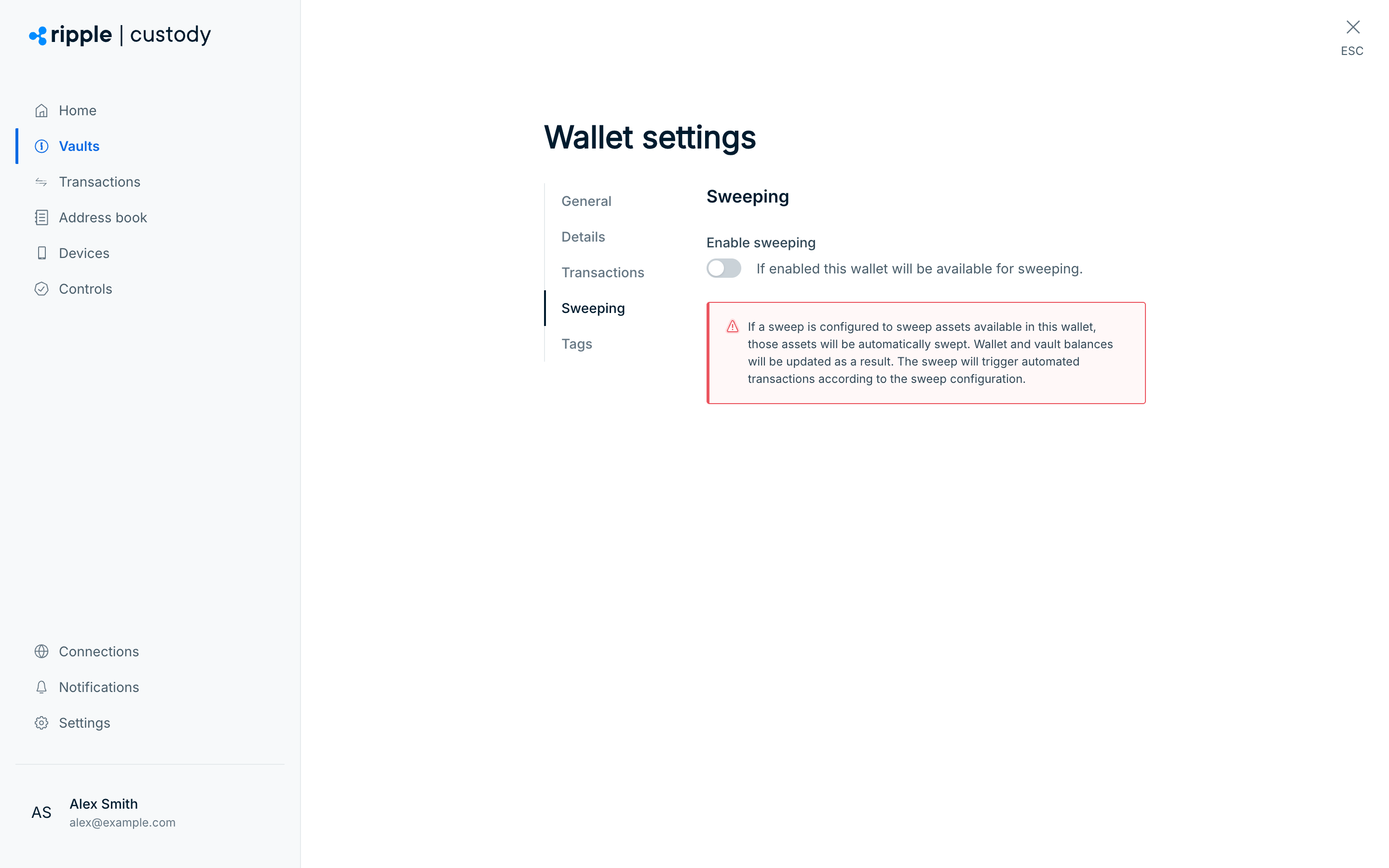
Enable sweeping on each wallet that acts as a source.
- Open the wallet and select the Settings gear icon.
- Go to the Sweeping tab.
- Turn on Enable sweeping, and in the Wallet sweeping dialog, select Enable.
- Go to the Transactions tab and turn on Outgoing, if it isn't already on. In the Enable transactions dialog, select Enable.
Only users with the Owner or Administrator role can create a sweep configuration. Other roles don't see Create sweep, and only owners, administrators, and auditors see Workflows under Settings. If you don't see it, ask an owner or administrator in your organization.
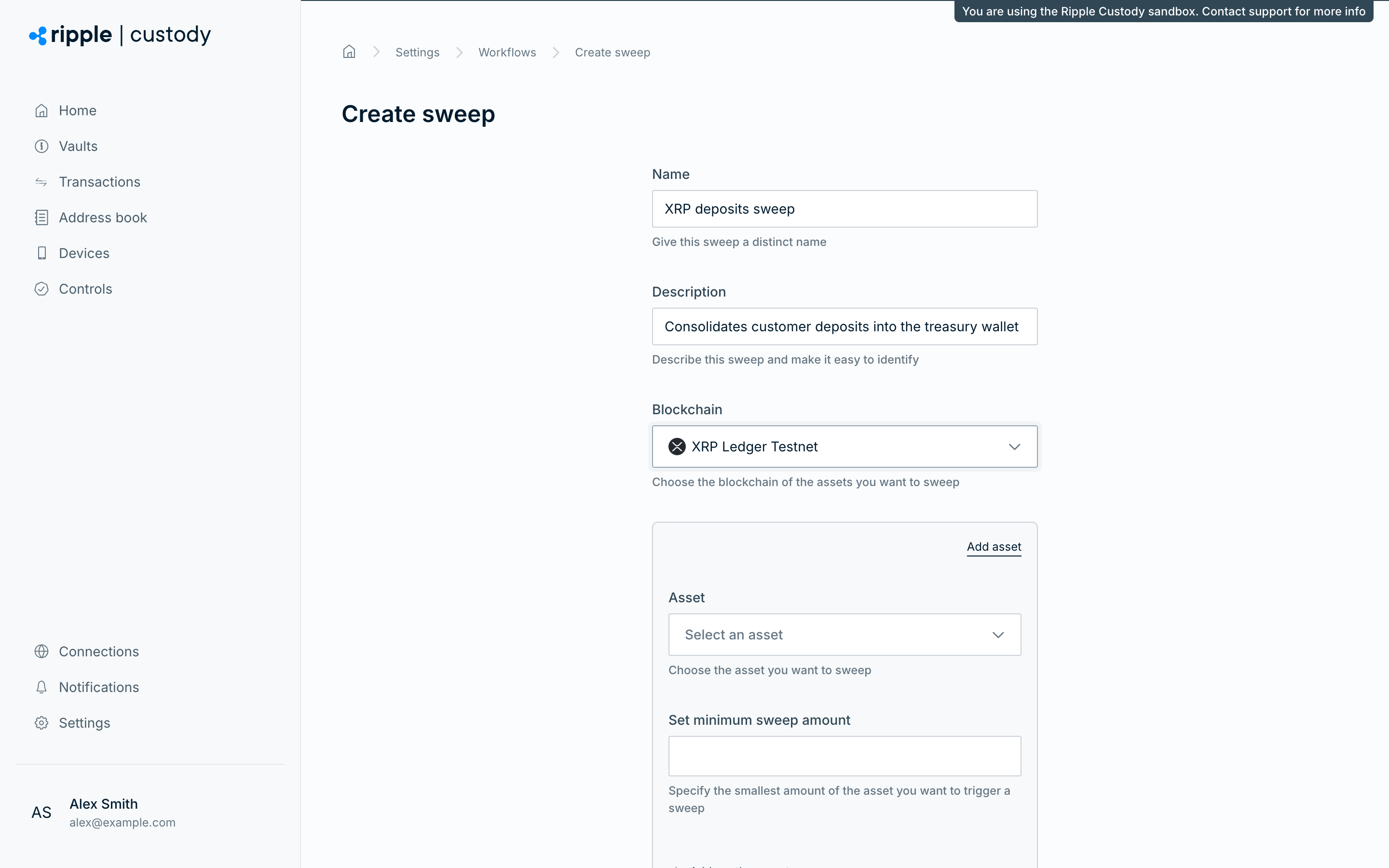
- Go to Settings > Workflows.
- Select Create sweep.
- Enter a name (5 to 50 characters) that describes the sweep.
- Enter an optional description (5 to 100 characters).
- Select the blockchain for this sweep. Ripple Custody (Wallet) marks blockchains that already have a sweep configuration and prevents you from selecting them.
- Add one or more assets to sweep:
- Select an asset from the Asset list, which shows the registry assets for the selected blockchain. If the token isn't listed, select Add asset to add it to the registry as a custom asset.
- To sweep the blockchain's native asset, select it from the Asset list — for example, BTC, ETH, TRX, or XRP.
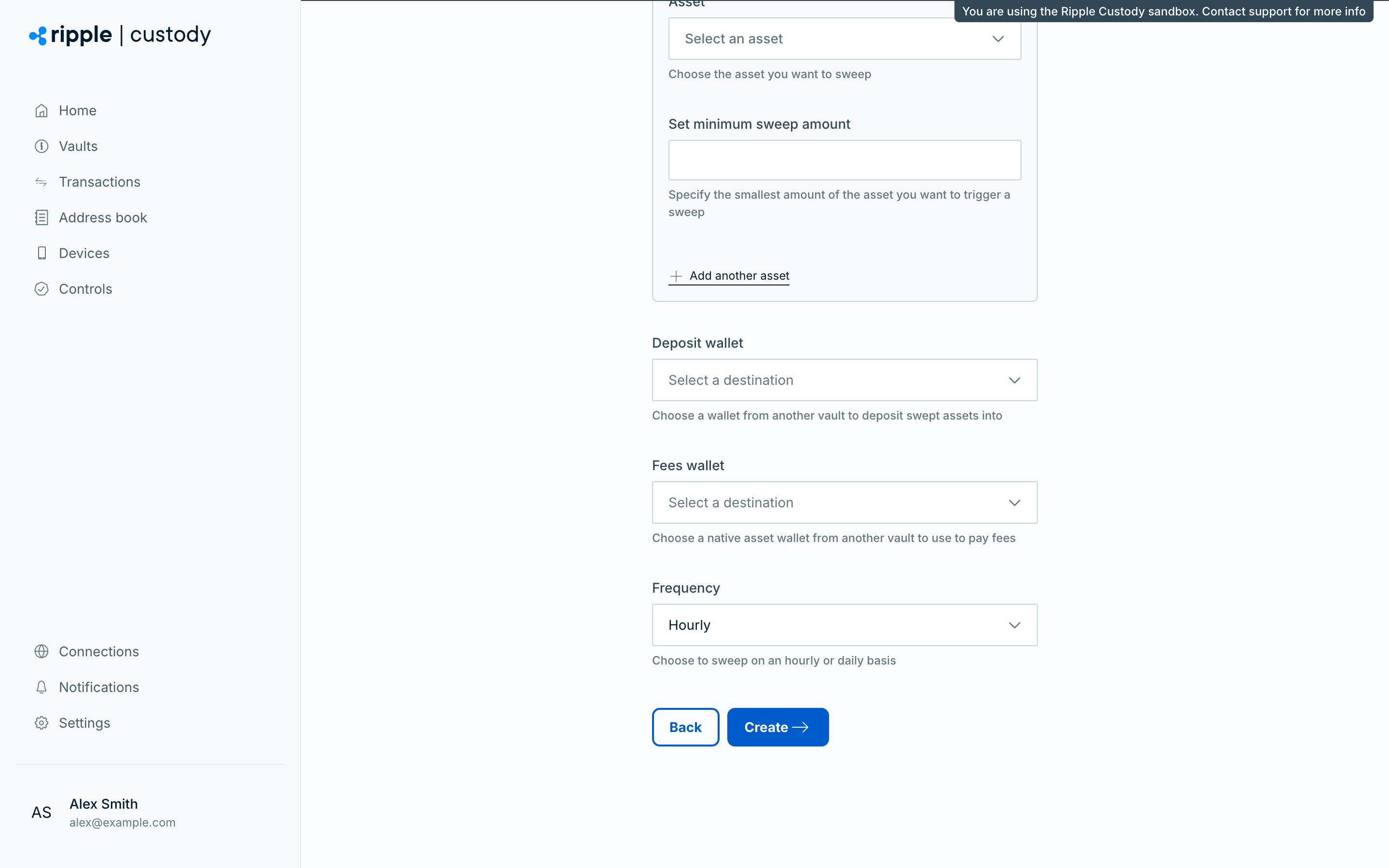
- Set the minimum sweep amount - the smallest balance that triggers a sweep from a source wallet. A minimum of
0sweeps any transferable balance. Ripple Custody (Wallet) skips wallets that have nothing to transfer without creating a transaction or reporting an error, and a run where every wallet is empty completes normally.
- Select the Deposit wallet - the wallet that receives swept funds. The list groups wallets by vault.
- Select the Fees wallet - the wallet that pays transaction fees. You must enable this wallet. For blockchains that use native asset for fees, fund it with the blockchain's native asset.
- Set the frequency:
- Hourly - the sweep runs every hour.
- Daily - the sweep runs once per day.
- Select Create.
You can create only one sweep configuration per blockchain. If you need to sweep multiple assets on the same blockchain, add them all to the same configuration.
Each sweep triggers automated transactions on your behalf. Make sure the sweep settings, wallet settings, and Deposit wallet are correct before you enable a sweep.
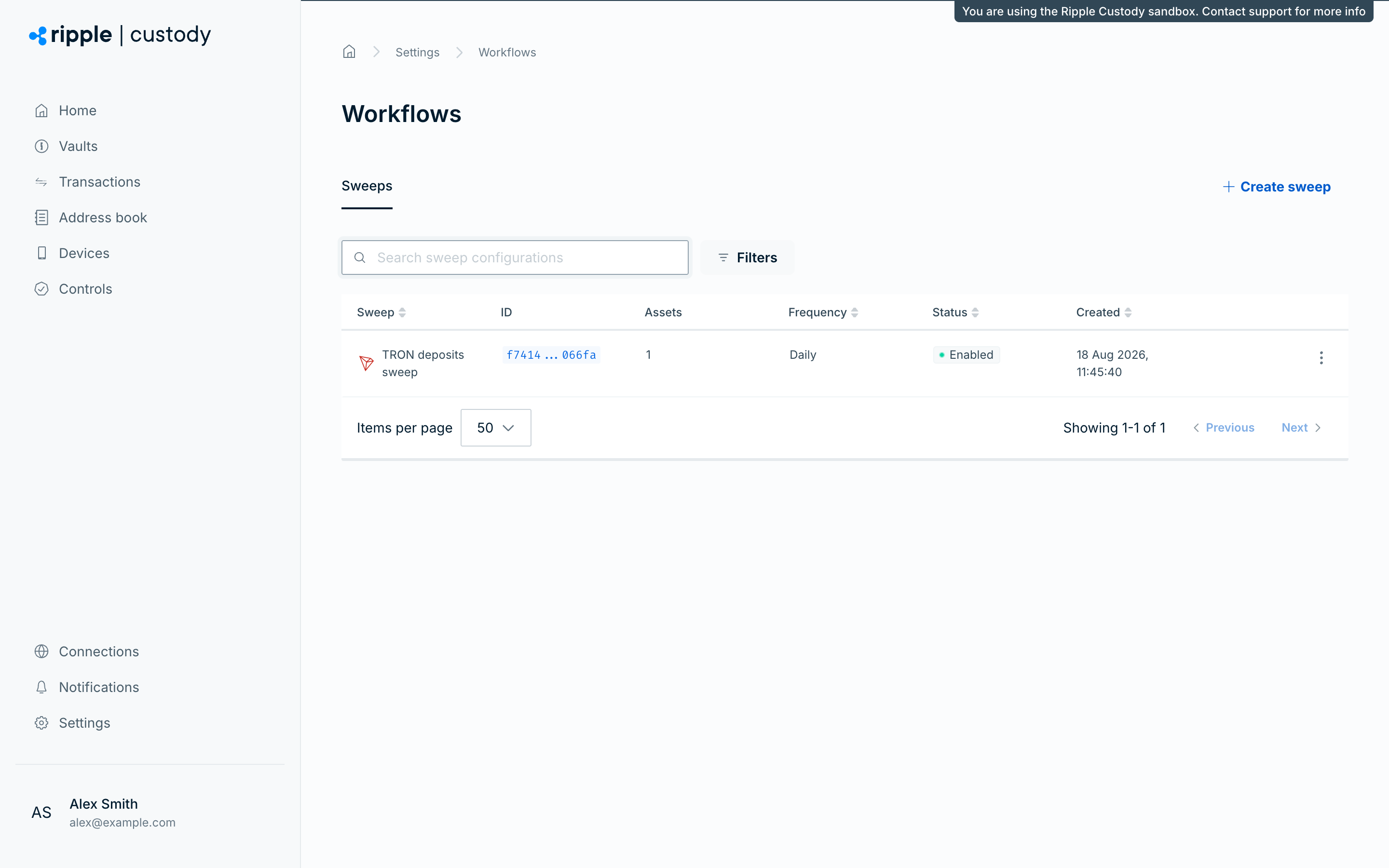
After you create a sweep, Ripple Custody (Wallet) lists it in Settings > Workflows. The list shows each configuration's ID, which you need to trigger the sweep through the API. To find a configuration, use Search sweep configurations, or select Filters to narrow the list by blockchain, status, sweep frequency, whether a sweep is running, last swept, name, description, ID, or date created or updated. Use the actions menu on a sweep configuration to select View for its details, or to perform the following actions.
Required role: Owner or Administrator.
Select Disable sweep or Enable sweep. A disabled sweep doesn't run on its schedule but retains its configuration.
Required role: Owner or Administrator.
Select Manual sweep to run the sweep immediately outside its normal schedule. Use this to test the configuration or to sweep funds on demand. Manual sweep is available only for an enabled sweep.
Required role: Owner or Administrator.
Select Edit sweep to change the name, description, assets, wallets, or frequency. You can't change the blockchain after you create the sweep.
Required role: Owner or Administrator.
Select Delete sweep. Deleting a sweep stops all future runs and removes the configuration. You can't undo this action.
Required role: Owner, Administrator, or Auditor.
Each time a sweep runs, Ripple Custody (Wallet) creates a sweep instance that records the results.
- Go to Settings > Workflows.
- From the sweep configuration's actions menu, select View.
- On the Sweep history tab, view the sweep instances with their ID, start and finish times, wallets, total swept, and status. To find an instance, use Search sweep instances, or select Filters to narrow the list by status, ID, date started, or date completed.
- Select an individual instance to see the transactions Ripple Custody (Wallet) created and the result of the run.
If the fee wallet doesn't have enough native asset, Ripple Custody (Wallet) can't fund source wallets that need fee funding for that run. Ripple Custody (Wallet) records a failed sweep instance and checks the configuration again on the next selected cadence, either hourly or daily. You can also top up the fee wallet and run a manual sweep.
Ripple Custody (Wallet) doesn't send a dedicated webhook when the fee wallet balance is low or empty. Transaction webhooks notify you about status changes for transactions that Ripple Custody (Wallet) creates, but they don't replace fee wallet balance monitoring. Monitor fee wallet balances separately.
| Issue | What to check |
|---|---|
| The fee wallet is missing from the dropdown | Make sure you enabled the wallet and that it uses the same blockchain as the sweep configuration. |
| Ripple Custody (Wallet) doesn't sweep a wallet | Make sure the wallet is eligible for the sweep blockchain, has Sweeping enabled, has Outgoing transactions enabled, and has an available balance that meets the minimum sweep amount. |
| A sweep keeps retrying without creating sweep transactions | Make sure the fee wallet holds enough native asset to pay sweep transaction fees or fund source wallets, depending on the blockchain. |
| The fee wallet is empty | Top up the fee wallet with native asset, then run a manual sweep or wait for the next hourly or daily run. |
| Small native asset balances remain in source wallets | Expect this behavior on just-in-time fee-funded chains. Ripple Custody (Wallet) leaves unused fee funding in the source wallet and considers it on later sweeps. On the XRP Ledger, the account also keeps its reserve. See Remaining native asset after a sweep. |
| Ripple Custody (Wallet) doesn't sweep a wallet's native asset | Ripple Custody (Wallet) sweeps native asset only after it finishes building the wallet's ownership records. Until then, it records the sweep instance as failed for that wallet and still sweeps the other wallets. If the wallet's tracked balance diverges from the on-chain balance, Ripple Custody (Wallet) skips the wallet's native asset without failing the instance. In both cases, it includes the wallet again on a later run. |
- Monitor fee wallet balances - keep enough native asset in each fee wallet for scheduled sweeps. For Bitcoin and Solana, the fee wallet pays sweep transaction fees directly. For just-in-time fee-funded chains, the fee wallet funds source wallets before the sweep transaction.
- Test in sandbox first - create and run a sweep in sandbox before you configure production sweeps.
- Set appropriate minimum amounts - set minimum sweep amounts high enough to avoid creating many small transactions that cost more in fees than they consolidate.
- Account for remaining native asset - if you use one-time receive wallets, plan for small native asset balances to remain after just-in-time fee-funded sweeps.
- Monitor sweep execution - review sweep instances, use audit logging to track sweep activity, and use webhooks for transaction status changes when Ripple Custody (Wallet) creates sweep transactions.
- Asset sweeping - How sweeping works, fee funding, and native asset sweeping
- Trigger asset sweeps via the API - Run a sweep on demand
- Manage wallets - Enable sweeping on individual wallets
- Policies - Understand why sweep transactions bypass policies