Ripple creates your organization on the Ripple Custody (Wallet) platform during onboarding. After setup is complete, your organization's first owner receives an invitation email with a link to activate their account. This page walks you through your first sign-in, the decisions to make before you invite your team, and the order in which to configure each part of the platform.
This page is for users with the Owner or Administrator role. If you want to evaluate the platform quickly by sending a first transaction in sandbox, follow the console quickstart instead.
Owners and administrators share nearly identical permissions. The key difference: only owners can update organization-level settings, such as single sign-on (SSO) and the travel rule connection, and only owners can create backups in Backup & Recovery. See User roles and permissions for the full permission matrix.
Make sure you have:
- An invitation email from Ripple for an Owner or Administrator account
- A mobile device with an authenticator app (for example, Google Authenticator or Authy) for two-factor authentication (2FA)
- At least 2 devices available for MPC key shard distribution (mobile devices running Ripple Custody (Wallet) Mobile, CloudSign instances, or a combination)
- A list of team members you plan to invite, along with their intended roles
If you haven't received an invitation email, check your spam folder. If you still can't find the email, contact Ripple Support.
Ripple provides sandbox access during onboarding so you can configure and test the platform before going live. Complete your setup in sandbox first, then repeat it in production.
| Environment | Console URL | API base URL |
|---|---|---|
| Sandbox | https://app.sandbox.palisade.co | https://api.sandbox.palisade.co |
| Production | https://app.palisade.co | https://api.palisade.co |
- Open the invitation email from Ripple.
- Select the activation link.
- Follow the prompts to set your password and configure two-factor authentication (2FA).
- Go to the Ripple Custody (Wallet) console URL provided during onboarding.
- On the Enter Your Organization page, enter your organization name, then select Continue.
- On the Welcome page, enter your email address and password, then select Continue.
- On the Verify Your Identity page, open your authenticator app, enter the 2FA code, then select Continue.
Ripple Custody (Wallet) supports two authentication methods. An owner in your organization configures which method is available.
Username and password is the default authentication method. Sign in with the credentials you created during account activation.
If your organization has configured SSO with a third-party identity provider (such as Google, Okta, or PingFederate), your organization's login page redirects you to your identity provider after you enter your organization name. Authenticate through your provider to complete sign-in.
After you sign in, the console displays the following main sections in the sidebar:
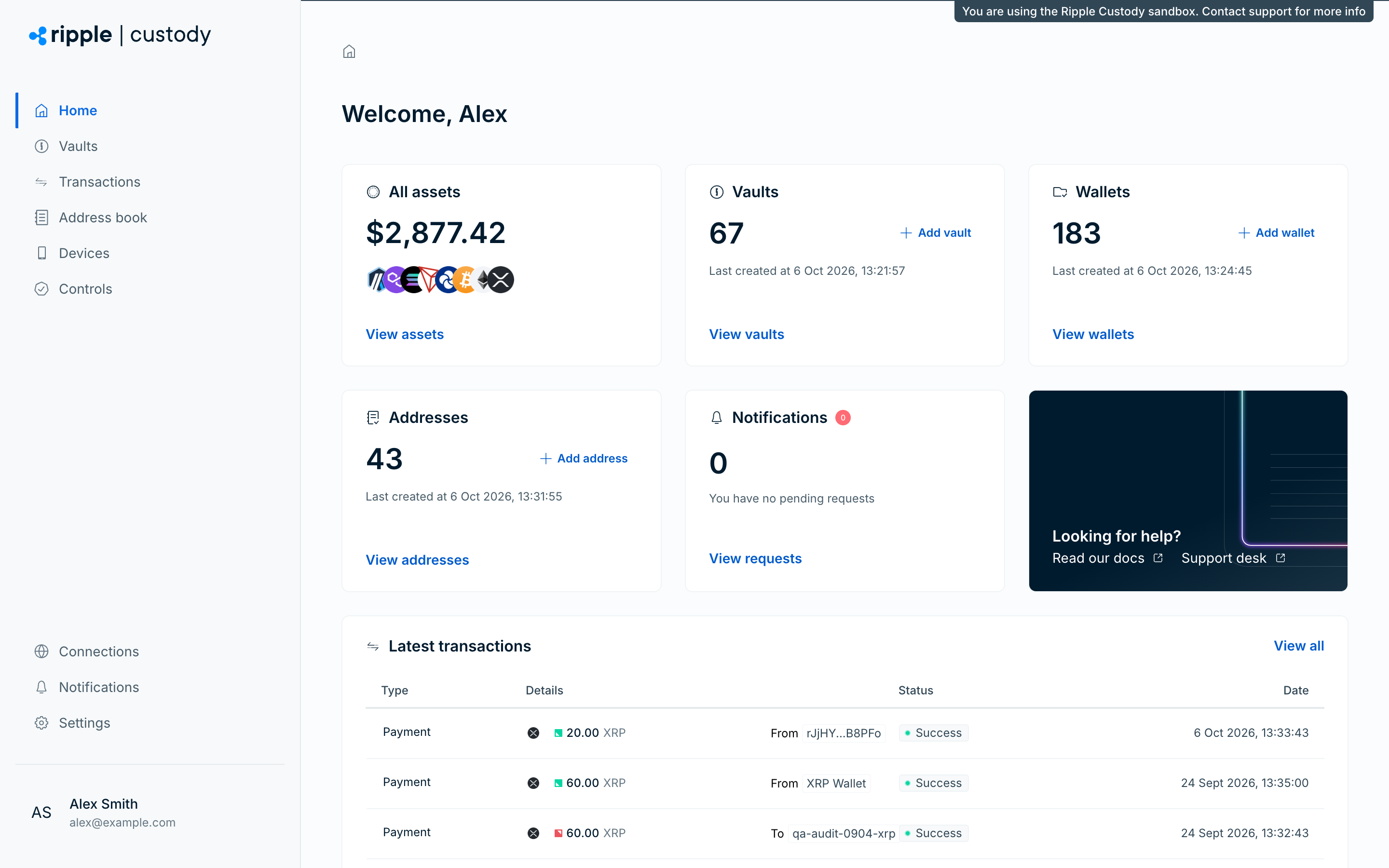
- Home — View a summary of your organization's activity, including asset totals, vault and wallet counts, address book entries, and pending notifications.
- Vaults — Create and manage vaults and the wallets within them.
- Transactions — View and search transactions across all your wallets.
- Address book — Manage counterparties and their blockchain addresses (tabs: Counterparties, Addresses).
- Devices — Add and manage mobile and CloudSign devices for MPC signing (tabs: Internal, External).
- Controls — Configure approval groups (tab: Approval groups) and MPC quorums (tab: MPC Quorums).
- Connections — Open WalletConnect connections to external dapps.
- Notifications — Open the notifications panel to view pending approval requests (tab: Approvals).
- Settings — Access your account and organization management, including Security, User management, API credentials, Webhooks, Backup & Recovery, Workflows (sweeps), Audit logs, Integrations (travel rule and AML providers), and Registry (assets and blockchains).
A new organization has no vaults, wallets, devices, or policies configured. Plan your organization structure, then follow the recommended setup order to build out each component.
Before you invite users or create wallets, decide on these key areas.
Ripple Custody (Wallet) supports two authentication methods: username and password (the default) and single sign-on (SSO) with a third-party identity provider.
Ripple Custody (Wallet) locks the authentication method for each user when you send the invitation, and you can't change it afterward. If your organization uses SSO, configure it before sending any invitations. If your organization supports both username and password and SSO, set the correct default authentication method before sending each invitation. See Configure single sign-on.
Decide which roles your team members need. Ripple Custody (Wallet) provides six roles:
| Role | Purpose |
|---|---|
| Owner | Full access to all features and settings, including organization-level configuration. |
| Administrator | Full access to all features and settings. Can't change organization-level settings. |
| Proposer | Can manage wallets and initiate transactions. |
| Approver | Can review and approve transactions and other pending actions. |
| Viewer | Read-only access to wallets, transactions, and reports. |
| Auditor | Read-only audit access to organization activity and configurations. |
See User roles and permissions for a detailed breakdown of what each role can do.
At minimum, most organizations need:
- At least 2 owners or administrators for redundancy
- At least 1 proposer to initiate transactions
- At least 2 approvers for multi-party approval
Plan how you want to distribute MPC key shards across devices. Consider:
- How many devices hold key shards (more devices = higher resilience)
- How many devices must sign each transaction (higher threshold = stronger security)
- Who controls each device (distribute across team members for separation of duties)
- Device types — mobile devices for manual review, CloudSign for automated signing, or a mix
Decide which operations require human approval before they take effect:
- Transactions
- Address book entries
- Policy rule changes
- API credential creation
- User invitations
- Device registration
A fintech company uses Ripple Custody (Wallet) to manage institutional ETH and XRP custody. Their team has 6 people:
| Person | Role | Responsibility |
|---|---|---|
| Sarah (CTO) | Owner | Organization settings, emergency access |
| James (Ops lead) | Administrator | Day-to-day platform management |
| Maria (Trader) | Proposer | Initiates transactions |
| Ravi (Trader) | Proposer | Initiates transactions |
| Lisa (Compliance) | Approver | Reviews and approves transactions |
| Tom (Compliance) | Approver | Reviews and approves transactions |
Their decisions:
- Authentication — SSO with Okta, configured before sending invitations.
- Quorum design — one 3-of-5 Cloud quorum using CloudSign instances for automated signing. The higher threshold balances security with availability.
- Vault structure — two vaults: "Hot Wallet Operations" for daily trading and "Cold Storage" for reserve holdings.
- Approval structure — transaction approval group with Lisa and Tom as approvers, threshold of 1. Address and policy approvals require both (threshold of 2) since these changes are less frequent but higher risk.
- Policies — per-transaction limit of 50 ETH on hot wallets, rolling 24-hour limit of 500 ETH. Cold storage has lower limits and restricted destinations.
- Freeze controls — automatic freeze enabled on cold storage wallets for compliance review of every deposit.
This gives them separation of duties (traders propose, compliance approves), automated signing (CloudSign), and layered controls (policies + approvals + freeze).
After you plan your organization structure, configure each component in this order. Each step builds on the previous one.
| Step | What you do | Guide |
|---|---|---|
| 1 | Set up SSO before inviting users (if applicable). Owner role only. | Configure single sign-on |
| 2 | Invite your team and assign roles | Manage users |
| 3 | Approve devices for MPC signing | Add and manage devices |
| 4 | Set up AWS infrastructure for key backups before creating quorums. Owner role only. | Backup and recovery |
| 5 | Create signing quorums and assign backup kits | MPC quorums |
| 6 | Create vaults and wallets | Manage wallets |
| 7 | Configure wallet-level freeze behavior before enabling sends | Transaction freeze |
| 8 | Define allowed transactions | Manage policies |
| 9 | Register counterparties and external destinations | Manage the address book |
| 10 | Add governance and human oversight | Configure approval flows |
| 11 | Set up programmatic access (if needed) | Manage API credentials |
| 12 | Receive real-time event notifications | Manage webhooks |
| 13 | Automate fund consolidation (if needed) | Configure asset sweeping |
| 14 | Stream organization activity to AWS Firehose for compliance | Audit logging |
After setup, prepare for incidents: Disaster recovery describes how to restore a node database or recover wallets.