Ripple Custody (Wallet) supports single sign-on (SSO) using a third-party login.
SSO lets your team authenticate through your organization's existing identity provider (for example, Google, Okta, or PingFederate) instead of a separate Ripple Custody (Wallet) username and password. This can greatly simplify the sign-in process.
The authentication method is permanently locked to each user at invite time. If your organization uses SSO, complete this setup before you send any invitations. See Manage users for invitation steps.
Use SSO when your organization:
- Uses a centralized identity provider (Google Workspace, Okta, PingFederate, or another SAML or OIDC provider)
- Requires consistent authentication policies and sign-in controls across all internal tools
- Wants to reduce password fatigue for team members
- Needs centralized access revocation when employees leave
- Is confident in its existing security posture and SSO configuration
- You want to segregate both authentication and authorization from your organization's single sign-on
- You aren't confident that your organization's SSO controls are strong enough to also protect your access to Ripple Custody (Wallet)
Important: Once you switch to using SSO with Ripple Custody (Wallet), you're responsible for securing your SSO access and for having adequate governance controls in place to prevent unauthorized access to Ripple Custody (Wallet).
Ripple Custody (Wallet) provides built-in support for the following identity providers:
| Provider | Protocol |
|---|---|
| Okta | OIDC |
| ADFS | SAML |
| Entra ID | OIDC |
| Google Workspace | OIDC |
| Keycloak | SAML |
| PingFederate | SAML |
If your provider isn't listed, select Custom SAML or Custom OIDC to configure a connection manually. Use these options for Azure AD B2C, or to connect Entra ID over SAML instead of OIDC.
Only users with the Owner role can set up SSO. Other roles, including Administrator, don't see Add new method under Settings > Security. If you don't see it, ask an owner in your organization to complete these steps.
You need administrator access (or equivalent) on your identity provider, and the Owner role in Ripple Custody (Wallet). Only owners can add, remove, or change authentication methods.
If the console can't generate a setup link, contact your Ripple representative to use SSO.
Go to Settings > Security.
In the Authentication methods section, username/password is displayed as the default authentication method. Select Add new method.
A dialog appears with the heading Create a connection using the link. Ripple Custody (Wallet) generates a one-time setup link.
Select Create connection. This opens a new browser window with the Auth0-hosted setup assistant. Ripple Custody (Wallet) uses Auth0 as the identity broker, so Auth0 stores the credentials, certificates, and metadata you configure on Ripple Custody (Wallet)'s behalf.
Select Get Started. On the Select Your Identity Provider page, choose your provider (or select Custom SAML or Custom OIDC).
Follow the setup wizard to connect your SSO platform to Ripple Custody (Wallet).
Once complete, the new authentication method appears in the Authentication methods table.
Set the new authentication method as the default. See Set the default authentication method.
Invite users as normal, using their existing SSO email address. See Manage users.
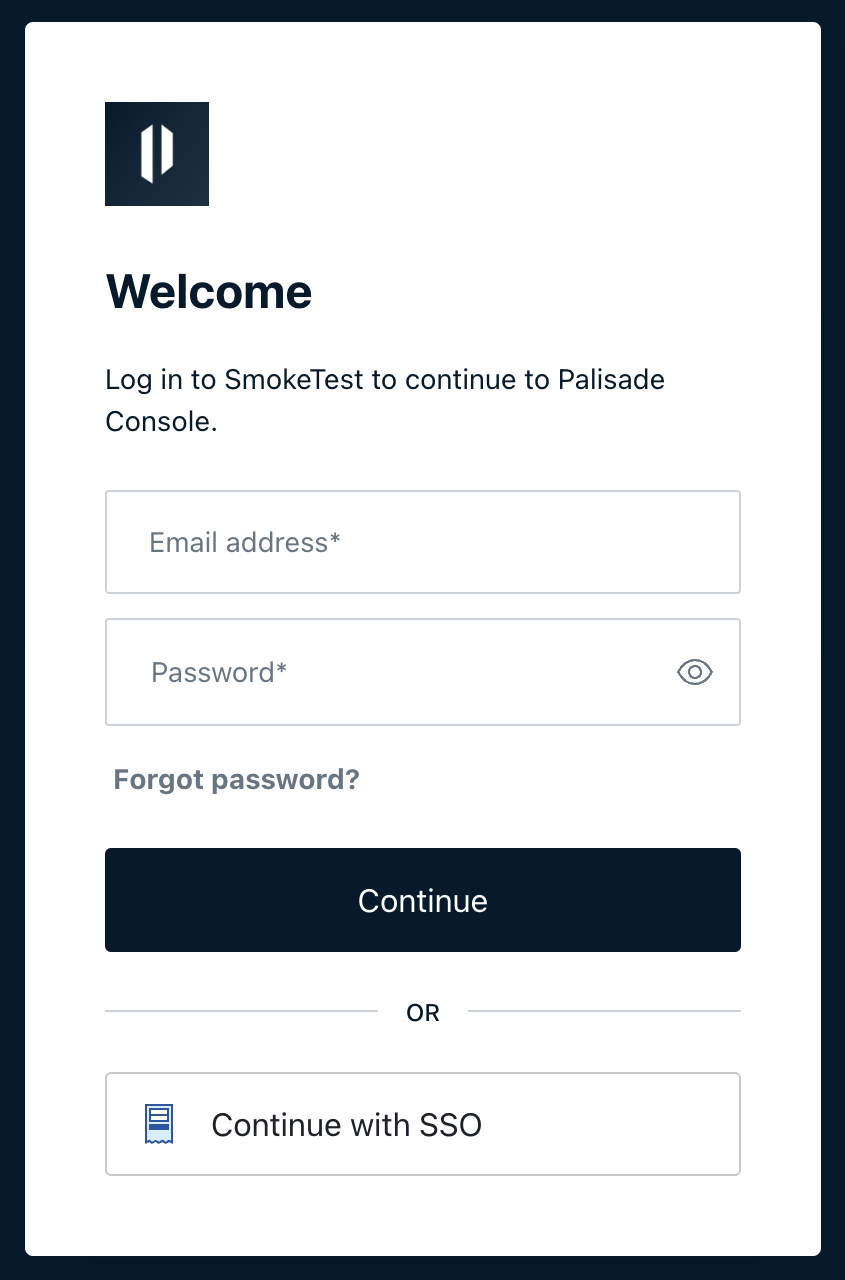
The user accepts their invitation as normal and signs in to Ripple Custody (Wallet) by selecting Continue with SSO.
After you open the setup link, you have 5 hours to complete the setup, and you can access the link a maximum of 10 times. If it expires before you complete the setup, you must create a new authentication method and generate a fresh link.
Each provider has its own configuration steps in the setup assistant. You typically need values from your identity provider, such as a client ID, client secret, domain, or metadata URL. Refer to your provider's documentation for details on creating an SSO application.
Required role: Owner. Other roles don't see the Actions menu in the Authentication methods table.
After you configure SSO, your new method appears in the Authentication methods table on the Security page. The table shows:
| Column | Description |
|---|---|
| Method | The authentication method name (for example, "Username / Password" or your SSO provider name) |
| Identifier | The connection identifier |
| IDP | Whether IdP-initiated sign-in is enabled for a Custom SAML method (Enabled or Disabled) |
| Action | Actions menu for managing the method |
The default method determines how new users authenticate when you send them an invitation. New invitations use the default method automatically.
- Go to Settings > Security.
- In the Authentication methods table, find the method you want to use as the default.
- Open the Action menu (three dots) for that method and select Use as default.
Set the default method before you send an invitation. Once a user has been invited to Ripple Custody (Wallet), you can't change the authentication method they use.
If you want the authentication method to vary depending on which user you're inviting, change the default authentication method to the method you want before you send each invitation.
For a Custom SAML method, you can let users start sign-in from your identity provider, for example from an application tile in your provider's portal (IdP-initiated sign-in). The IDP column in the Authentication methods table shows whether IdP-initiated sign-in is enabled.
- Go to Settings > Security.
- In the Authentication methods table, find the Custom SAML method.
- Open the Action menu and select Enable IDP or Disable IDP.
Disabling IdP-initiated sign-in doesn't stop users from signing in with Continue with SSO on the Ripple Custody (Wallet) sign-in page.
- Go to Settings > Security.
- In the Authentication methods table, find the method to remove.
- Open the Action menu and select Remove method.
You can't remove the default authentication method or the built-in username/password method. Change the default to a different method first if you need to remove the current default.