The Ripple Custody (Wallet) user management framework lets your organization assign different levels of responsibility and access to team members according to how your business is set up. As an owner or administrator, you control who can access your organization and what they can do.
To access user management, go to Settings > User management.
Assign each user the role with the least privilege needed for their responsibilities. See User roles and permissions for a summary of each role and the full permission matrix.
You can't change a user's authentication method after the invitation is sent. If your organization uses SSO, configure it before inviting users. See Single sign-on.
| Action | Console role | Console procedure |
|---|---|---|
| Invite a user | Owner, Administrator | Invite a new user |
| Update a user's details or role | Owner, Administrator | Update user |
| Reset a user's 2FA | Owner, Administrator | Reset 2FA |
| Reset a user's password | Owner, Administrator | Reset password |
| Block or unblock a user | Owner, Administrator | Block user |
| Edit your own profile | All roles | Edit your own profile |
Permissions: Owners and administrators can invite, update, block, and reset other users. Every role except auditor can update their own profile and reset their own password and 2FA. See User roles and permissions.
Go to Settings > User management.
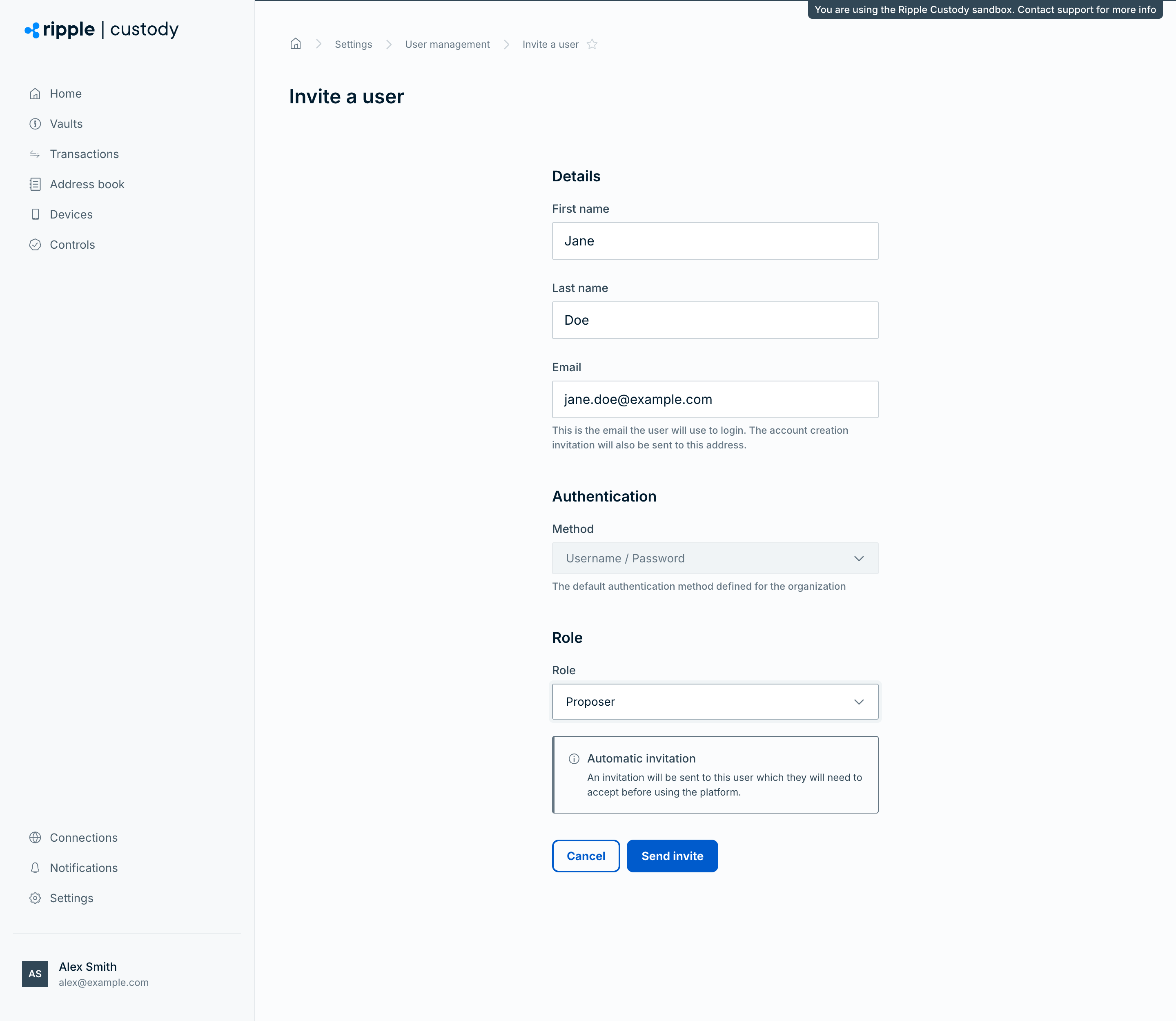
Select Invite a user.
Enter the user's first and last names.
Enter the user's email address.
The user receives the account creation email at this address and uses it to sign in to the platform.
Check the authentication Method.
The field shows your organization's default authentication method, and you can't change it in the invitation form. To invite the user with a different method, such as single sign-on, first make that method the default in Settings > Security. See Set the default authentication method.
Select the Role to assign to the user.
The role determines which features and functionality the user can access. See User roles and permissions.
Select Send invite.
The user accepts the email invitation and creates an account.
You can require approval before new user invitations are sent. This prevents any single administrator from unilaterally adding users to the organization. See Configure approval flows.
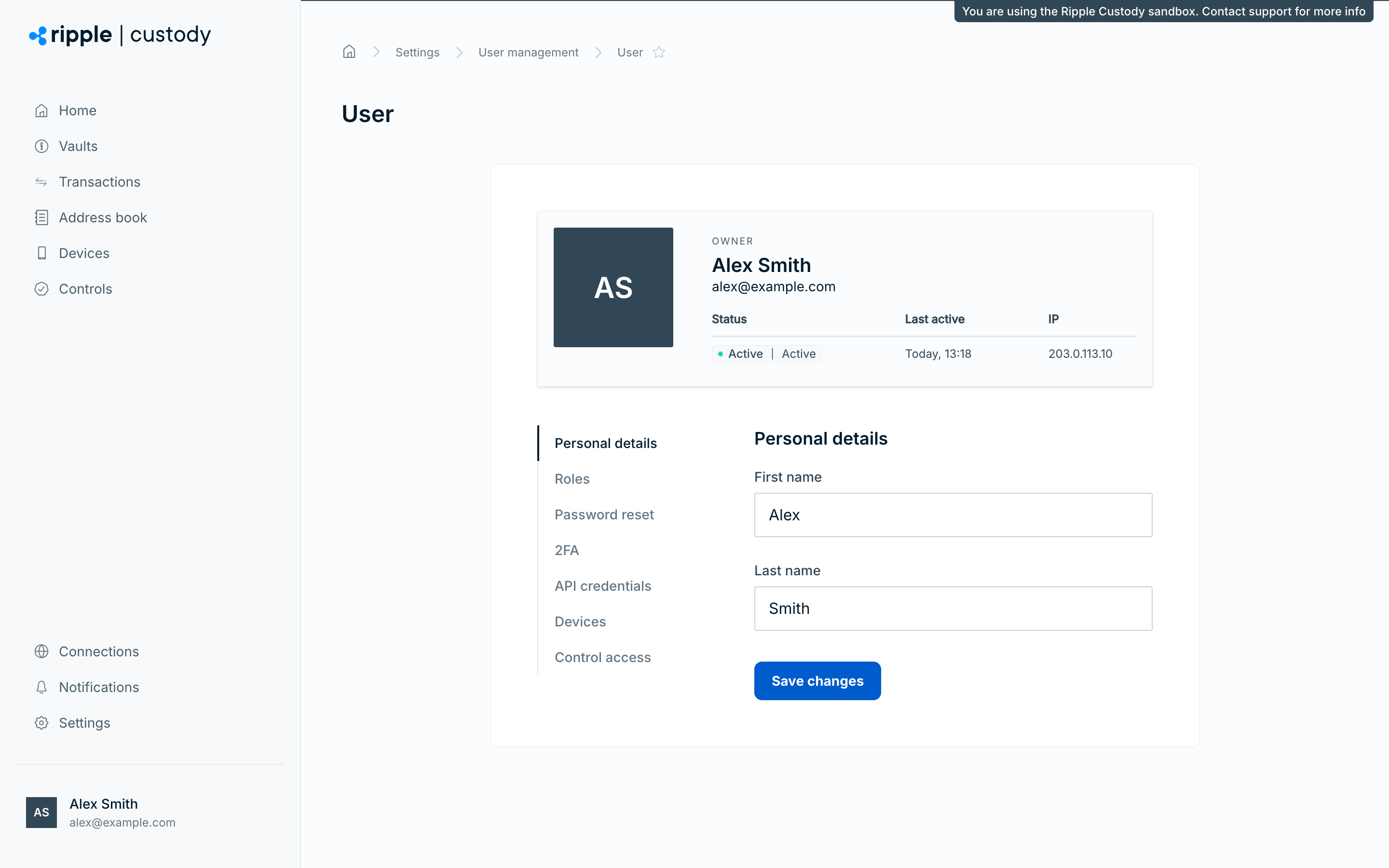
After you invite users, they're listed in a table on the User management page. To find a user, enter a name or email address in Search users, or select Filters to narrow the list by role, status, name, email, ID, or date created or updated. Owners and administrators can manage an existing user in two ways:
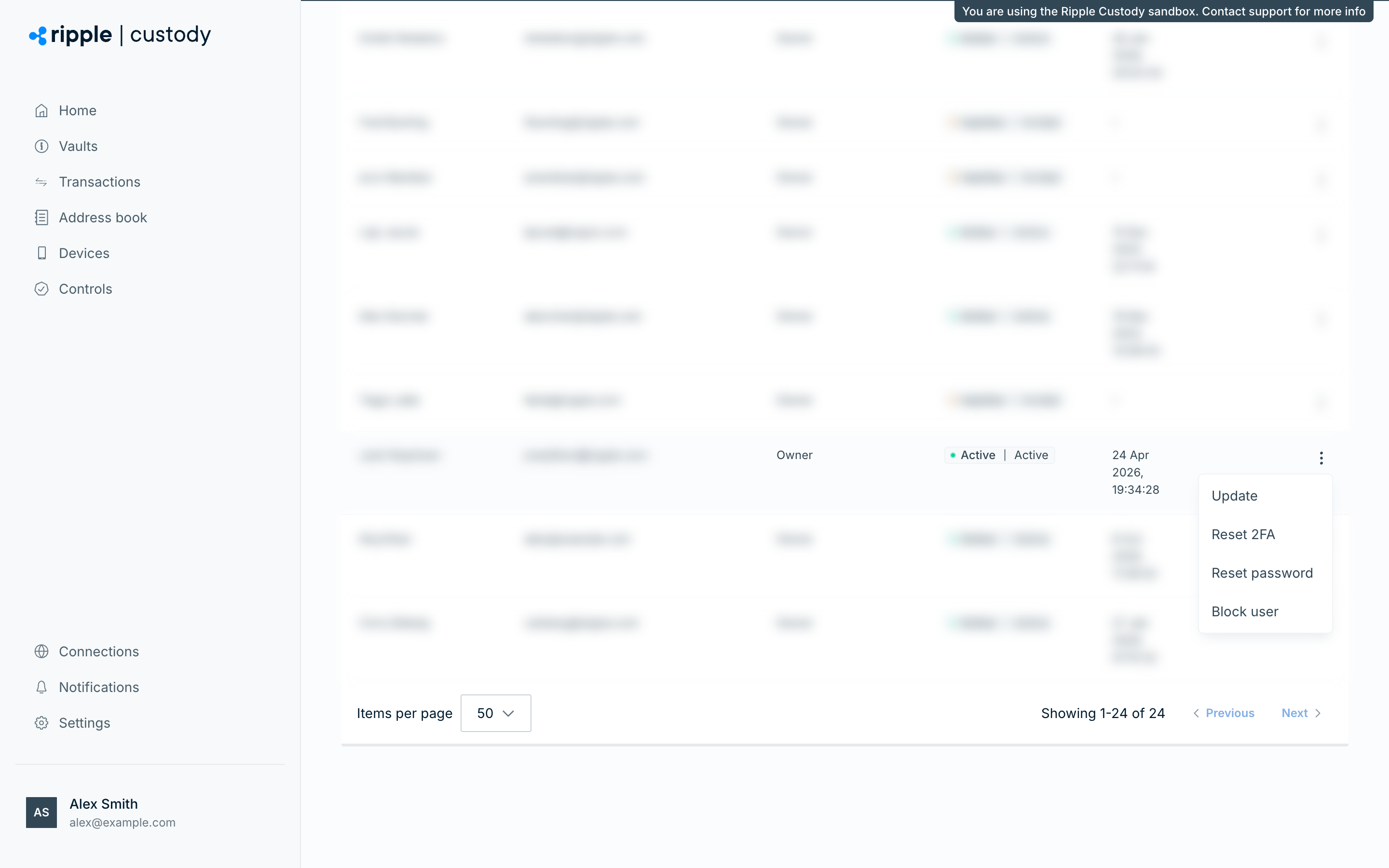
- From the user list: open the Actions menu (three dots) in the user's row. For an active user, the menu provides Update, Reset 2FA, Reset password, and Block user. For a user who hasn't accepted their invitation yet, it provides only Resend invitation. A blocked user's menu provides Unblock user, and a rejected user's menu provides Delete user.
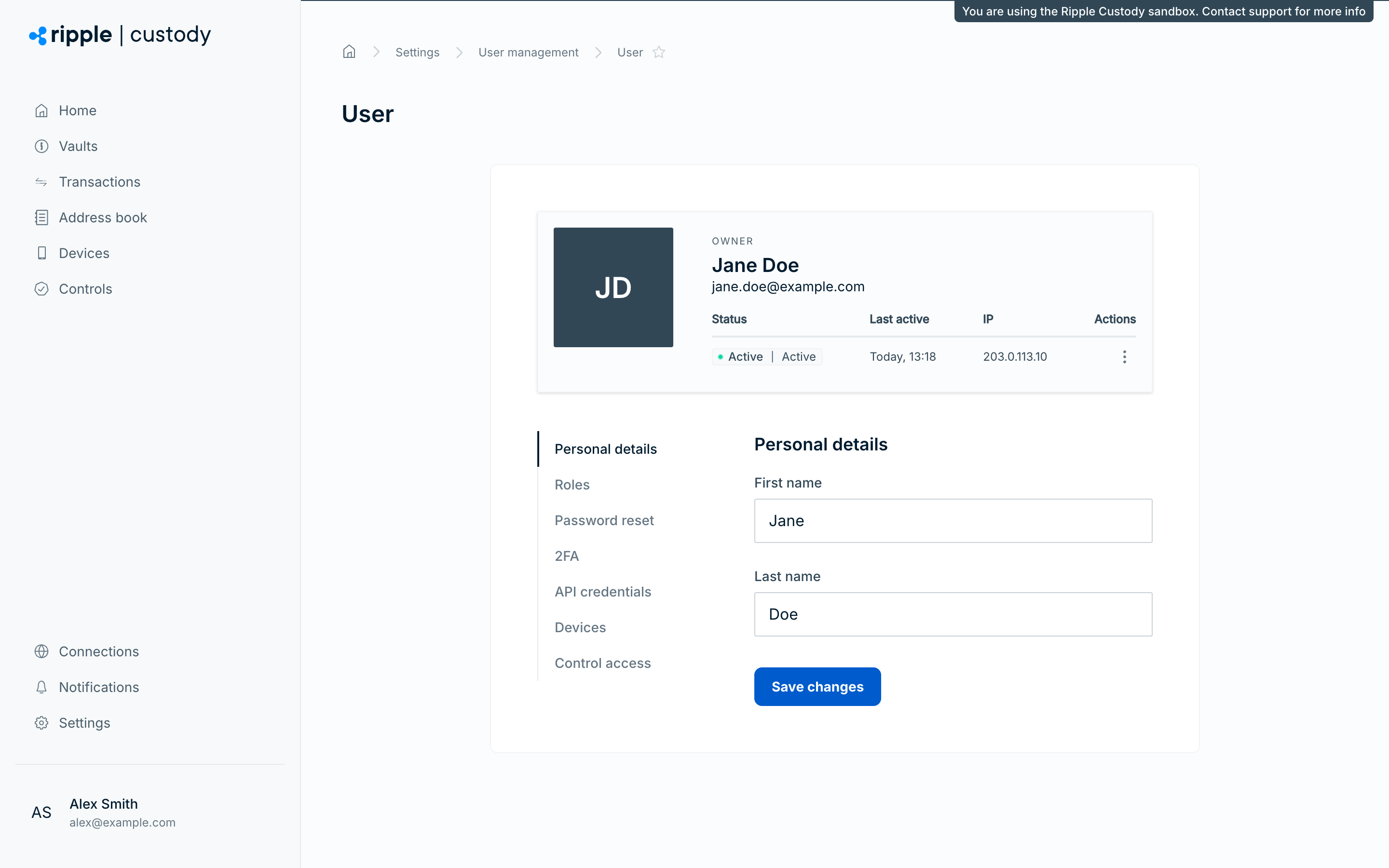
- From the user profile: select a user's name to open their profile. The sidebar tabs (Personal details, Roles, Password reset, 2FA, API credentials, Devices, and Control access) provide the same actions, plus a Block access button on the Control access tab.
The following table summarizes each user management action and when to use it.
| Action | When to use | Reversible? |
|---|---|---|
| Invite | Onboard a new team member | No (you can't unsend an invitation) |
| Edit profile | Change a user's name or role | Yes |
| Reset password | The user loses access, or you suspect a password compromise | Yes (the user sets a new password) |
| Reset 2FA | The user lost access to their authenticator app | Yes (the user re-enrolls) |
| Block | Revoke access immediately while preserving the account | Yes (unblocking restores access) |
| Unblock | Restore a previously blocked user's access | Yes |
The Update option displays a summary of the user, including:
- Personal details (first and last name)
- Role
- Password reset option
- 2FA reset option
- API credentials created by the user
- Devices
- Block access option
You can edit personal details and role. You can view or reset the other categories.
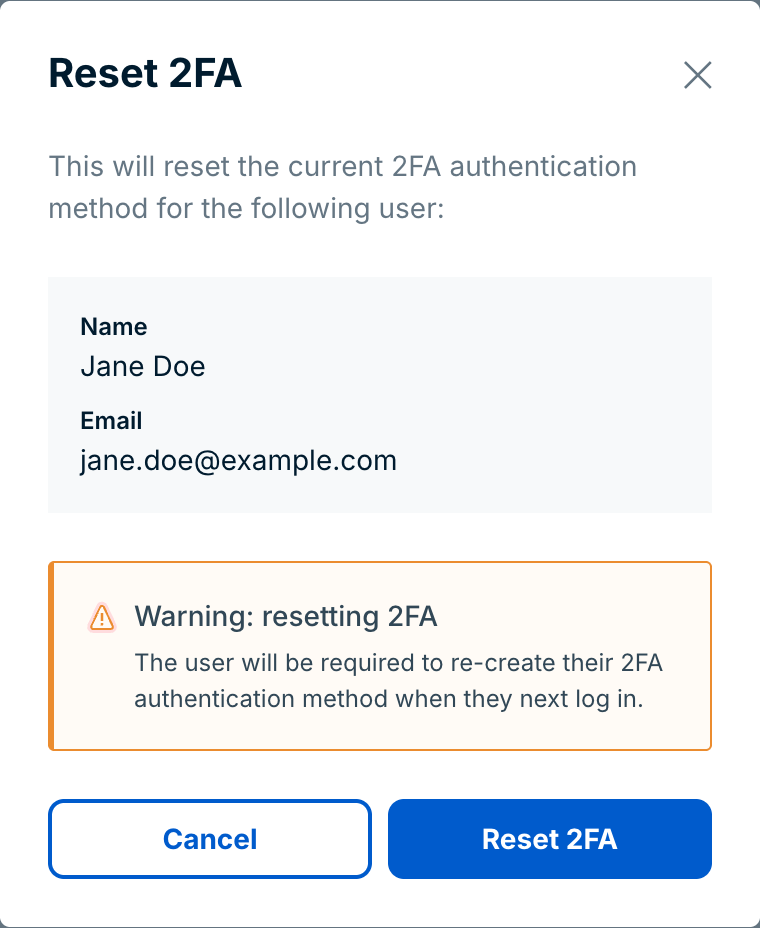
To reset another user's 2FA, select Reset 2FA or Update in the Actions column.
The user must set up their 2FA authentication method again the next time they sign in.
To reset another user's password, select Reset password or Update in the Actions column.
Ripple Custody (Wallet) emails the user instructions with a link to reset their password.
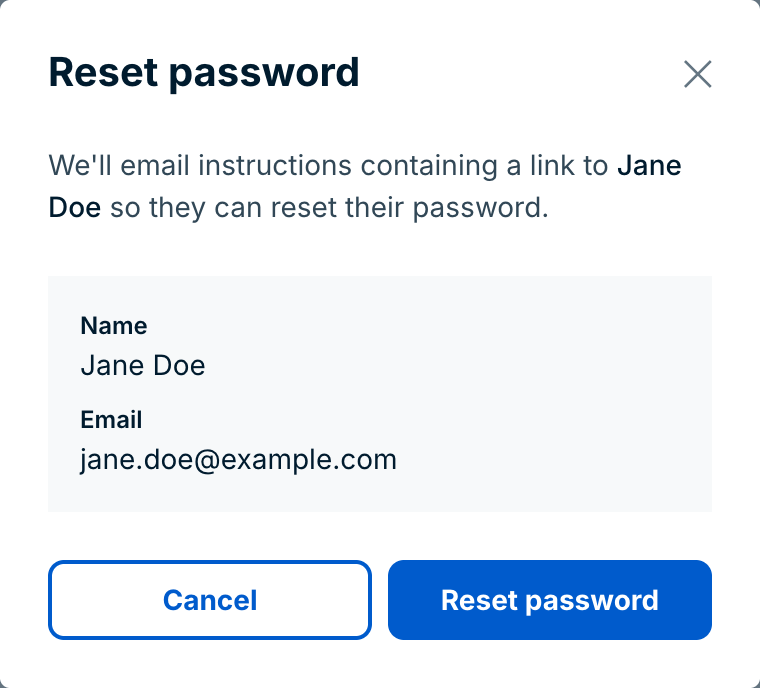
Before you reset a user's password or 2FA, verify their identity through an out-of-band channel, such as a phone call or in-person confirmation. Resetting credentials based on email requests alone creates a social engineering risk.
To block another user, select Block user or Update in the Actions column. You're prompted to enter a reason for blocking the user.
A blocked user can't sign in or use the platform. Owners and administrators can unblock the user at any time.
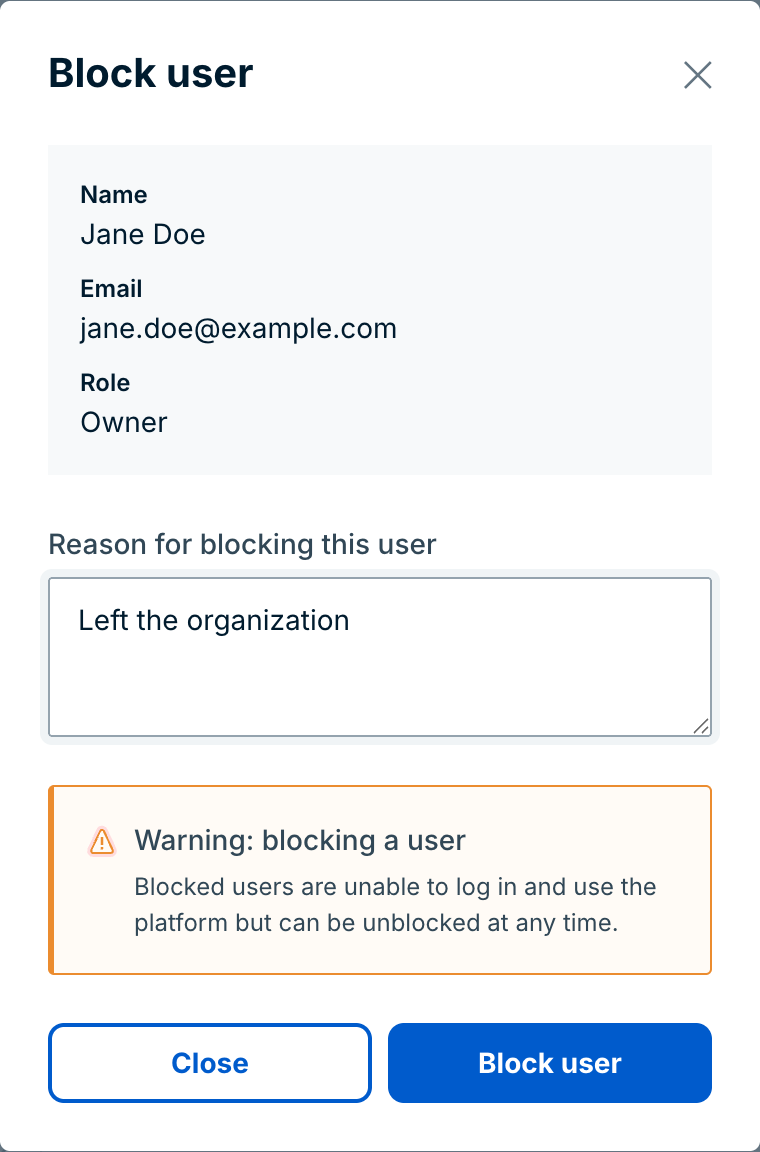
Ripple Custody (Wallet) doesn't support deleting active users. Use blocking to revoke access while preserving the user's audit trail. You can delete a user only after approvers reject their creation approval, which gives the user the Rejected status.
| Scenario | Action | Why |
|---|---|---|
| A team member leaves the organization | Block | Preserves the audit trail and prevents access. |
| Suspected account compromise | Block immediately | Stops access while you investigate. |
| Temporary leave or role change | Block | Restores access easily when the user returns. |
You can't block or delete a user who hasn't accepted their invitation. You can block the user once they activate their account.
To edit your own profile, go to Settings > Profile.
You can view and edit your own personal details, reset your password and 2FA, and view your role, API credentials, and devices.
You can't edit your own role or block yourself.
Always keep at least two owners or administrators active. If one administrator loses access or leaves, you need another to reset credentials and manage the organization.
Review user access on a regular cadence, such as monthly or quarterly:
- Every user has the minimum role required for their current responsibilities.
- No inactive users keep active access (block them).
- At least two owners or administrators are active.
- Users who changed teams or responsibilities have updated roles.
- You documented and justified every Owner and Administrator role assignment.
- You reviewed whether users whose devices you removed from quorums still need access.
- User roles and permissions: Role summary and full permission matrix
- Single sign-on: Set up SSO before inviting users
- Configure approval flows: Require approval for new user invitations
- Audit logging: Track user management actions