Approval groups require designated users to review and approve actions before those actions take effect. Use the Approval groups tab of the Controls page in the console to create, update, and delete approval groups that enforce governance across transactions, addresses, policies, credentials, users, and devices.
For what each approval type governs and how approvals work at runtime, see Approvals.
Only users with the Owner or Administrator role can create approval groups. Other roles don't see Create approval group. If you don't see it, ask an owner or administrator in your organization.
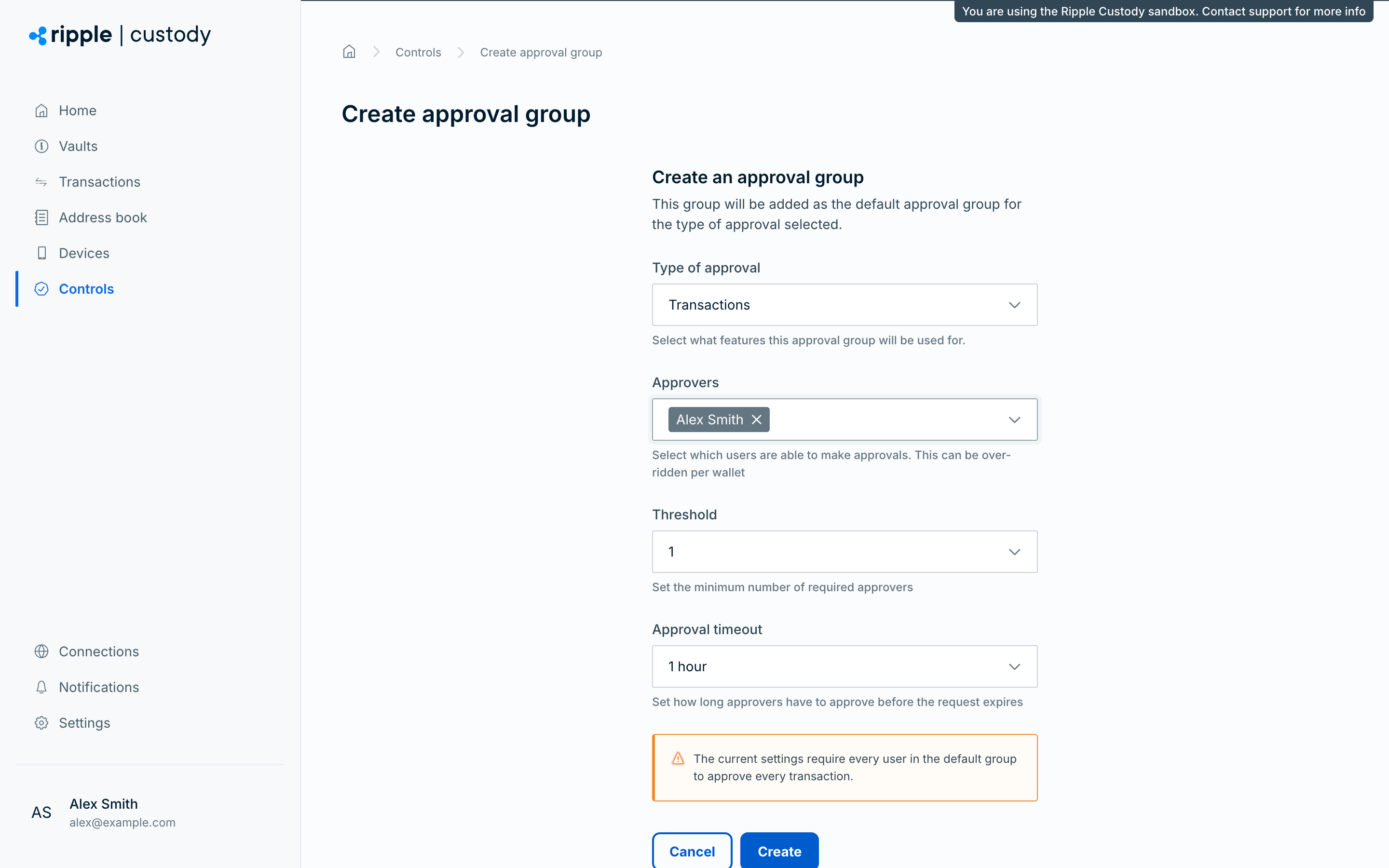
Go to the Controls section of the Ripple Custody (Wallet) console and select the Approval groups tab.
Select Create approval group.
Under Type of approval, select the entity that this approval group applies to. The list shows only types that don't have an approval group yet:
- Addresses
- API credentials
- Approval groups
- Devices
- Policy rules
- Transactions
- Users
Under Approvers, select one or more users from your organization to become approvers.
- Users with the correct permissions can approve requests.
- You can select any number of approvers.
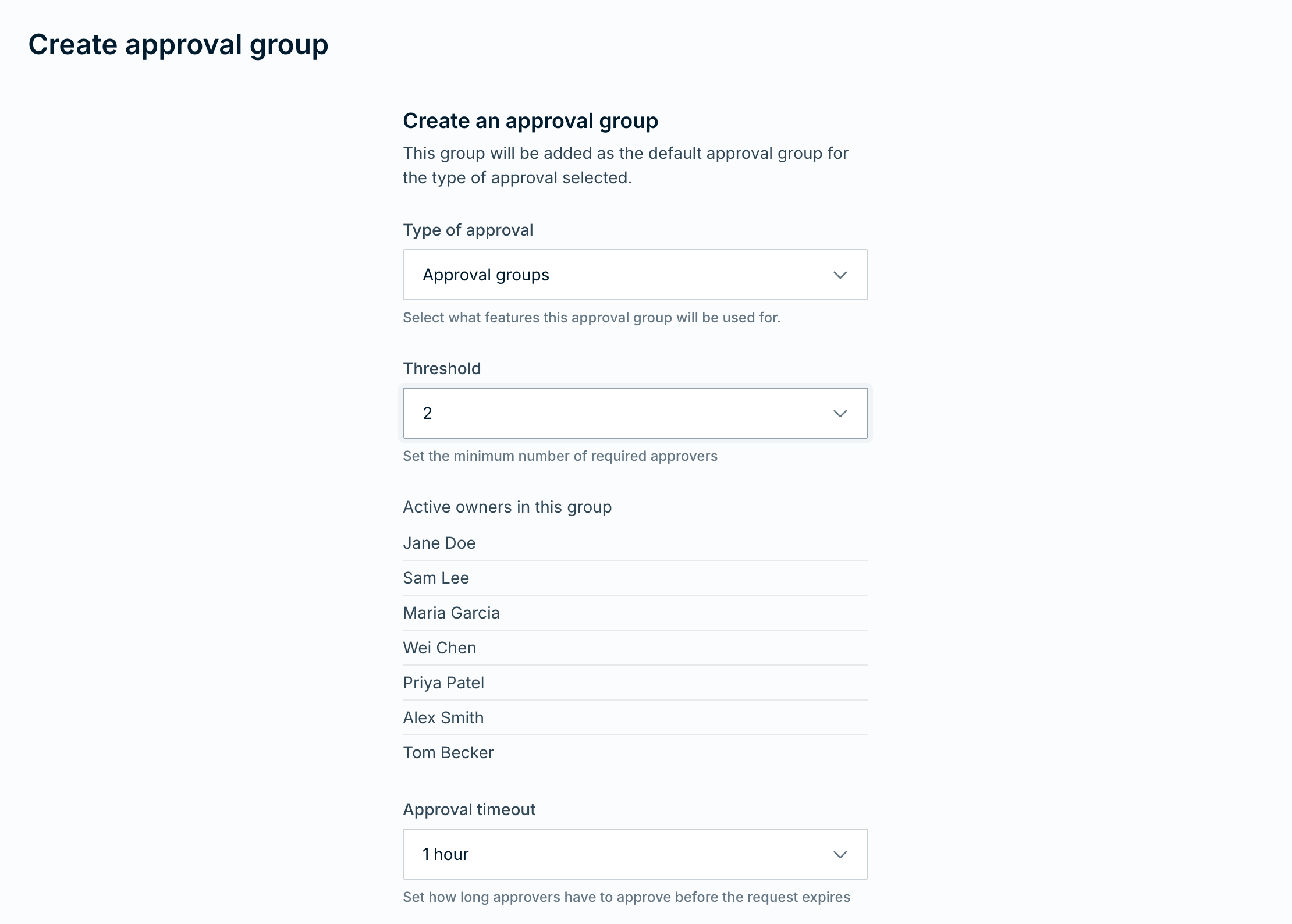
- For Approval groups, Ripple Custody (Wallet) uses active organization owners as approvers. You configure the threshold and timeout, but you don't select individual approvers.
Under Threshold, set the minimum number of required approvers per request. Threshold appears after you select approvers.
- You can require every user in the approval group, but we recommend majority approval to account for user availability.
- Example: If an approval group has three approvers, set the number of required approvers to two.
Under Approval timeout, set the time window approvers have to review and approve requests before they time out: 5, 15, or 30 minutes, or 1, 2, 4, 12, or 24 hours. The default is 1 hour.
The timeout applies to all approval requests for this group. If approvers don't submit enough approvals within the configured timeout, Ripple Custody (Wallet) automatically rejects the approval.
Select Create.
Each entity type can have one default approval group.
Only users with the Owner or Administrator role can change a wallet's approval group. Other roles don't see Update approval group on the wallet's Approvers tab. If you don't see it, ask an owner or administrator in your organization.
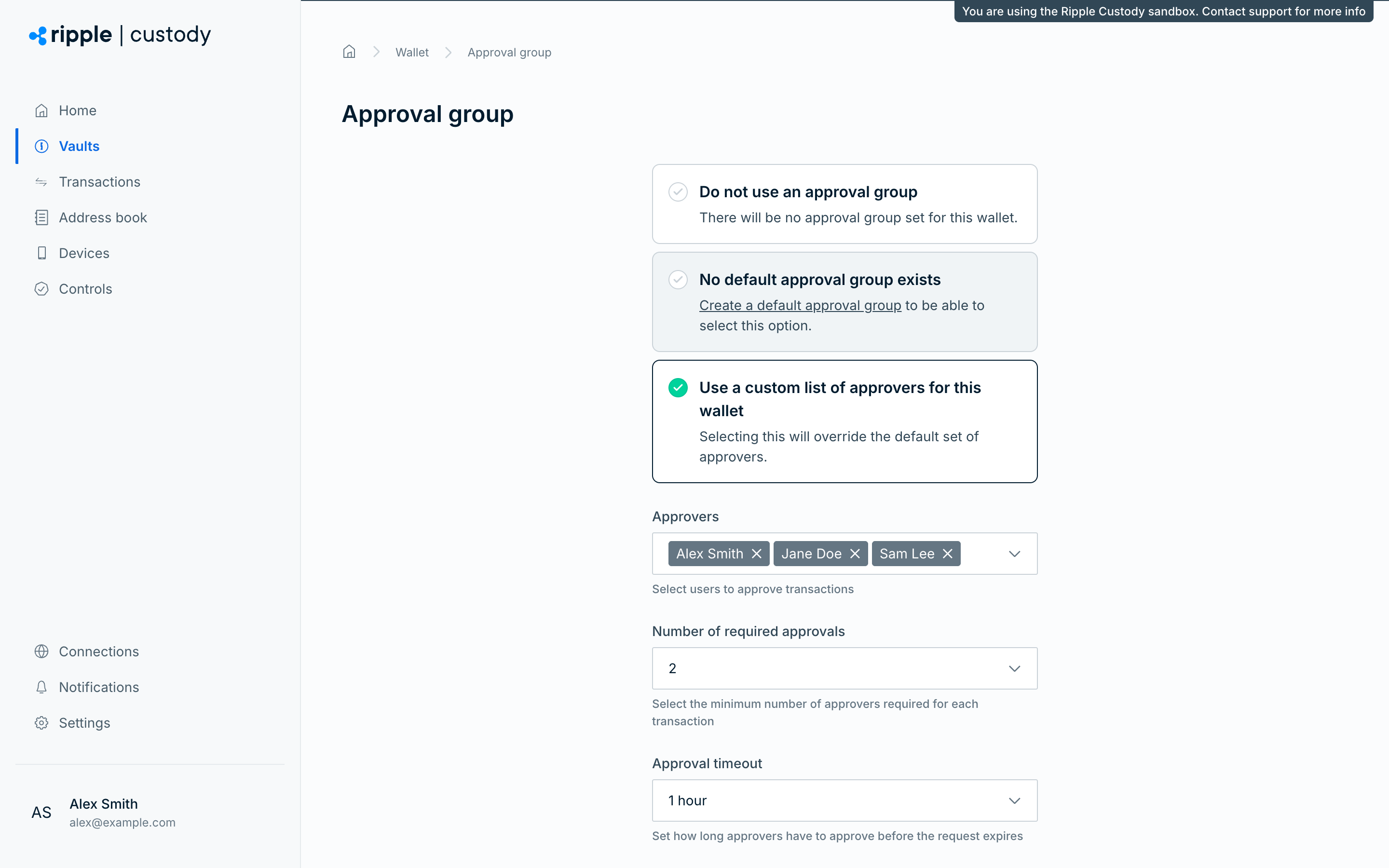
By default, transaction approval groups apply to all wallets. To override the default approval group for a wallet, go to the wallet's Approvers tab and select Update approval group. On the Approval group page, select one of these options:
- Do not use an approval group - No approvals apply to transactions from this wallet.
- Use default approval group - The wallet uses the organization-level transaction approval group.
- Use a custom list of approvers for this wallet - The wallet uses wallet-specific approvers and threshold settings. Select the Approvers, then the Number of required approvals, which appears after you select approvers, and the Approval timeout.
Then select Update approval group. If your organization has no transaction approval group, the console shows the default option as No default approval group exists and you can't select it.
To remove a wallet's custom approval group, open the Actions menu on its row on the Approvers tab and select Delete.
If your organization uses an Approval groups approval group, changes to wallet-level transaction approval group overrides require active owner approval before they take effect.
To require different approvers only for transactions of more than an amount, use step-up approvals.
Required role: Owner or Administrator.
Create an approval group with Approval groups as the approval type to require active owner approval before approval group changes take effect.
Create this approval group before you create or update other approval groups if you want active owners to approve those changes. The first Approval groups approval group turns on this requirement.
Ripple Custody (Wallet) sends approval group change requests only to active organization owners. Keep enough active owners available to meet the threshold before you turn on this requirement.
To configure this requirement:
- Go to the Controls section of the Ripple Custody (Wallet) console and select the Approval groups tab.
- Select Create approval group.
- Under Type of approval, select Approval groups.
- Under Threshold, select the minimum number of active owners who must approve approval group changes.
- Under Approval timeout, select how long owners have to respond.
- Select Create.
After you create this approval group, these changes create a pending approval request:
- Creating an organization-level approval group
- Updating an organization-level approval group
- Deleting an organization-level approval group
- Changing a wallet-level transaction approval group override, including switching a wallet to the default approval group, no approval group, or a custom list of transaction approvers
Ripple Custody (Wallet) applies the requested change only after enough active owners approve it. If you update or delete the Approval groups approval group itself later, active owners must approve that change too.
While an approval group change is pending:
- Ripple Custody (Wallet) keeps the current approval group configuration in effect.
- The approval groups table shows Pending creation, Pending update, or Pending deletion status.
- You can't submit another change for the same approval group until the pending request completes, expires, or an owner rejects it.
If an owner rejects the request or the request expires, Ripple Custody (Wallet) leaves the existing approval group configuration unchanged.
Required role: Owner or Administrator.
The Approval groups tab lists approval groups in a table.
- Find the approval group in the table, open the Actions menu, and select Edit. The Update approval group page opens.
- Add or remove approvers, change the minimum number of required approvers, or change the approval timeout.
- Select Update.
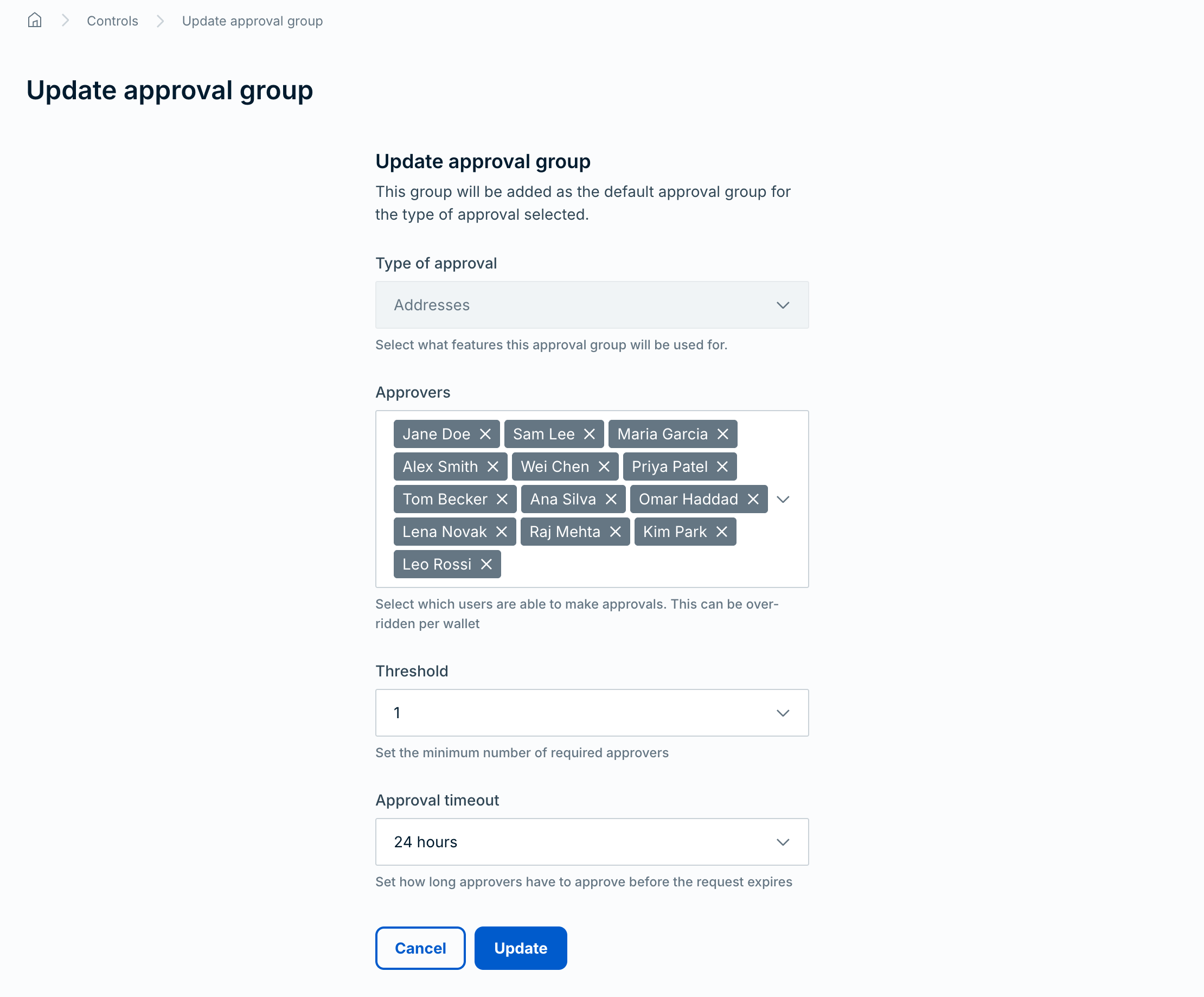
You can't change the approval type. To change the type, delete the approval group and create a new one.
If your organization uses an Approval groups approval group, updates remain pending until enough active owners approve them.
Required role: Owner or Administrator.
- On the Approval groups tab, find the approval group in the table.
- Open the Actions menu and select Delete.
The console doesn't ask you to confirm. It submits the deletion as soon as you select Delete.
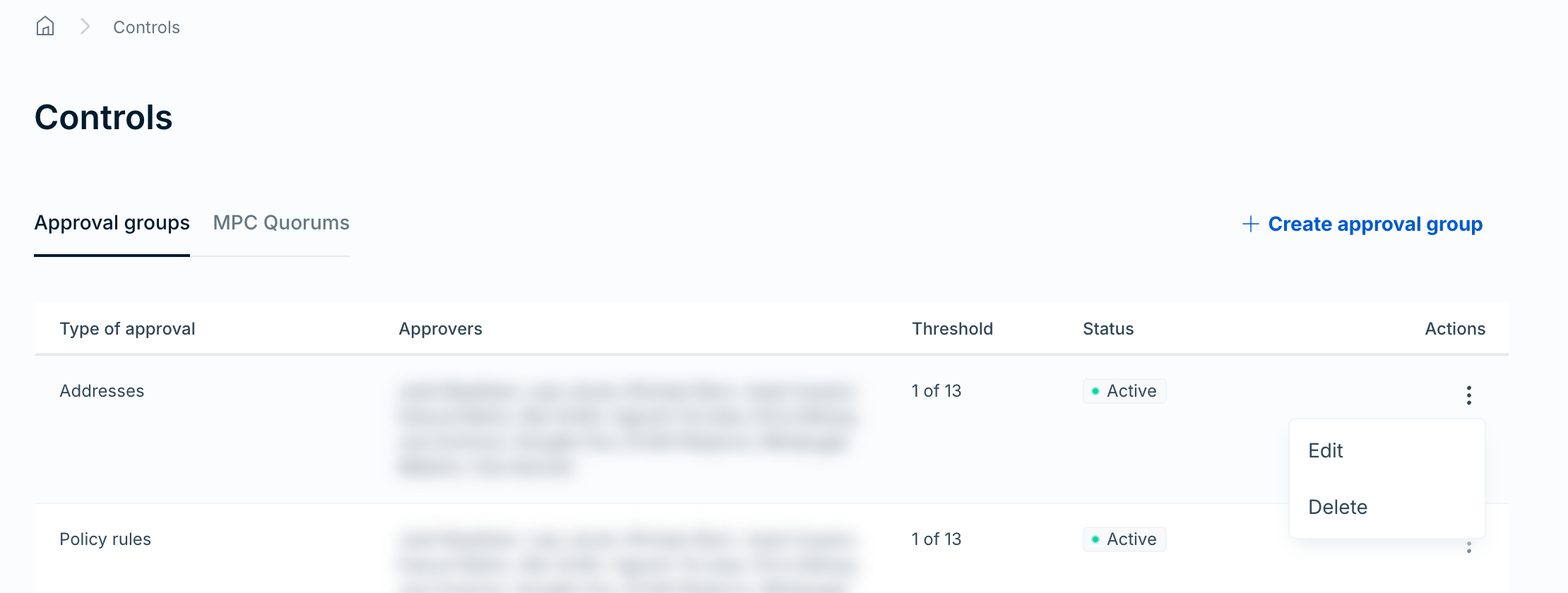
If your organization uses an Approval groups approval group, deletion remains pending until enough active owners approve it. To turn off approval requirements for approval group changes, delete the Approval groups approval group. Active owners must also approve that deletion.
- Separate initiators from approvers. Assign different users to create and approve transactions. This separation of duties reduces the risk of unauthorized actions.
- Govern addresses and policies, not just transactions. Require approvals on address book entries and policy rule changes to prevent unauthorized modifications to your security controls.
- Use API credential approvals. Require approval before new API credentials become active to prevent unauthorized programmatic access.
- Protect approval groups. Create an approval group with the Approval groups type so changes to approvers and thresholds require active owner approval.
- Maintain active owners. Keep enough owner users active to meet the approval group change threshold, especially before role or user lifecycle changes.
- Review approval timeouts. Set timeouts that balance speed with adequate review time. Too short (5 minutes) may cause legitimate requests to expire. Too long (24 hours) may delay operations.
- Start restrictive, then adjust. Begin with approval groups on all entity types. Remove them only after you understand your operational patterns and are confident the controls are no longer needed.
- Monitor approval activity. Use audit logging to track who approved what and when.
- Approvals — How approval groups work
- Step-up approvals — Require specific approvers for large transactions
- Manage users and roles — Assign the Approver role to users
- Configure audit logging — Track approval activity