Create vaults to group related wallets, then find, view, update, and tag them in the console or through the Ripple Custody (Wallet) Vaults endpoints. For background on vaults and common ways to organize them, see Vaults overview. To create wallets inside a vault, see Manage wallets via the console or Manage wallets via the API.
Wallets, once created inside a vault, can't be moved to another vault. Decide how you want to organize your wallets before you create them. See Vault organization strategies.
| Action | Console role | Console procedure | API procedure |
|---|---|---|---|
| Create a vault | Owner, Administrator, Proposer | Create a vault | Create a vault via the API |
| List vaults | All roles | List vaults | List vaults via the API |
| Get a vault | All roles | View a vault | Get a vault via the API |
| Update a vault | Owner, Administrator, Proposer | Edit or delete a vault | Update a vault via the API |
| Check vault balances | All roles | Viewing balances | Get vault balances |
| Tag a vault | Owner, Administrator, Proposer | Tag a vault | Tag a vault via the API |
Permissions: In the console, owners, administrators, and proposers can create vaults and update vault settings, and every role can view vaults. See User roles and permissions. The API procedures need an API credential of type WALLETS. See Prerequisites.
Required role: Owner, Administrator, or Proposer.
- Go to Vaults in the console sidebar.
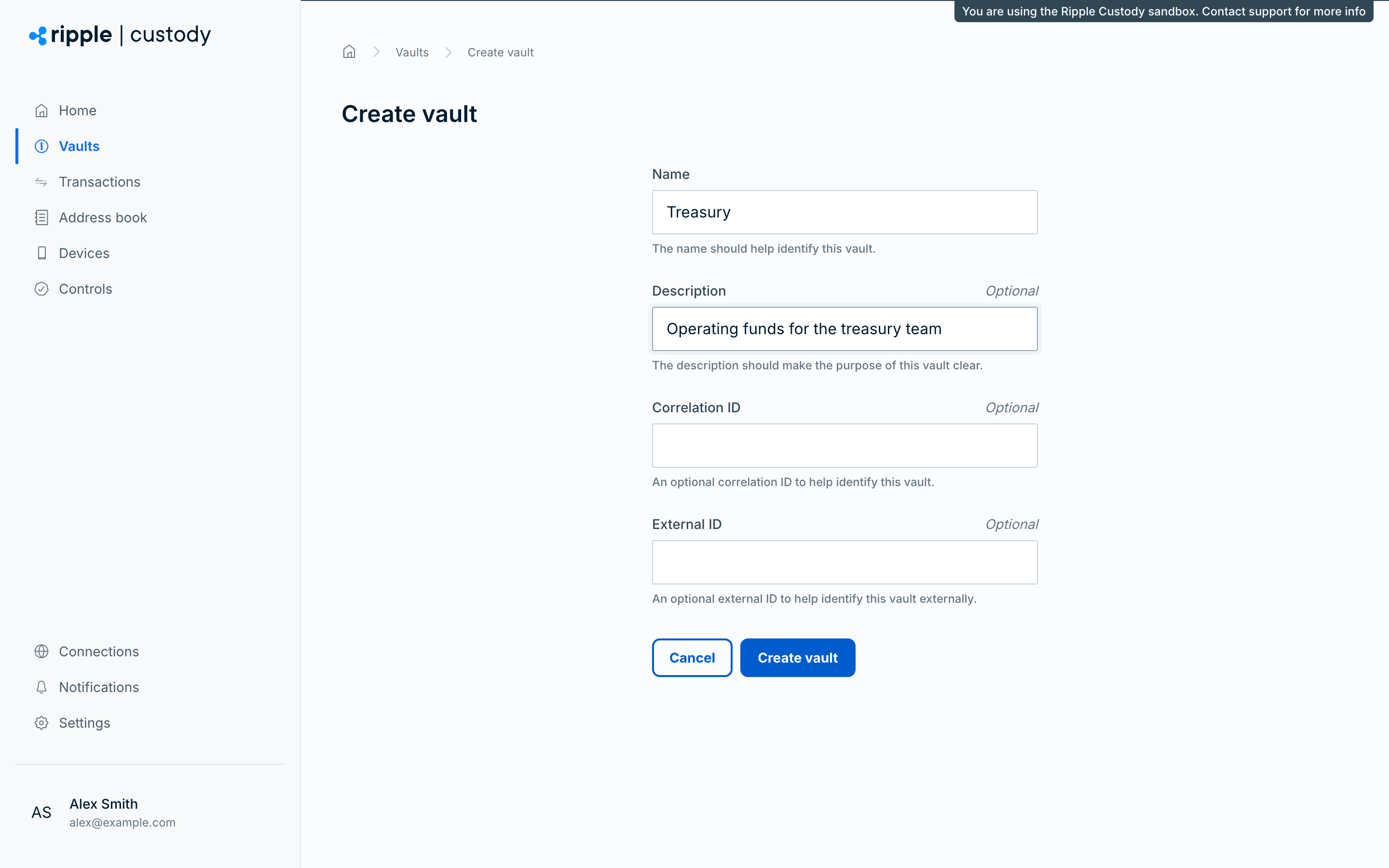
- Select Create vault.
- Enter the vault name (up to 50 characters). The name should help identify the vault.
- Optionally, enter the vault description (up to 100 characters). The description should make the purpose of the vault clear.
- Optionally, enter a Correlation ID and an External ID to identify the vault in your own systems.
- Select Create vault.
For a guided first run, see Create your first vault.
Go to Vaults in the console sidebar.
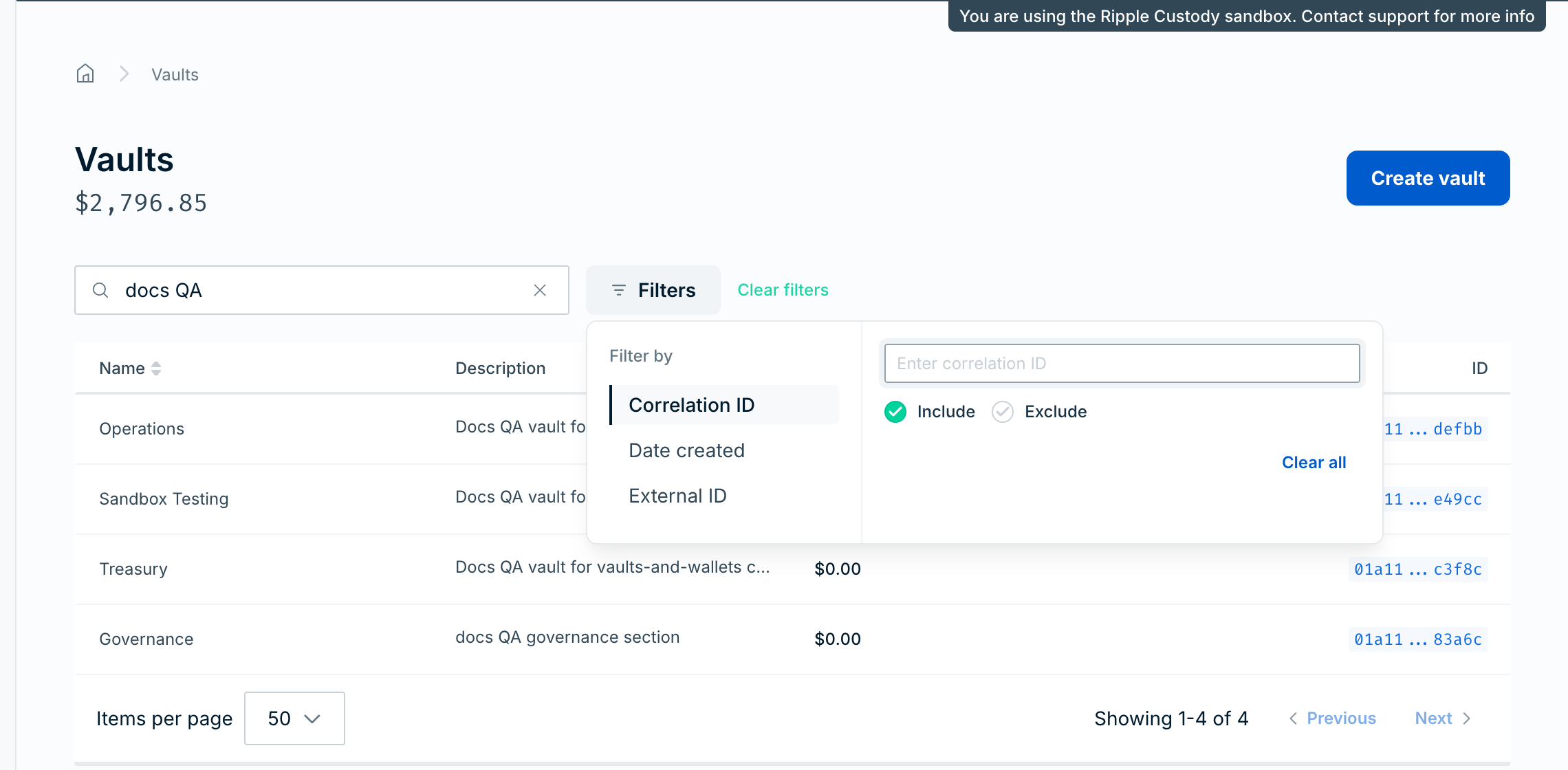
The Vaults page shows your organization's total balance under the page heading, and a table of vaults with each vault's Name, Description, Balance, and ID. Select the copy icon in the ID column to copy a vault ID.
Optionally, to find a vault, enter text in the Search vaults box. The search matches vault ID, name, description, external ID, and correlation ID.
Optionally, to narrow the list, select Filters, and then select a category under Filter by:
- Correlation ID or External ID: choose Include or Exclude, and enter the value.
- Date created: choose Today, Last 48 hours, Last 7 days, Last 30 days, This month, or Custom. For Custom, set the From and To dates.
Each active filter appears as a chip above the table. To remove one filter, remove its chip. To remove them all, select Clear filters.
Optionally, to sort the list by vault name, select the Name column heading.
Go to Vaults in the console sidebar.
Select the vault's name in the table.
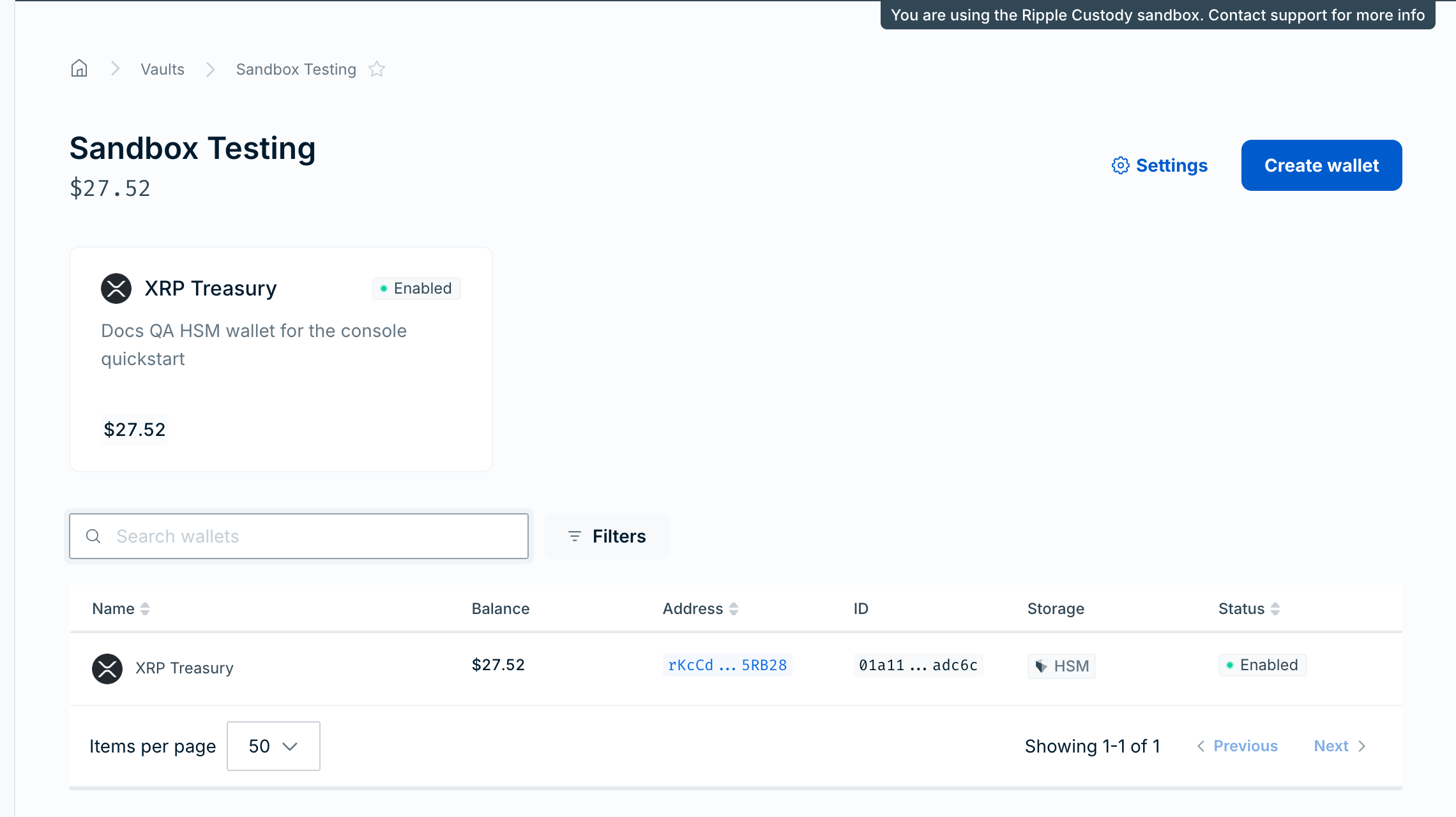
The vault page shows the vault's total balance under its name, cards for up to three of its wallets, and a table of all the vault's wallets. To find, filter, and sort those wallets, see List wallets.
To see the vault's ID, correlation ID, and external ID, select Settings. The General tab shows these values, and you can copy each one.
Required role: Owner, Administrator, or Proposer.
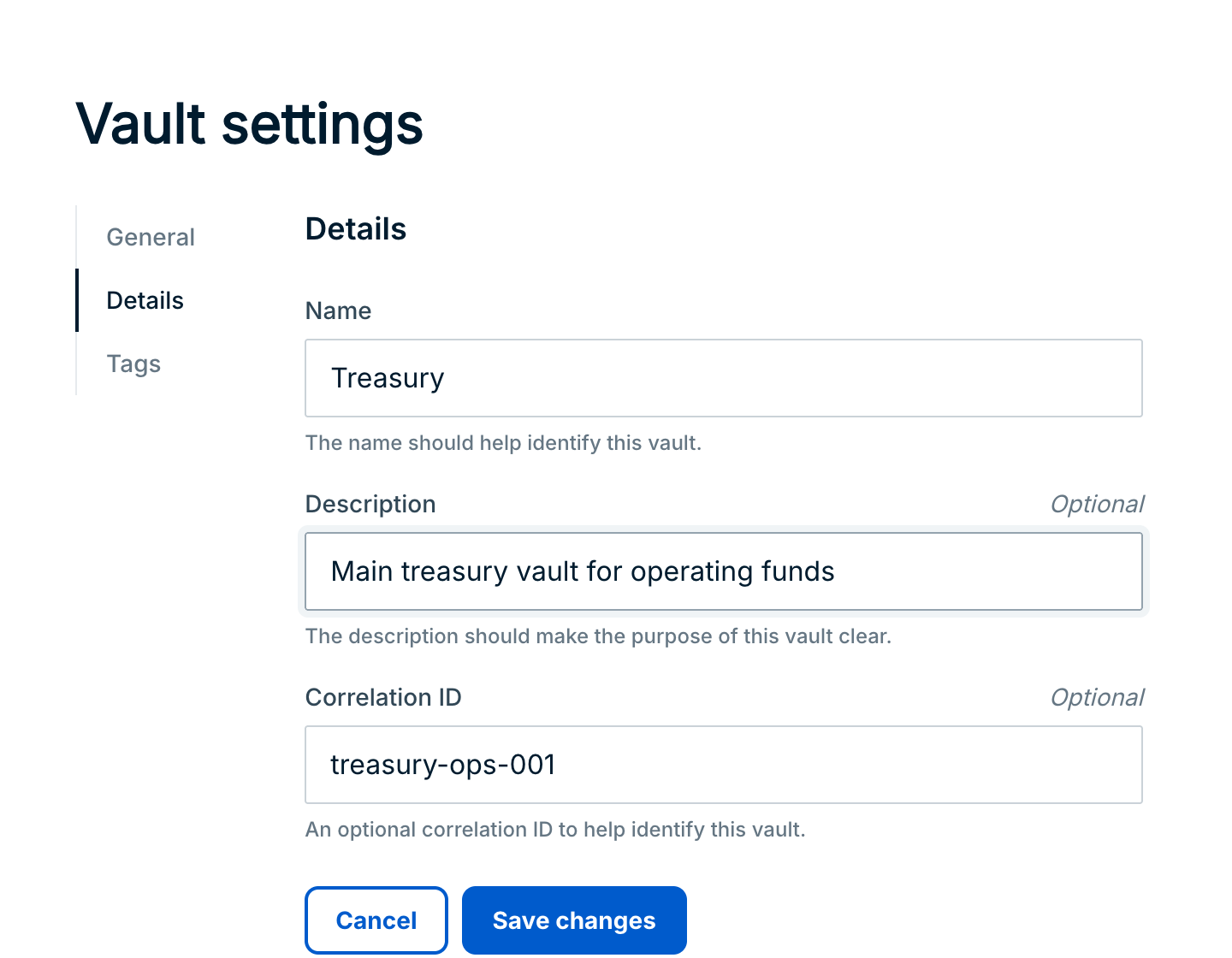
To change a vault's name, description, or correlation ID:
- Open the vault and select Settings.
- Go to the Details tab.
- Update the fields and select Save changes.
You can't delete a vault, either from the console or through the API. You can also change a vault's details through the API. See Update a vault via the API.
Required role: Owner, Administrator, or Proposer. Only owners and administrators can remove a tag.
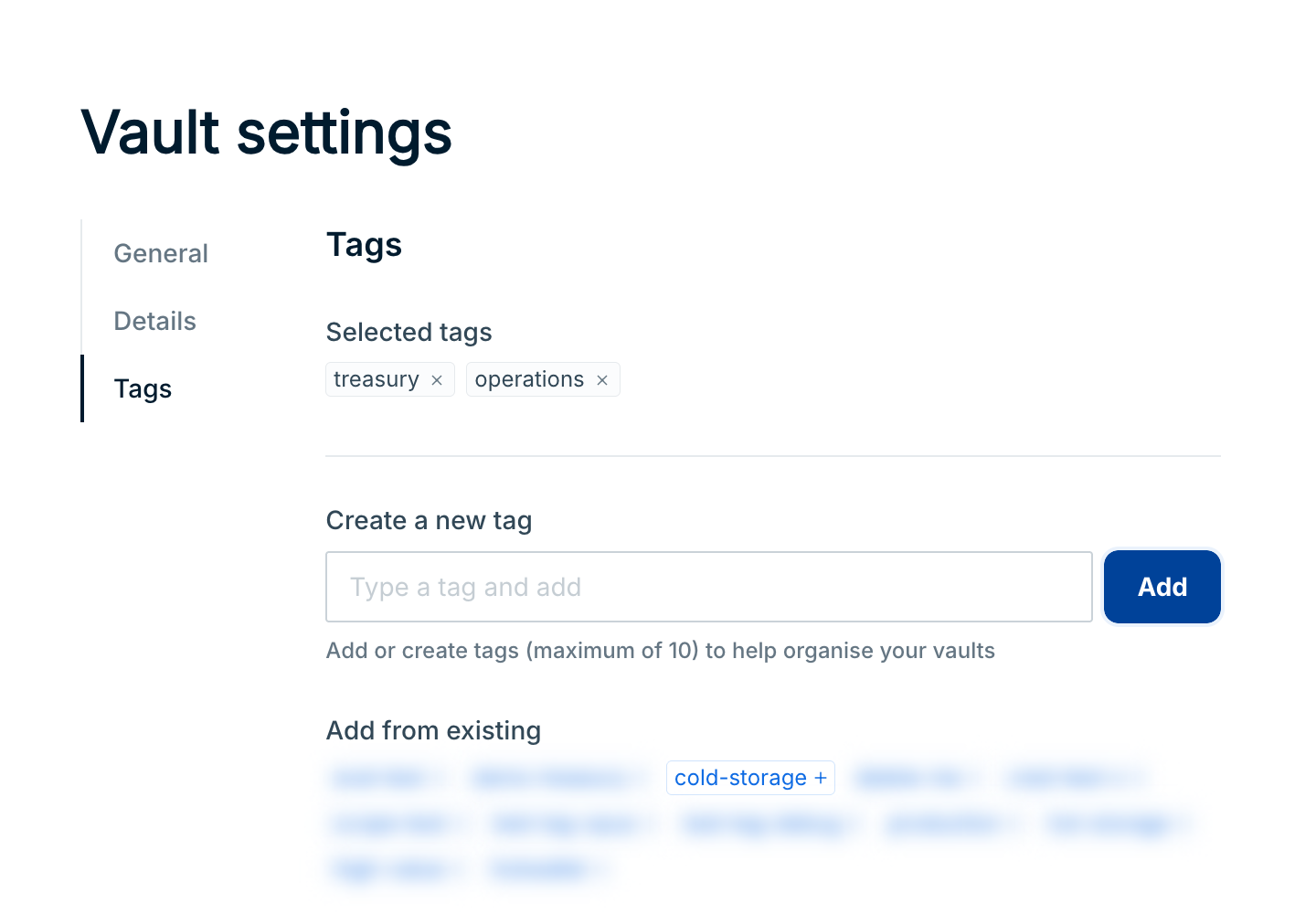
Tags are free-form labels you can use to group and find vaults. A vault can have up to 10 tags, and each tag can be up to 64 characters long.
Open the vault and select Settings.
Go to the Tags tab.
Add a tag in one of these ways:
- To create a tag, enter it in Create a new tag and select Add.
- To reuse a tag that's already on another vault in your organization, select it under Add from existing.
The tag appears under Selected tags.
To remove a tag from the vault, select the × on the tag under Selected tags.
The console saves each tag change as soon as you make it. You don't need to select Save changes.
Use the Ripple Custody (Wallet) Vaults endpoints to create vaults, retrieve and filter them, and update their details.
- An API credential of type
WALLETS. Its grantable permissions cover vaults, wallets, and balances. Create credentials in the console. See Manage API credentials and Credential types. - An access token. Exchange your credential's
clientIdandclientSecretfor a bearer token. See Getting started with the API.
For the base URLs, token lifetime, pagination, filtering, and error format that every endpoint shares, see API conventions.
API reference: Create a vault
Send a POST request to /v2/vaults. Only name is required. The optional fields are:
description: a description of the vault's purpose.externalId: an identifier from your own systems. It must be unique within your organization. If you send a create request with anexternalIdthat's already in use, the API returns the existing vault with HTTP200instead of creating a new one.correlationId: an identifier you can use to correlate this request with related actions.
curl -X POST https://api.sandbox.palisade.co/v2/vaults \
  -H "Authorization: Bearer $ACCESS_TOKEN" \
  -H "Content-Type: application/json" \
  -d '{
    "name": "Treasury vault",
    "description": "A vault used by the treasury department",
    "externalId": "treasury-001"
  }'
{
"id": "ce4918bf-a199-4ce2-85a3-d0d296855384",
"organizationId": "7c2d9e41-5b8a-4f3c-9d6e-2a1b0c8f4e73",
"name": "Treasury vault",
"description": "A vault used by the treasury department",
"externalId": "treasury-001",
"createdBy": "9b1deb4d-3b7d-4bad-9bdd-2b0d7b3dcb6d",
"createdAt": "2026-07-23T10:22:22.420Z",
"updatedAt": "2026-07-23T10:22:22.420Z"
}Save the id. You need it to create wallets in the vault.
API reference: List vaults, List vaults with a request body
Send a GET request to /v2/vaults. You can narrow and page the results with these query parameters:
search: a case-insensitive match over vault ID, name, description, external ID, and correlation ID.- Field filters on
id,name,description,externalId, andcorrelationId, using the operatorseq,notEq,contains,startsWith,endsWith,in,notIn, andisNull. For example,filter.name.contains=treasury. - Timestamp filters on
createdAtandupdatedAt, using the operatorseq,notEq,before,after,gte,lte,between.start,between.end,isNull, andrelativeDays. For example,filter.createdAt.relativeDays=-7. pagination.pageSize(default 50, maximum 1,000) andpagination.pageToken.pagination.orderBy(name,created_at, orupdated_at) andpagination.order(SORT_ORDER_ASCorSORT_ORDER_DESC).
The filters you set are combined with AND.
curl "https://api.sandbox.palisade.co/v2/vaults?pagination.pageSize=10&search=Treasury" \
-H "Authorization: Bearer $ACCESS_TOKEN"{
"filter": {
"nextPageToken": "cGFnZV9zaXplPTEwJnBhZ2VfdG9rZW49MjA=",
"total": 12
},
"vaults": [
{
  "id": "ce4918bf-a199-4ce2-85a3-d0d296855384",
  "organizationId": "7c2d9e41-5b8a-4f3c-9d6e-2a1b0c8f4e73",
  "name": "Treasury vault",
  "description": "A vault used by the treasury department",
  "externalId": "treasury-001",
  "createdBy": "9b1deb4d-3b7d-4bad-9bdd-2b0d7b3dcb6d",
  "createdAt": "2026-07-23T10:22:22.420Z",
  "updatedAt": "2026-07-23T10:22:22.420Z"
}
]
}To fetch the next page, pass the filter.nextPageToken value as pagination.pageToken. Pages after the first also include filter.previousPageToken. The last page has no nextPageToken.
For filters that are awkward to express as query parameters, send a POST request to /v2/vaults:list instead. It accepts the same search, filter, and pagination options as a JSON body and returns the same response.
curl -X POST https://api.sandbox.palisade.co/v2/vaults:list \
  -H "Authorization: Bearer $ACCESS_TOKEN" \
  -H "Content-Type: application/json" \
  -d '{
    "filter": { "name": { "in": ["Treasury vault", "Outbound vault"] } },
    "pagination": { "pageSize": 50, "orderBy": "name", "order": "SORT_ORDER_ASC" }
}'API reference: Get a vault, Get vault balances
Send a GET request to /v2/vaults/{id} to retrieve a single vault.
curl https://api.sandbox.palisade.co/v2/vaults/ce4918bf-a199-4ce2-85a3-d0d296855384 \
  -H "Authorization: Bearer $ACCESS_TOKEN"
The response is the same vault object that the create request returns.
API reference: Update a vault
Send a PUT request to /v2/vaults/{id} to change a vault's name and description. The request requires name, even if you're only changing the description. The update replaces both fields: if you omit description, the update clears the vault's existing description. You can also pass an optional correlationId; if you omit it, the update clears the vault's existing correlationId. To change one field, send the current values of the others. The request ignores externalId.
curl -X PUT https://api.sandbox.palisade.co/v2/vaults/$VAULT_ID \
  -H "Authorization: Bearer $ACCESS_TOKEN" \
  -H "Content-Type: application/json" \
  -d '{
    "name": "Treasury vault",
    "description": "Primary vault for treasury operations"
  }'
The response is the updated vault object.
The API doesn't provide an endpoint to change a vault's externalId or to delete a vault. A DELETE request to /v2/vaults/{id} returns HTTP 501 with the message Method Not Allowed.
Tags are free-form labels you can use to group and find vaults. Tags don't have permissions of their own: adding a vault tag needs vault:update, listing needs vault:read (or key:read for a single vault's tags), and deleting a vault tag needs key:delete. A WALLETS credential without key:delete can add and list tags but gets 403 (PAL000.002) when it deletes one.
API reference: Add a vault tag
Send a POST request to /v2/vaults/{vaultId}/tags. The request requires tag.
curl -X POST https://api.sandbox.palisade.co/v2/vaults/$VAULT_ID/tags \
  -H "Authorization: Bearer $ACCESS_TOKEN" \
  -H "Content-Type: application/json" \
  -d '{ "tag": "treasury" }'
[
{
"vaultId": "ce4918bf-a199-4ce2-85a3-d0d296855384",
"tags": ["treasury"]
}
]API reference: List vault tags, List all vault tags
Send a GET request to /v2/vaults/{vaultId}/tags for one vault's tags, or to /v2/vaults/tags for every vault tag in your organization. Both return an array of objects that each contain a vaultId and its tags.
API reference: Delete a vault tag
Send a DELETE request to /v2/vaults/{vaultId}/tags with the tag in the required tag query parameter. A successful response is an empty JSON object.
curl -X DELETE "https://api.sandbox.palisade.co/v2/vaults/$VAULT_ID/tags?tag=treasury" \
-H "Authorization: Bearer $ACCESS_TOKEN"Failed requests return an HTTP error status and an error object with code, message, and details fields. See Error codes. For the causes of and fixes for the errors these endpoints return, see Troubleshoot common errors.
- Separate operational wallets from cold storage — use different vaults with different quorums and approval requirements.
- Manage wallets via the console or Manage wallets via the API: create wallets inside your vault.
- Check balances via the API: read balances at the organization, vault, and wallet level.
- Ripple Custody (Wallet) API reference: the full request and response schemas.