To set up Travel Rule, connect your Notabene account to Ripple Custody (Wallet), prepare your address book, and then create Travel Rule policy rules on your wallets.
| Requirement | Description |
|---|---|
| Feature access | Ripple has turned on Travel Rule for your organization. |
| Notabene account | Your organization has its own Notabene workspace, with OAuth API credentials (client ID and client secret) and your VASP DID. |
| Organization legal name | Ripple Custody (Wallet) sends your organization's legal name as the originator. Confirm with Ripple that your organization's legal name is correct. |
| Role | You're an owner. Connecting Notabene changes organization settings, which only the Owner role can do. Administrators and auditors can view the connection but can't change it. |
Only users with the Owner role can connect, update, or disconnect Notabene. Other roles don't see the connection form, Update credentials, or Disconnect. If you don't see them, ask an owner in your organization.
In the Ripple Custody (Wallet) console, go to Settings > Integrations.
On the Notabene card, select Connect.
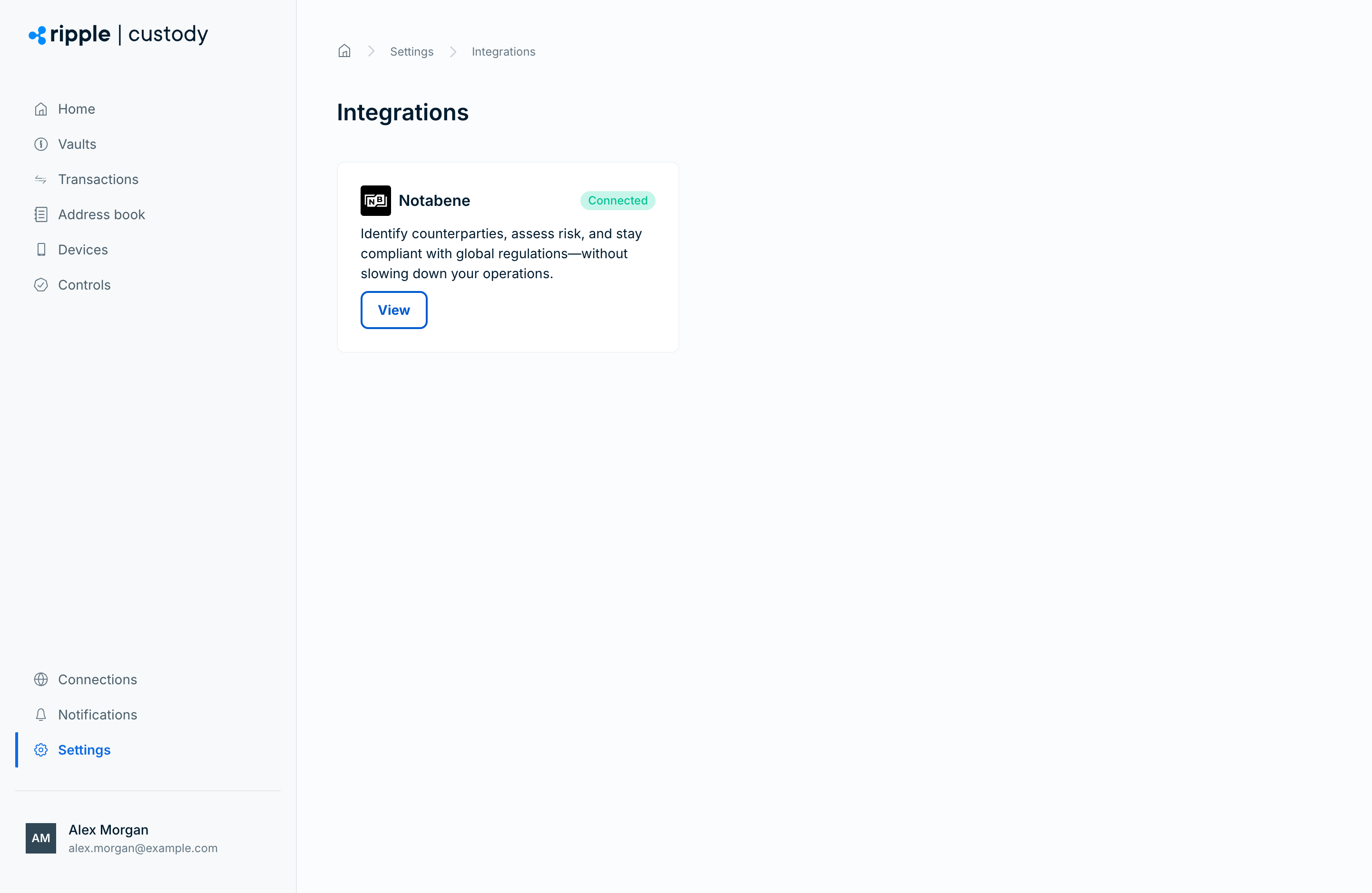
Enter your Notabene VASP DID, Client ID, and Client secret. The DID looks like
did:ethr:0x….Select Connect.
Ripple Custody (Wallet) checks the credentials and DID with Notabene, and then registers a webhook with Notabene so it receives message updates. The Travel Rule page shows your VASP name, VASP DID, webhook URL, and one of these statuses:
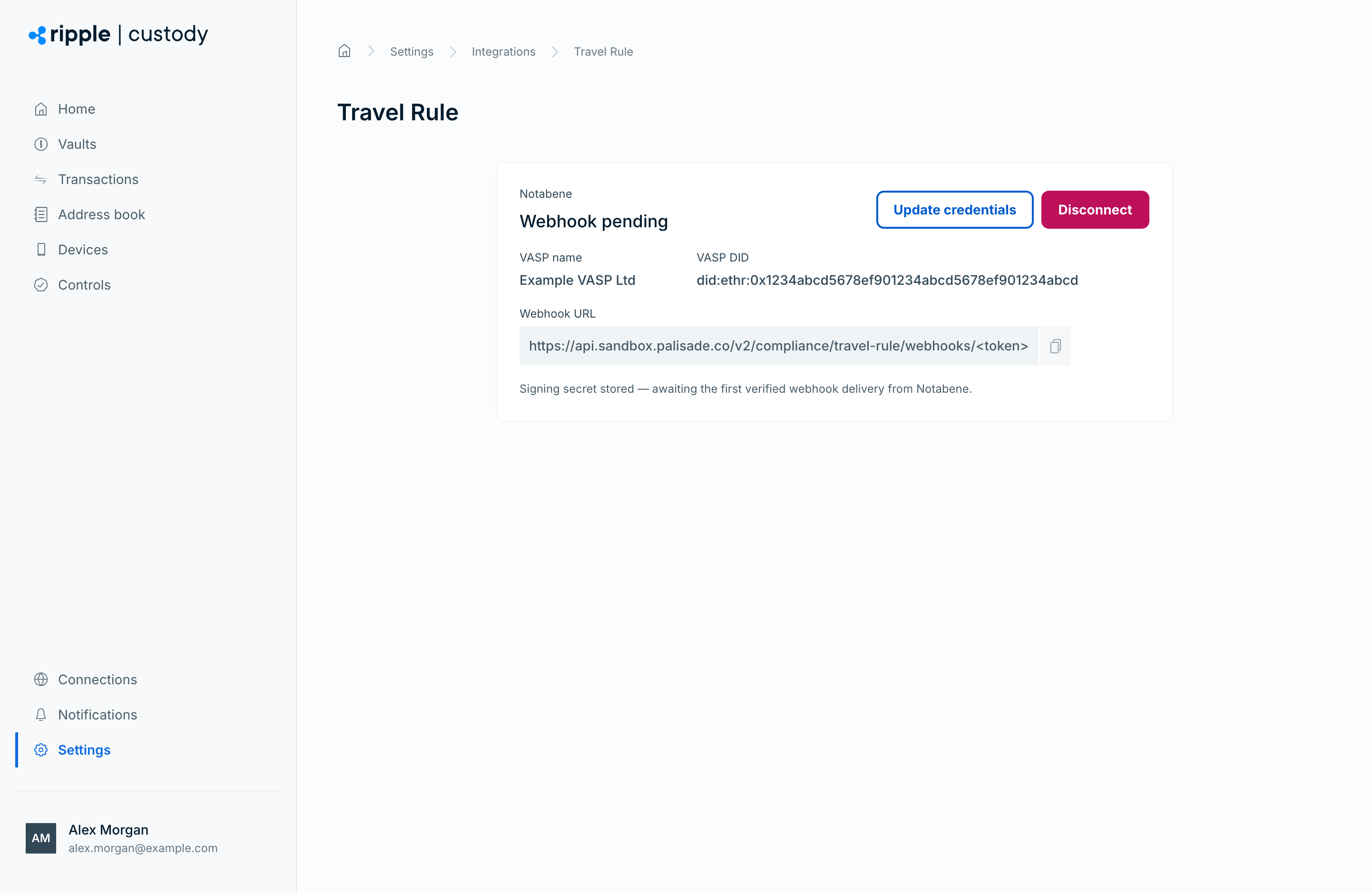
| Status | Meaning |
|---|---|
| Connected | The connection is ready, and you can create Travel Rule policy rules. |
| Webhook pending | The credentials are valid, and Ripple Custody (Wallet) stored the webhook signing secret. It's waiting for the first verified webhook delivery from Notabene. |
| Credentials invalid | Notabene rejected the credentials. Select Update credentials and enter new ones. |
| Disconnected | Your organization doesn't have a connected Notabene account. |
If Notabene rejects the credential and DID pair, the console shows an error and doesn't save the connection.
The Notabene card on the Integrations page shows Connected as soon as you save the connection, even while the Travel Rule page shows Webhook pending. To check the connection status, select View on the card.
Notabene delivers updates for a VASP DID to one webhook only. If two of your Ripple Custody (Wallet) organizations connect with the same DID, only the organization that connected most recently receives updates. Use a separate DID for each organization.
On the Notabene connection page, select Disconnect. Disconnecting removes your Notabene credentials and stops Travel Rule checks for your organization.
Your Travel Rule policy rules stay in place. While you're disconnected, Ripple Custody (Wallet) rejects every outbound transfer that matches a Travel Rule rule, with reason TRAVEL_RULE_NOT_CONFIGURED. If you no longer need the rules, delete them.
Required role: Owner or Administrator.
Ripple Custody (Wallet) takes beneficiary information from your address book. For every external destination that a Travel Rule rule covers:
Save the destination as an address on a counterparty of type organization, with its legal name.
On the address, select Add custodian details. Under Select custodian, enter the beneficiary VASP's name, select Search, and then select the VASP from the Notabene directory.
Confirm that the custodial information is correct, and then select Add address. The address takes effect after your Addresses approvers approve it.
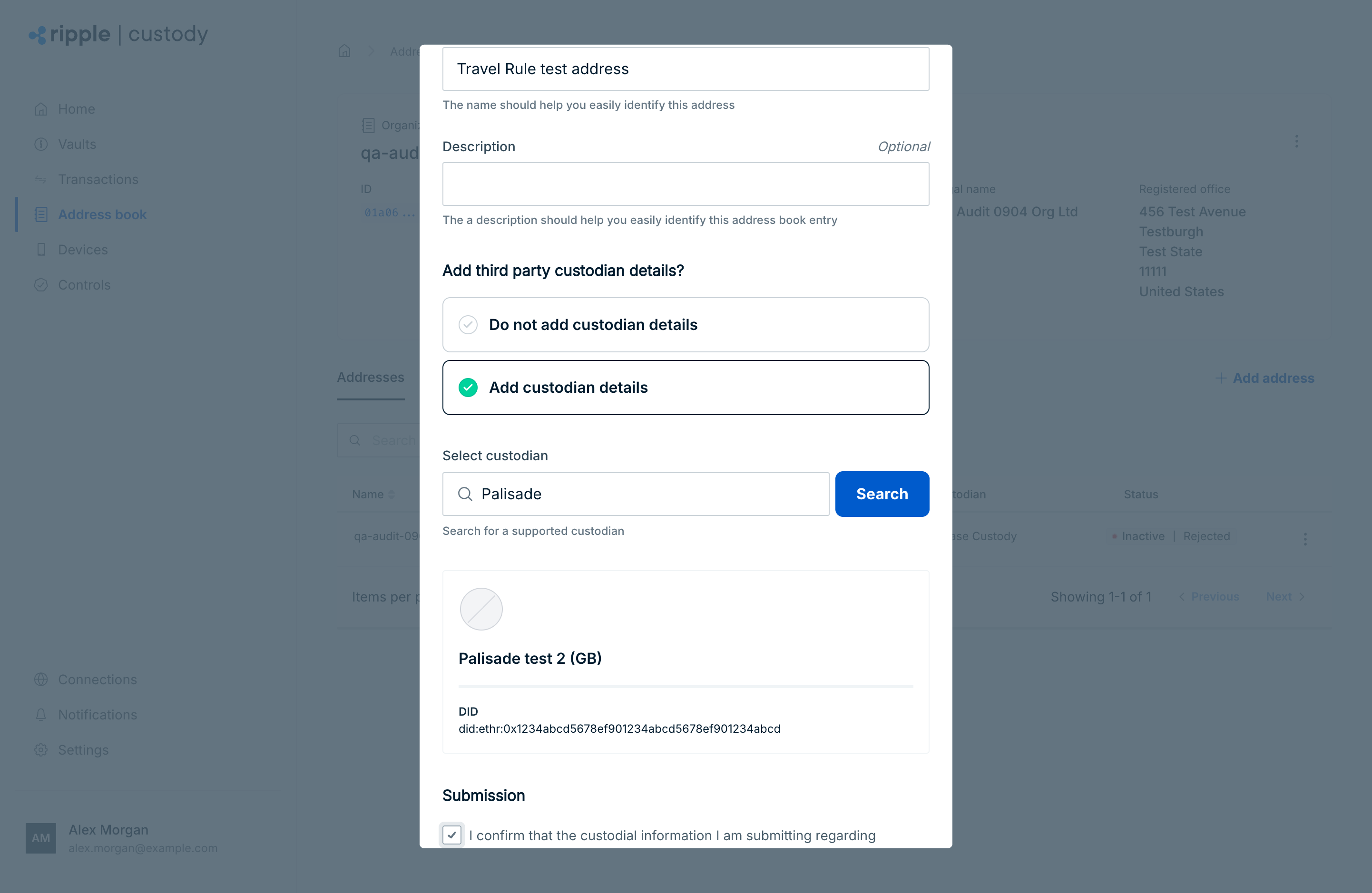
Ripple Custody (Wallet) rejects a covered transfer to a destination that isn't in the address book, has no custodian details, or belongs to an individual counterparty.
You need a connected Notabene account before you can create Travel Rule rules. Without one, the console shows Integrate a travel rule provider to add this policy type, and the API returns PAL006.046.
Required role: Owner or Administrator.
Open the wallet and go to the Policy tab.
Select Add a new rule.
On the Direction step, select Outbound for transfers from this wallet, or Inbound for deposits into this wallet, and then select Next.
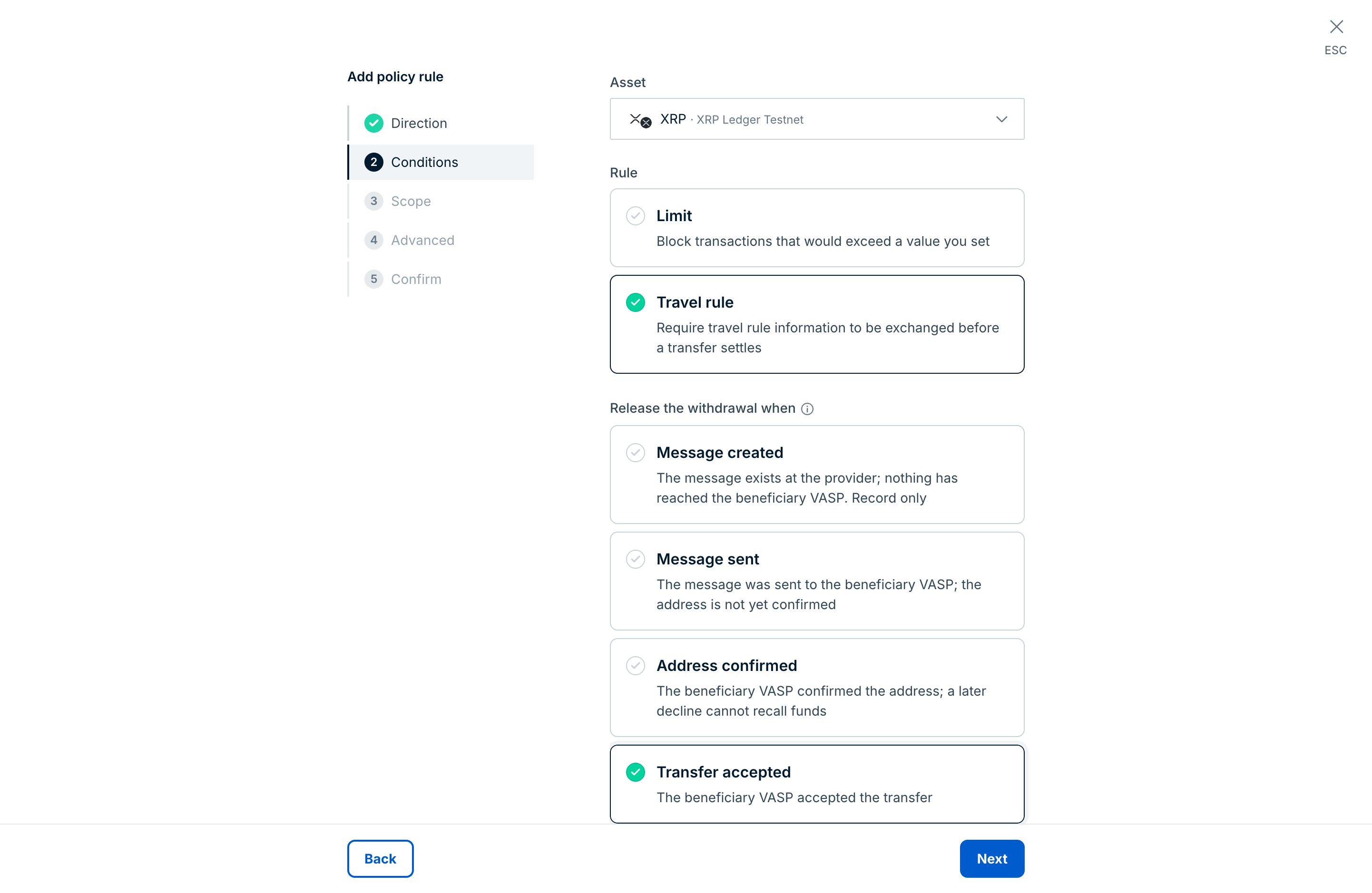
On the Rule step, select Travel rule, and then select Next. For an inbound rule, Travel rule is the only option.
On the Conditions step, select the asset. For an outbound rule, also select a level under Release the withdrawal when. See Release levels. Select Next.
On the Scope step, select the destinations the rule covers. For an inbound rule, the selection applies to the sender, even though the step labels it To.
On the Advanced step, leave All selected, or restrict the rule to one user or API credential.
On the Confirm step, review the rule, and then select Add policy rule.
The console creates a Travel Rule rule for one asset, with no amount threshold. To cover all assets, or only transfers of more than an amount, use the API.
POST /v2/vaults/{vaultId}/wallets/{walletId}/policy-rulesOutbound: This rule requires an accepted Travel Rule exchange for counterparty transfers of more than 1,000 of the asset:
{
  "trigger": "OUTBOUND_INITIATED",
  "assetId": "3::XRP",
  "matchers": [
    { "type": "ALL_COUNTERPARTIES", "values": [] }
  ],
  "definition": {
    "kind": "TRAVEL_RULE",
    "travelRule": {
      "travelRuleReleaseLevel": "TRAVEL_RULE_RELEASE_LEVEL_ACCEPTED",
      "amount": {
        "threshold": "1000",
        "operator": "GT",
        "aggregation": "SINGLE_TX"
      }
    }
  }
}
Inbound: This rule checks every deposit into the wallet, for any asset:
{
  "trigger": "INBOUND_DETECTED",
  "definition": {
    "kind": "TRAVEL_RULE",
    "travelRule": {}
  }
}| Field | Rules |
|---|---|
trigger | Set to OUTBOUND_INITIATED or INBOUND_DETECTED. |
assetId | Optional. To cover all assets, leave it out. If you set amount, you must also set assetId. |
travelRule.travelRuleReleaseLevel | Outbound rules require it. Inbound rules don't accept it. |
travelRule.amount | Optional. Set the operator to GT and the aggregation to SINGLE_TX. If you leave out the amount, the rule covers every matching transfer. |
matchers | Optional. On outbound rules, destination matchers match the recipient. On inbound rules, they match the sender. |
The release level sets how far the outbound Travel Rule message must progress before Ripple Custody (Wallet) lets the transfer continue to signing.
| API value | Console label | The transfer continues when |
|---|---|---|
TRAVEL_RULE_RELEASE_LEVEL_NEW | Message created | Notabene creates the message. |
TRAVEL_RULE_RELEASE_LEVEL_SENT | Message sent | The message reaches the beneficiary VASP. |
TRAVEL_RULE_RELEASE_LEVEL_ACK | Address confirmed | The beneficiary VASP confirms the destination address. |
TRAVEL_RULE_RELEASE_LEVEL_ACCEPTED | Transfer accepted | The beneficiary VASP accepts the transfer. The console selects this level by default. |
A stricter level is safer but slower. If the counterparty doesn't respond, the transfer waits until it times out.
If several Travel Rule rules apply to the same transfer, the most specific rule wins. For example, a rule for one counterparty overrides a rule for the whole wallet. When rules are equally specific, a rule with an amount threshold overrides a rule without one.
- Sweeps, Web3 signing, plaintext signing, passkey signing, and passkey transfers.
- Transfers to your own wallets, unless a rule covers them. A rule with no matchers, or with a
WALLET_IDmatcher, covers transfers to your own wallets. Ripple Custody (Wallet) sends these as same-VASP transfers, which Notabene settles without a counterparty response. Rules withALL_COUNTERPARTIES,COUNTERPARTY_ID, orADDRESS_IDmatchers don't cover your own wallets.