CloudSign is the Wallet-as-a-Service signing node for programmatic MPC. Each CloudSign node holds an encrypted key shard and participates in MPC quorums to generate keys and sign transactions.
Programmatic MPC with CloudSign follows this workflow:
- Set up three CloudSign devices in the Wallet-as-a-Service console and securely store the pairing key for each device.
- Run a CloudSign node for each device, each with its respective pairing key.
- Approve each CloudSign device, or have an administrator approve it.
- Create an MPC quorum comprising the CloudSign devices.
- Create an MPC wallet with the CloudSign quorum.
A single MPC quorum requires a total of three signers, with two required to sign transactions.
You can also run CloudSign inside an AWS Nitro Enclave for hardware-isolated execution. See Run CloudSign in AWS Nitro Enclaves.
Sign in to the Wallet-as-a-Service console as an administrator or a standard user and navigate to the Devices page.
Device management isn't part of the public API — API credentials don't cover devices. Create and approve devices in the console.
- Click Add a device.
- Choose CloudSign as the device type.
- Give the device a meaningful name.
- Click Save and continue.
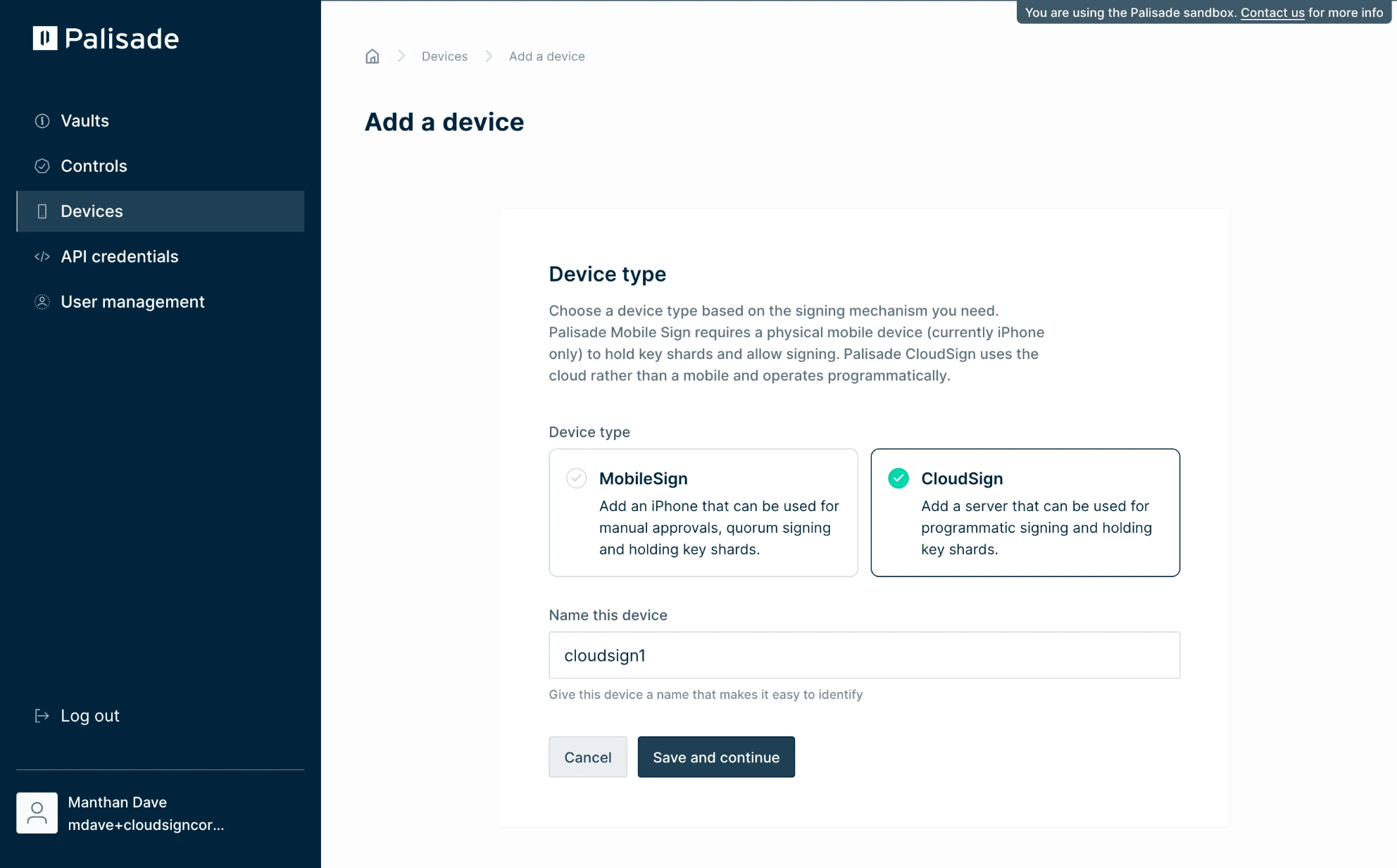
The console displays the pairing key screen:
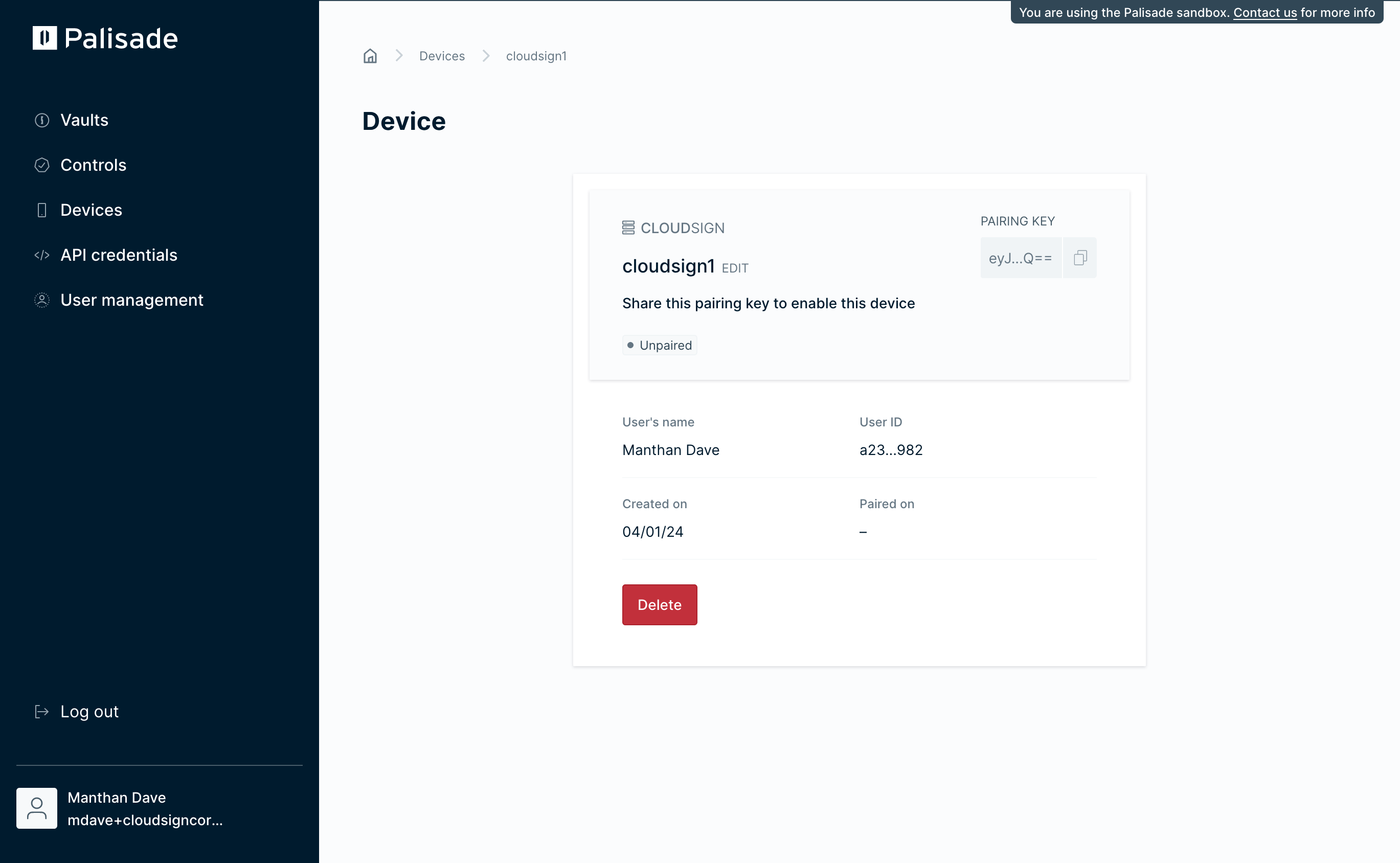
The new device starts in the Unpaired state, which means it isn't initialized or available for use. The CloudSign node you run in the next step needs the pairing key shown on this screen. The pairing key contains one-time authentication credentials, so copy it and store it securely.
Repeat these steps until you have three CloudSign devices, each with its own recorded pairing key.
Set up your AWS environment with the following:
- An EC2 instance
- Docker
- The AWS CLI
We also recommend an IAM role and an AWS KMS key so that CloudSign can encrypt its local database with DB_ENCRYPTION_KEY_REF. See Storage options.
Wallet-as-a-Service uses AWS IAM authentication for access to its container registry. Export the following variables using the credentials provided to you by Ripple:
export AWS_ACCESS_KEY_ID=<palisade_provided_access_key_id>
export AWS_SECRET_ACCESS_KEY=<palisade_provided_secret_access_key>
export AWS_DEFAULT_REGION=eu-west-2Wallet-as-a-Service provides these credentials specifically for access to the CloudSign container repository. Don't share them or commit them to source control.
Sign in to the repository:
aws ecr get-login-password --region eu-west-2 | docker login --username AWS --password-stdin 335650072995.dkr.ecr.eu-west-2.amazonaws.comdocker pull 335650072995.dkr.ecr.eu-west-2.amazonaws.com/external/custody/cloudsign/app:<version>Confirm the current CloudSign image version with your Ripple representative before deployment, and use it in place of <version> throughout this guide.
Run the following command to start a CloudSign node in the foreground:
docker run \
  -v /path/to/volume:/var/cloudsign \
  -e DB_ENCRYPTION_KEY_HEX=YOUR_ENCRYPTION_KEY \
  -e PAIRING_KEY=YOUR_PAIRING_KEY \
  -e LOG_LEVEL=debug \
  --rm \
  --name cloudsign-node \
  -it 335650072995.dkr.ecr.eu-west-2.amazonaws.com/external/custody/cloudsign/app:<version>
Replace /path/to/volume with your shard storage location and YOUR_PAIRING_KEY with the pairing key from the console.
CloudSign encrypts its data with the key you provide in DB_ENCRYPTION_KEY_HEX. Back up and protect the storage directory, and change the encryption key before first production use.
In production, use DB_ENCRYPTION_KEY_REF with the ARN of an AWS KMS key instead of DB_ENCRYPTION_KEY_HEX. This encrypts all node data with a key protected by a physical HSM on AWS. The CloudSign node needs encrypt and decrypt permissions on the KMS key.
The following example runs three CloudSign nodes, matching the three devices you added in the console:
services:
  cloudsign1:
    image: 335650072995.dkr.ecr.eu-west-2.amazonaws.com/external/custody/cloudsign/app:<version>
    container_name: cloudsign1
    stop_grace_period: 110s
    environment:
      DB_ENCRYPTION_KEY_HEX: ${ENCRYPTION_KEY_1}
      PAIRING_KEY: ${PAIRING_KEY_1}
      CLOUDSIGN_TERMINATION_GRACE_SECONDS: "110"
    volumes:
      - ${VOLUME_1}:/var/cloudsign
  cloudsign2:
    image: 335650072995.dkr.ecr.eu-west-2.amazonaws.com/external/custody/cloudsign/app:<version>
    container_name: cloudsign2
    stop_grace_period: 110s
    environment:
      DB_ENCRYPTION_KEY_HEX: ${ENCRYPTION_KEY_2}
      PAIRING_KEY: ${PAIRING_KEY_2}
      CLOUDSIGN_TERMINATION_GRACE_SECONDS: "110"
    volumes:
      - ${VOLUME_2}:/var/cloudsign
  cloudsign3:
    image: 335650072995.dkr.ecr.eu-west-2.amazonaws.com/external/custody/cloudsign/app:<version>
    container_name: cloudsign3
    stop_grace_period: 110s
    environment:
      DB_ENCRYPTION_KEY_HEX: ${ENCRYPTION_KEY_3}
      PAIRING_KEY: ${PAIRING_KEY_3}
      CLOUDSIGN_TERMINATION_GRACE_SECONDS: "110"
    volumes:
      - ${VOLUME_3}:/var/cloudsign
The compose file requires ENCRYPTION_KEY, PAIRING_KEY, and VOLUME variables suffixed by a number identifying each CloudSign node. Example .env file:
# cloudsign1
ENCRYPTION_KEY_1=c6516198ba86603e2fda776706b44373d5630cd2e89352772a9b75cda2df67ed
PAIRING_KEY_1=eyJkZXZpY2VJZCI6ImQz...8ifQ==
VOLUME_1=/var/lib/cloudsign1

# cloudsign2
ENCRYPTION_KEY_2=0c92f60527b778f2f0036067429b3982d2c7f79ef657943f0e18c1e918362aa6
PAIRING_KEY_2=eyJkZXZpY2VJZCI6IjJm...8ifQ==
VOLUME_2=/var/lib/cloudsign2

# cloudsign3
ENCRYPTION_KEY_3=bf7e463d11347c486f4b8e79284a02e0543369009ff0d1efc1d2644fe63b21a7
PAIRING_KEY_3=eyJkZXZpY2VJZCI6Ijg5...8ifQ==
VOLUME_3=/var/lib/cloudsign3
Create the directories in the VOLUME_x variables before you run Docker Compose.
CloudSign reads its configuration from environment variables:
| Variable | Default | Description |
|---|---|---|
PAIRING_KEY | — (required) | One-time pairing credentials from the console. |
DB_ENCRYPTION_KEY_HEX | — | Hex-encoded 32-byte key that encrypts the local database. Set exactly one of DB_ENCRYPTION_KEY_HEX or DB_ENCRYPTION_KEY_REF. |
DB_ENCRYPTION_KEY_REF | — | ARN of an AWS KMS key. CloudSign generates a database key, encrypts it with KMS, and stores it as dbkey.encrypted. Recommended for production. |
DB_DRIVER | local | Storage backend: local (embedded encrypted store) or postgres. |
DB_DATA_SOURCE | — | PostgreSQL connection string. Required when DB_DRIVER=postgres. |
TSM_DB_DATA_SOURCE | — | PostgreSQL connection string for MPC quorum data. Required when DB_DRIVER=postgres. |
CLOUDSIGN_HOME | /var/cloudsign | Data directory for the local store. |
SIGN_MODE_ACTIVE | true | Whether this node actively participates in signing. |
SESSION_LISTENER_WORKERS | 1 | Number of concurrent signing workers (maximum 256). Size to your expected signing rate. |
SESSION_LISTENER_SHUTDOWN_DRAIN_MS | 5000 | How long a stopping node waits for in-flight signing sessions to finish (maximum 60000). |
CLOUDSIGN_TERMINATION_GRACE_SECONDS | 45 | The termination grace period you have configured in your orchestrator. Must cover the shutdown drain plus a 40-second margin; CloudSign validates this at startup. |
HEARTBEAT_INTERVAL_MS | 30000 | Heartbeat reporting interval. Set to 0 to disable. |
LOG_LEVEL | — | Log verbosity, for example debug. |
NEW_RELIC_NAME, NEW_RELIC_LICENSE, NEW_RELIC_LABELS | — | Optional New Relic monitoring integration. |
By default, CloudSign stores key shards in an embedded database under /var/cloudsign, encrypted at rest with a 256-bit AES key. Provide the key directly with DB_ENCRYPTION_KEY_HEX, or reference an AWS KMS key with DB_ENCRYPTION_KEY_REF.
The data directory contains the node's encrypted key shards. Back it up securely — for example, with encrypted EBS snapshots. If you lose more shards than the quorum threshold allows, you lose access to the keys.
To store data in PostgreSQL instead of the local store, set:
DB_DRIVER=postgres
DB_DATA_SOURCE=postgres://user:password@host:5432/cloudsign?sslmode=require
TSM_DB_DATA_SOURCE=postgres://user:password@host:5432/cloudsign?sslmode=require
CloudSign runs its schema migrations automatically at startup. For quorum data, CloudSign creates a separate database per quorum, so the database user in TSM_DB_DATA_SOURCE needs the CREATEDB privilege.
CloudSign makes outbound connections only. Allow the following egress:
| Destination | Protocol and port | Purpose |
|---|---|---|
api.<environment>.palisade.co | HTTPS 443 | Device pairing, session coordination, and heartbeats |
graphql.<environment>.palisade.co | WSS 443 | Real-time session notifications |
| MPC message broker | AMQPS 5671 | MPC coordination between quorum members. CloudSign fetches the broker address and credentials from the platform. |
| AWS KMS | HTTPS 443 | Only when you use DB_ENCRYPTION_KEY_REF |
CloudSign requires no inbound access. It exposes a health server on port 8000 with /liveness and /readiness endpoints — use these for container health probes, but don't expose the port publicly.
When a CloudSign node receives a stop signal, it finishes in-flight signing sessions before exiting, up to SESSION_LISTENER_SHUTDOWN_DRAIN_MS. Configure your orchestrator's termination grace period (for example, stop_grace_period in Docker Compose) to at least the drain time plus a 40-second margin, and set CLOUDSIGN_TERMINATION_GRACE_SECONDS to the same value — CloudSign validates the configuration at startup. If the orchestrator kills the process too early, signing sessions fail and the node exits with an error.
To upgrade a node:
- Pull the new image version.
- Stop the running container and let it drain.
- Start the new version against the same data volume or PostgreSQL database. Schema migrations run automatically.
Upgrade nodes one at a time so the quorum keeps enough online members to sign.
Once the CloudSign nodes are running, each device in the console moves from the Unpaired state to Waiting for approval. This means the device is initialized but not yet ready to use.
An administrator needs to approve each CloudSign device in the console. Approved devices move to the Paired state and are ready to use in an MPC quorum.
Each CloudSign device can be a member of many quorums. To create a quorum, navigate to Controls → MPC Quorums in the console and click Create quorum:
- Select CloudSign as the quorum type.
- Give the quorum a meaningful name and description.
- Select the three CloudSign devices to include.
- Select 2 under Required signatures.
You can't edit a quorum in place after you create it. To change its membership or signing threshold while keeping the same keys, use key restructuring.
Click Create. The CloudSign nodes receive the quorum creation request and join the quorum. Once all devices join successfully, the quorum moves to the Confirmed state.
An MPC wallet requires at least one quorum in the Confirmed state. Navigate to Vaults → [your vault] and click Create Wallet:
- Give the wallet a meaningful name and description.
- Select the blockchain you want to use.
- Select MPC as the keystore.
- Select the quorum you created.
Select the method for securely generating and storing your wallet's key carefully — you can't change it after the wallet is created.
Each CloudSign node in the quorum receives a provisioning request. Once provisioning completes, the wallet page shows the wallet status. A successfully provisioned wallet displays a public address and can be enabled for use.
A single node setup suits cases where you hold one shard among other shard holders — that is, you don't host the entire quorum yourself.
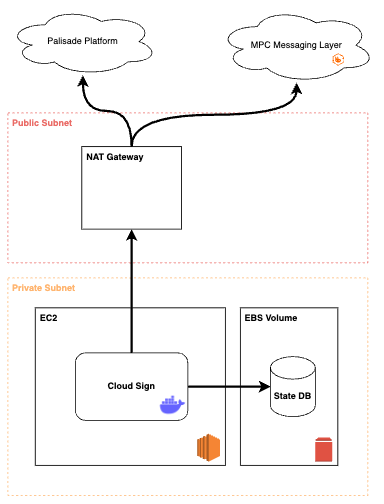
One CloudSign instance runs on an EC2 machine. It stores state on a mounted, encrypted EBS volume and connects outbound through a NAT gateway in a public subnet to the Wallet-as-a-Service platform and the MPC messaging layer. The NAT gateway allows no inbound traffic.
A quorum setup suits cases where you hold all the shards yourself. This reference architecture lowers network risk and provides redundancy if some shards become unavailable.
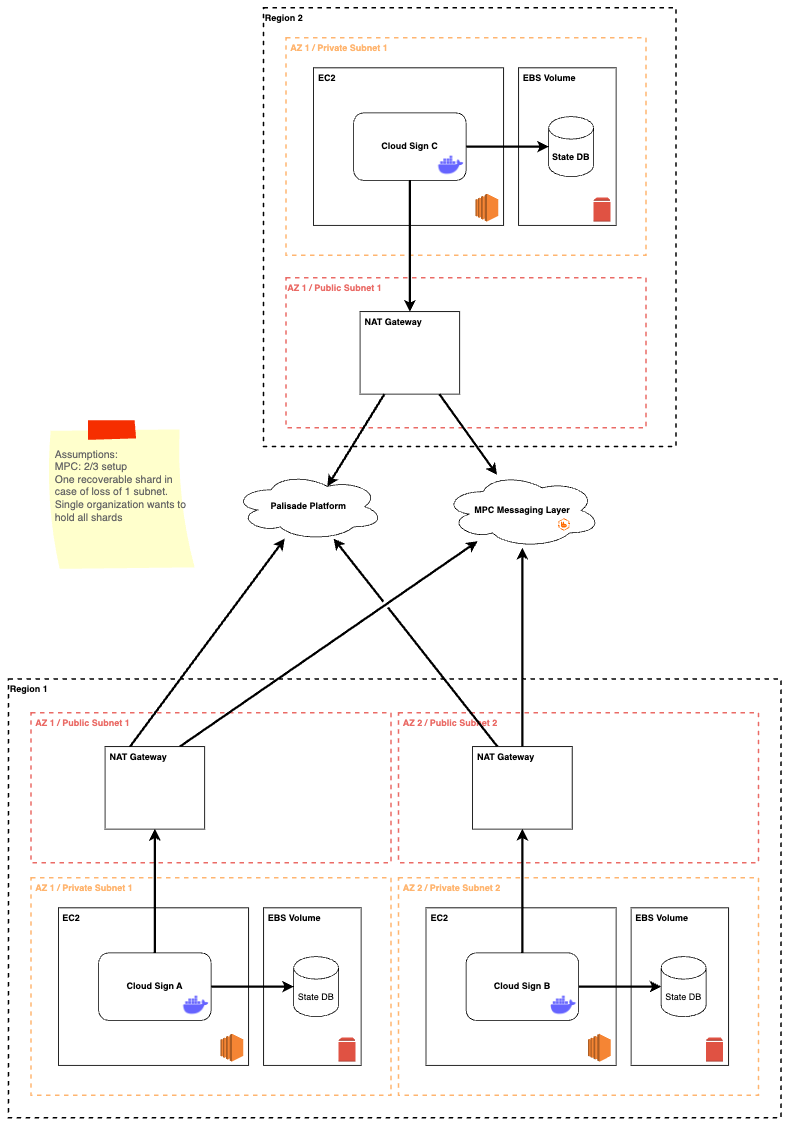
This example runs a 2-of-3 quorum: two of the three CloudSign devices must sign each transaction. Each individual CloudSign instance is set up the same way as in the single node architecture.
- Use separate AWS accounts or organizations to segregate access and privileges for CloudSign.
- Use separate, single-purpose, multi-region replicated KMS keys for encrypting disks and EBS volumes.
- Don't allow any inbound access to the EC2 instances, including SSH.
- Use trusted AMIs for EC2 instances.
- Back up EBS volumes securely using snapshots.
| Problem | Cause | Solution |
|---|---|---|
| Device stays in Unpaired | Node not running or pairing key incorrect | Verify the container is running; check the pairing key matches |
| Device stuck on Waiting for approval | No administrator approval | Have an administrator approve the device |
| Quorum not moving to Confirmed | One or more nodes offline | Ensure all three CloudSign containers are running |
| Wallet provisioning fails | Quorum not confirmed or nodes unreachable | Verify the quorum status is Confirmed; check node connectivity |
| Node unhealthy or unreachable | Blocked egress | Check /liveness and /readiness on port 8000; verify outbound access to the API, GraphQL, and AMQPS endpoints |