Fungible tokens are issued on the XRP Ledger when an owner account distributes the tokens to other, trusted accounts.
In this tutorial you'll learn how to issue stablecoin tokens on the XRP Ledger with Ripple Custody.
By the end of this tutorial, you should be able to:
- Create a token issuer account and mint tokens.
- Link the issuer account to trusted holder accounts.
- Issue tokens on the XRP Ledger.
- Describe the difference between authorized and unauthorized transfers.
- Understand reserves and balances in Ripple Custody and on the XRP Ledger.
The workflow to issue fungible tokens on the XRP Ledger is as follows:
Create an issuer account — Create a new account on the XRP Ledger to issue the tokens and fund the account with native currency.
Mint the token — Register and validate a token asset.
Create a holder account — Create a new account on the XRP Ledger to hold the tokens and fund the account with native currency.
Link the issuer and holder accounts — Create a trust line between the issuer and holder accounts.
Issue some tokens — Send tokens from the issuer to the holder account.
Create account Issuer and fund it with enough XRP to cover the transactions and reserves.
The XRP Ledger has some specific requirements in terms of reserved amounts for accounts. For more information, see Reserves in the XRPL documentation.
To create a new account:
- With the UI, see Ripple Custody UI > Create accounts
- With the API, see Ripple Custody API > Create accounts
To fund the account:
- With the UI, see Ripple Custody UI > Receive assets
- With the API. see Ripple Custody API > Receive assets
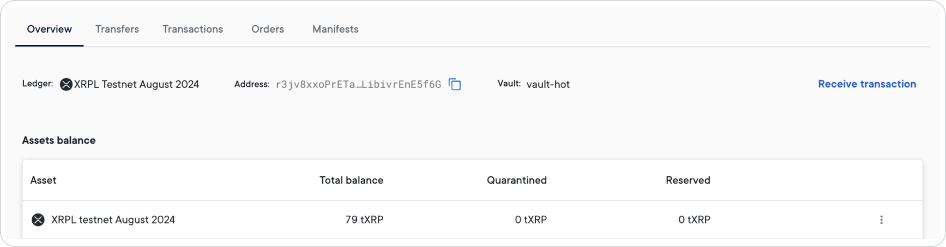
For more information about the different types of account balances in Ripple Custody, see View account balances.
If required, update the issuer account settings to require authorization, that is, the account needs an authorized trust line to issue tokens. This provides an extra level of trust: if you don't enable this setting, the account only needs a standard trust line. For more information, see Link the issuer and holder accounts with a trust line.
To update the account settings:
- With the UI, see Ripple Custody UI > Update XRPL account settings
- With the API, see Ripple Custody API > Update XRPL accounts settings
Register and validate a new token asset with currency code FSC.
To register a token asset:
- With the UI, see Ripple Custody UI > Register assets
- With the API, see Ripple Custody API > Register assets
To validate the asset:
- With the UI, see Ripple Custody UI > Validate assets
- With the API, see Ripple Custody API > Validate assets
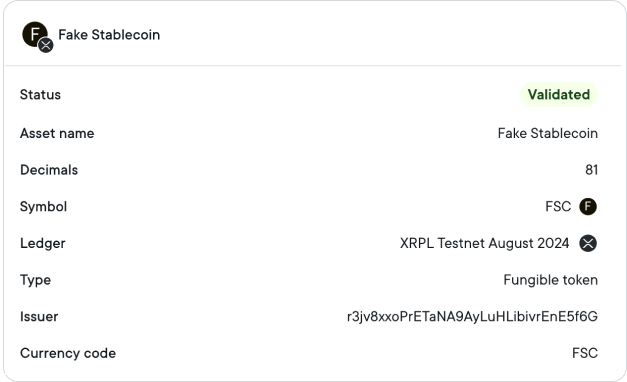
Decimals is always automatically set to 81 and you can't update it.
For more information, see XRPL token decimals and amounts.
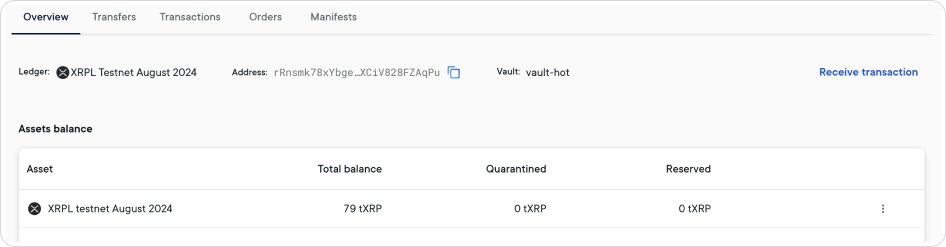
Create account Holder and fund it with XRP, in the same way as the issuer account in Create an XRPL issuer account.
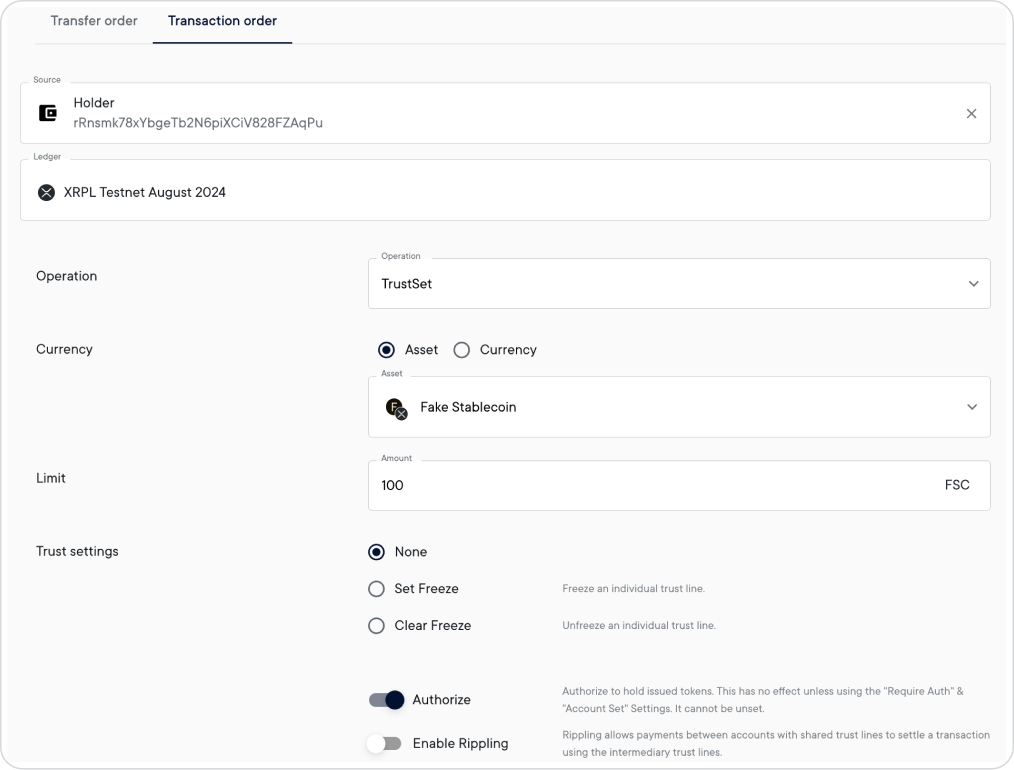
Create a trust line between Issuer and Holder, to enable the issuer account to transfer FSC tokens to the holder account.
If you updated Issuer to require authorization in (Optional) Update the account to require authorization, you need to create an authorized trust line.
To create a trust line:
- With the UI, see Ripple Custody UI > Create a trust line
- With the API, see Ripple Custody API > Create a trust line
To create an authorized trust line:
- With the UI, see Ripple Custody UI > Create an authorized trust line
- With the API, see Ripple Custody API > Create an authorized trust line
The following image shows the creation of an authorized trust line:
Transfer 10 FSC from Issuer to Holder with a transfer order.
The number of tokens you can transfer is limited by the trust line Limit amount.
To transfer tokens:
- With the UI, see Ripple Custody UI > Send assets
- With the API, see Ripple Custody API > Send assets
The resulting transaction is shown below:
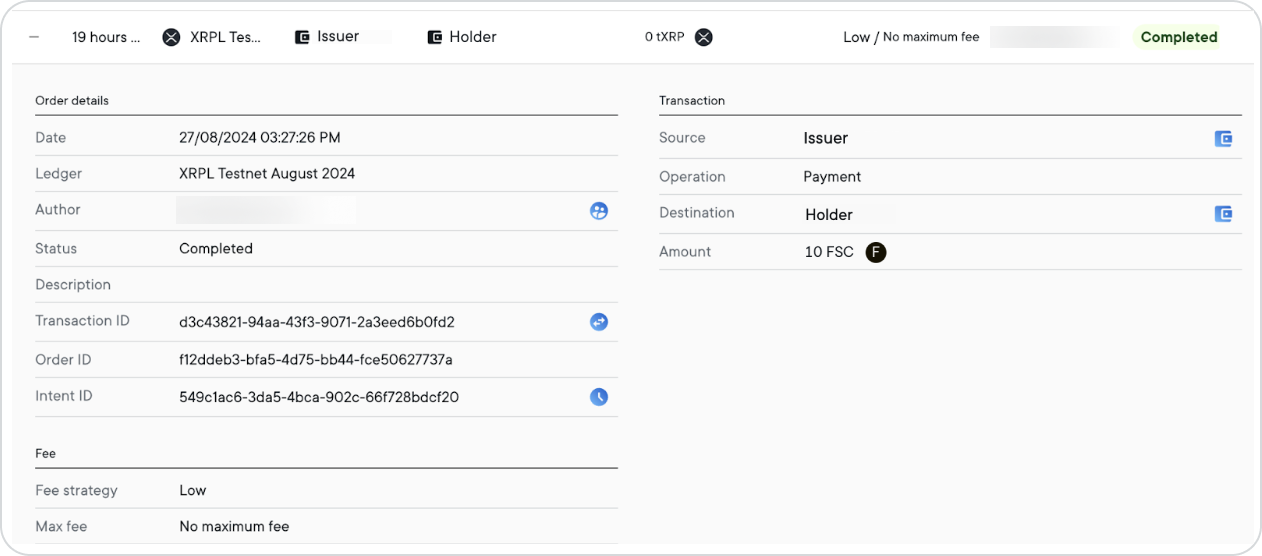
After the transfer, the account balances appear on the ledger as follows:
- The balance of Issuer is -10 FSC
- The balance of Holder is +10 FSC
The token holder now owns 10 FSC, which the holder is free to hold on to, transfer to another trusted account, or trade on the DEX, as required.
For more information on trading tokens on the DEX, see tutorial Trade fungible tokens in the XRP Decentralized Exchange.