Use this page for omnibus operations in the Ripple Custody (Vault) console. For API procedures, see Manage omnibus with the API. For the omnibus model — virtual accounts, deposit wallets, and sweeps — see Omnibus.
These steps describe the new Ripple Custody (Vault) console — the interface with the Home, Intents, Accounts, Endpoints, and Transactions navigation. The console displays the omnibus pages only when the HMZ_FEATURE_OMNIBUS deployment flag is enabled. On-premise operators set the flag in the deployment configuration; Ripple manages deployment flags for SaaS.
| Action | UI procedure |
|---|---|
| Create the omnibus account | Create the omnibus account |
| Link or change the gas station | Link or change the gas station |
| Check balances and start orders | Check balances and start orders |
| Create, edit, or lock virtual accounts | Manage virtual accounts |
| Withdraw from a virtual account | Withdraw |
| Move funds between virtual accounts | Transfer between virtual accounts |
| Set sweep thresholds | Set sweep thresholds |
| Create a deposit wallet | Use the API procedure: Create a deposit wallet. Omnibus creates deposit wallets lazily on a tenant's first request. |
| View deposit wallets | View deposit wallets |
| Sweep deposits | No manual procedure: Omnibus sweeps confirmed, released deposits automatically. Monitor sweeps in transactions and transaction orders. |
| View movements | View transactions and transaction orders |
| Release quarantined deposits | Release quarantined transfers |
| Edit the account | Edit the omnibus account |
An omnibus account acts as a unified container for multiple client virtual accounts: it pools assets into a single on-chain wallet while maintaining segregated balances off-chain. Before you create the structure, complete the planning steps in Setup and governance.
Before you create the account, confirm that you have:
- A vault in the domain to protect the account keys.
- Permission to propose account-creation intents in the domain.
- To sponsor deposit-wallet sweep fees, a gas station in the same domain. If the domain has no gas station, the Fee sponsorship step shows "No gas stations available in this domain" — create a gas station first.
To create the omnibus account:
In the left navigation, select Accounts.
Select the Omnibus tab. If the domain has no omnibus account yet, the tab invites you to create one.
Select Create account, and in the Create a new account dialog, select Create omnibus account.
On the Account details step:
- Enter an account name that reflects the account's function, and optionally select Add a description.
- Under Vault, select the vault that protects the keys of this account. You can't change the vault after you create the account.
- Under Ledgers, select the ledgers to support on the account, or select All ledgers.
- Optionally, add custom properties and set the initial lock status.
- Select Continue.
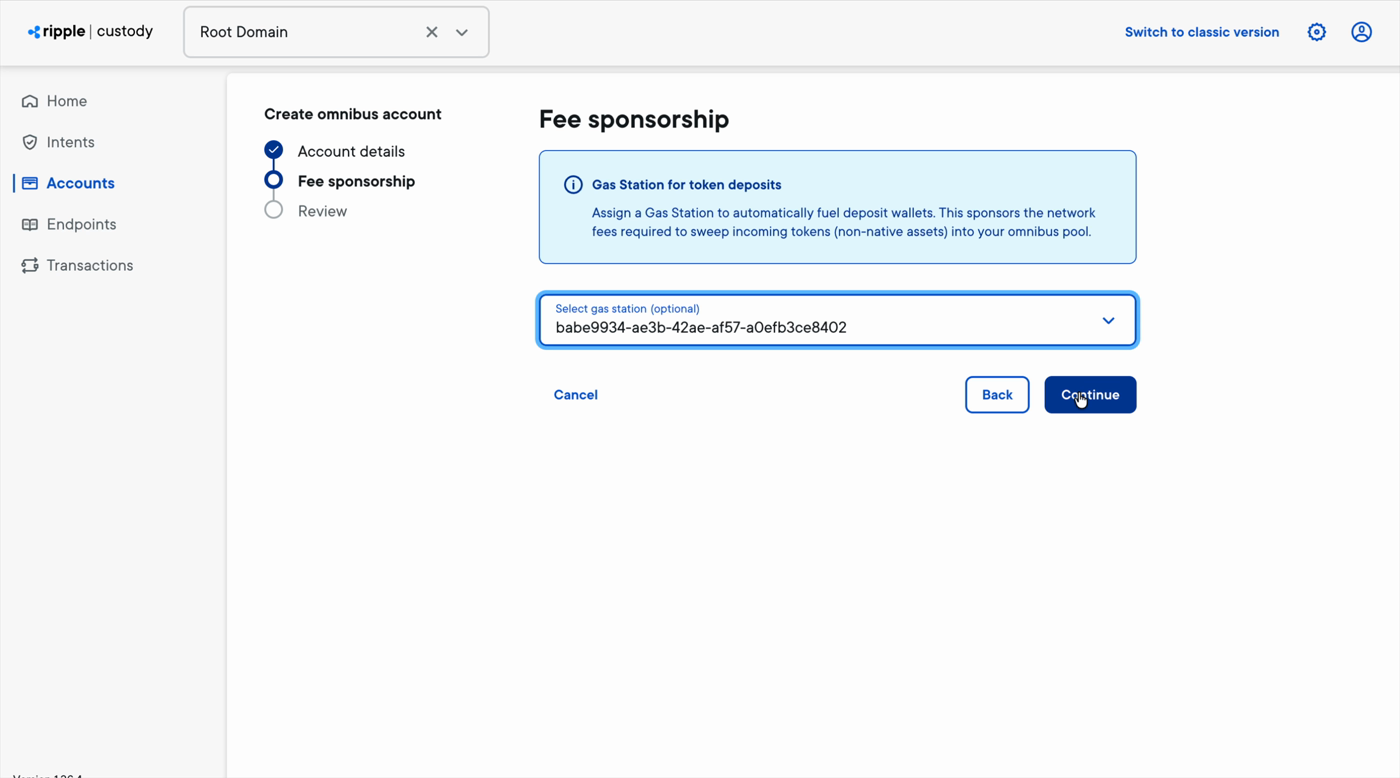
On the Fee sponsorship step, select the gas station that funds deposit-wallet sweeps, and select Continue.
The gas station sponsors the network fees required to sweep incoming tokens (non-native assets) from deposit wallets into your omnibus pool. The field is optional, but without a sponsor, non-native sweeps can't pay their network fees.
On the Review step, check the details and submit.
The console submits a Create account intent and shows the All set! confirmation.
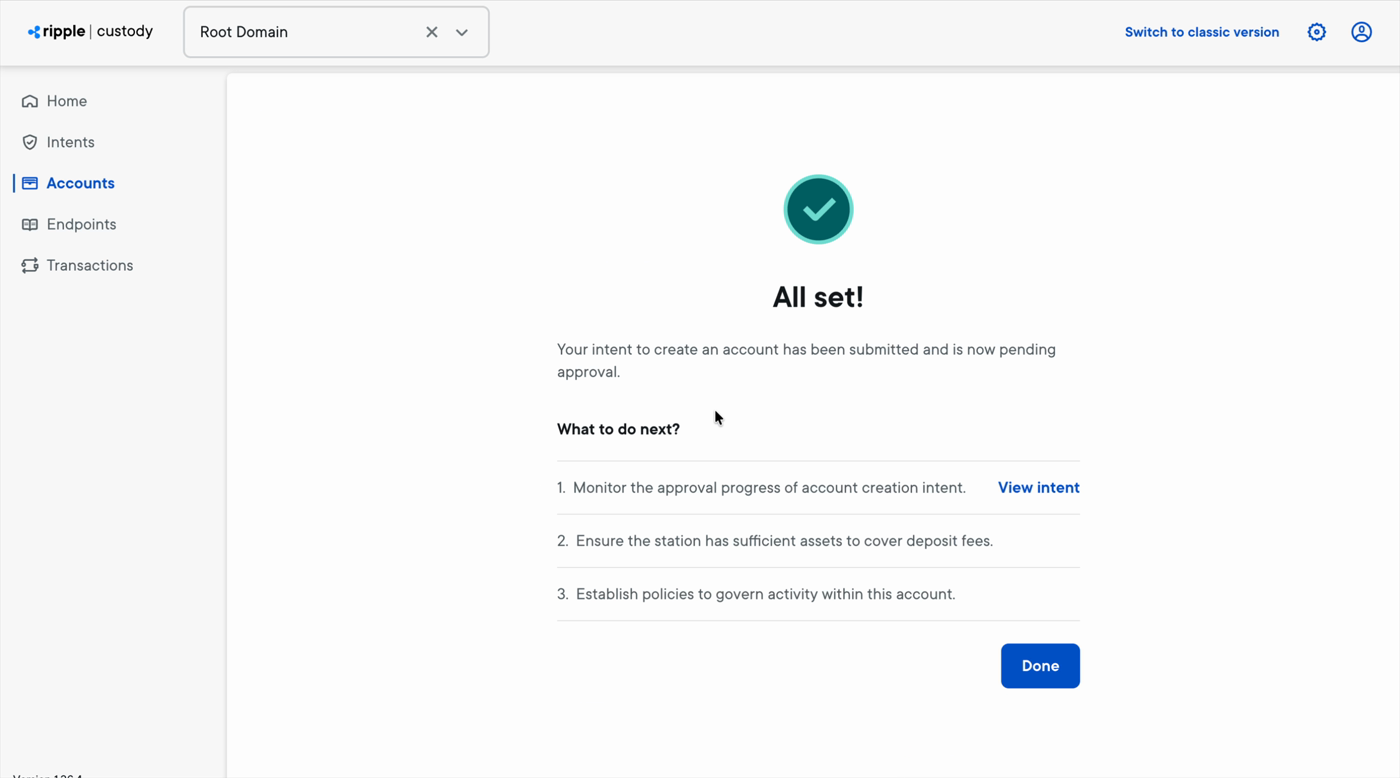
Once submitted, the intent is subject to your organization's policies: it requires signing and the approvals your policies define before Ripple Custody (Vault) creates the account. Track its progress from the confirmation screen with View intent, or in the Intents view.
After the intent executes, the omnibus account appears on the Omnibus tab of the Accounts view. Also make sure that:
- The sponsoring gas station holds enough native assets to cover deposit-wallet sweep fees.
- The policies that govern activity within the account are in place, including the system-signed policy that Omnibus automation requires. See Setup and governance.
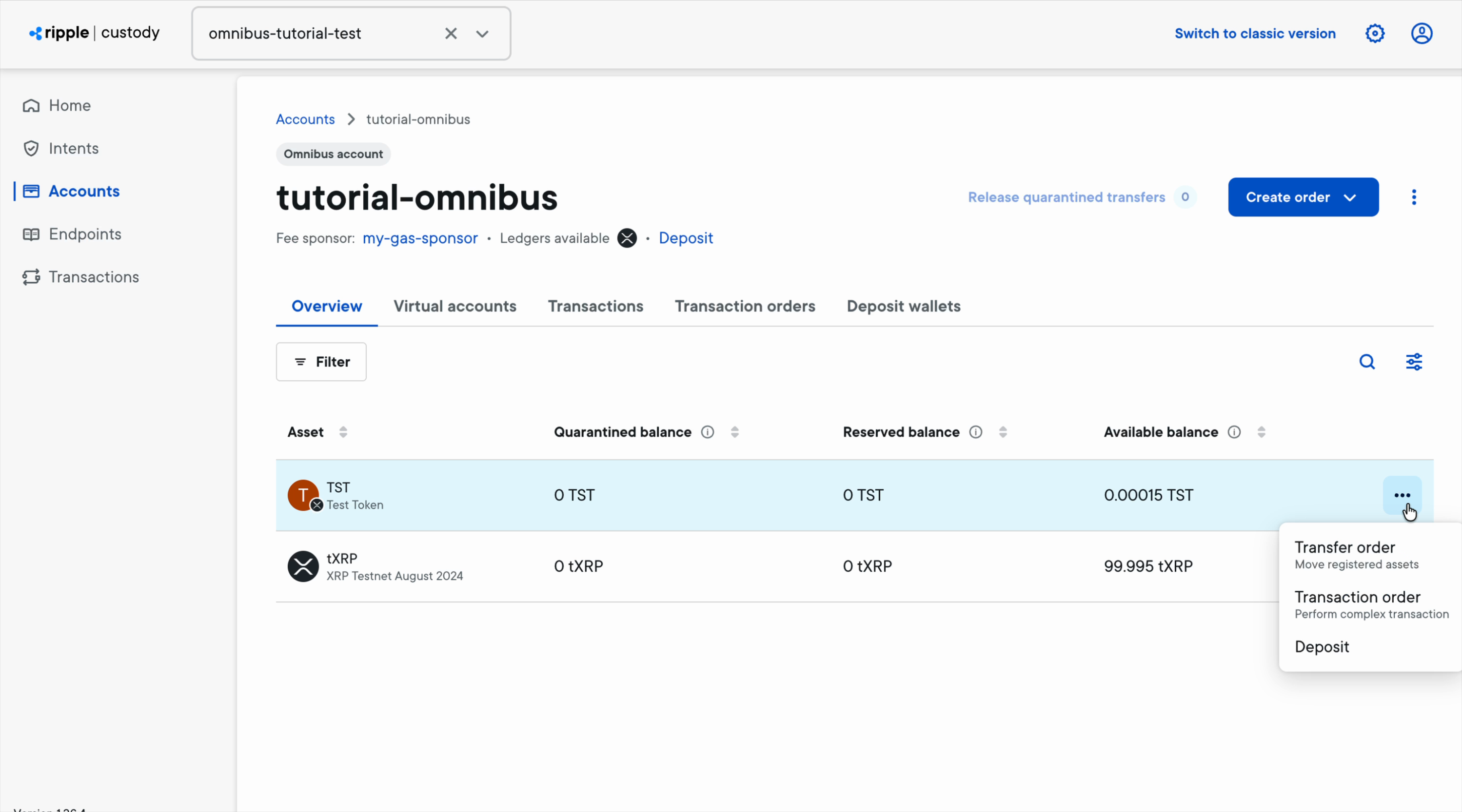
Open the account from the Omnibus tab to reach its detail page. The header shows the Omnibus account badge, the sponsoring gas station under Fee sponsor, the available ledgers, and quick actions: Deposit, Release quarantined transfers, and the Create order menu.
The detail page header shows the sponsoring gas station under Fee sponsor. If you didn't link a gas station at creation, the structure stays in the PENDING_SPONSORSHIP status and is not operational until you link one. Select the fee sponsor to review or change which gas station funds deposit-wallet sweeps; the change follows your organization's approval flow.
The Overview tab lists each asset with its quarantined, reserved, and available balances. Select the actions menu on an asset row to start a Transfer order (move registered assets), a Transaction order (perform a complex transaction), or a Deposit.
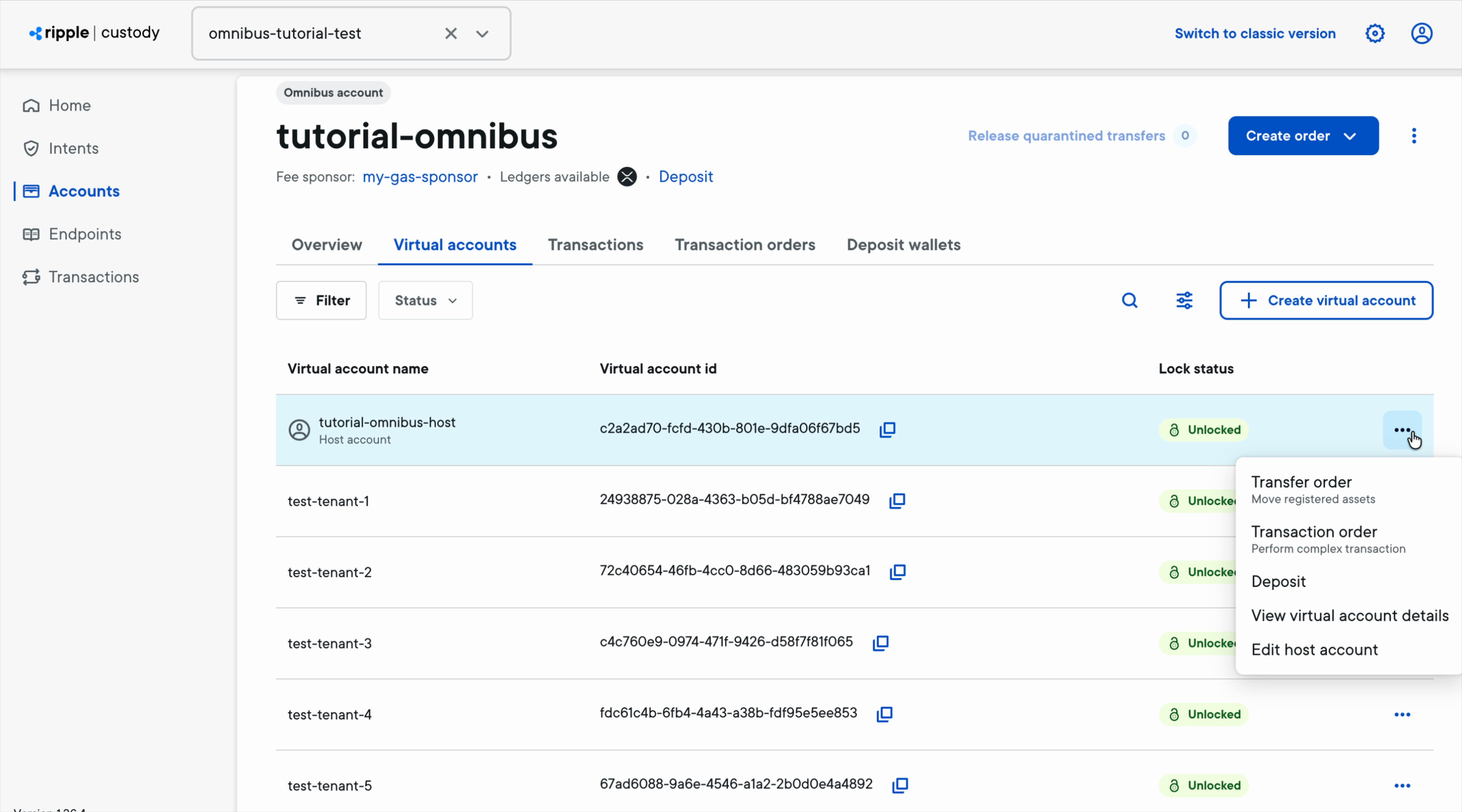
The Virtual accounts tab lists the host account and every tenant virtual account with its ID and lock status.
- Select Create virtual account to add a tenant.
- Open a row's actions menu to start a transfer, view the virtual account details, edit the account's name, description, and custom properties, or change its lock status. Lock a virtual account to block new operations for the associated tenant.
Withdrawals move funds from a virtual account to an external destination on-chain and follow the full custody policy, approval, and signing flow.
- On the virtual account, open the actions menu and start a Transaction order.
- Enter the amount, asset, and destination address, and submit for approval.
For the withdrawal lifecycle, balance reservation, and fee handling, see Withdrawals.
Internal transfers move value between virtual accounts in the same omnibus structure off-chain, with no blockchain transaction and no fees.
- On the source virtual account, open the actions menu and select Transfer order.
- Enter the amount and the destination virtual account, and submit.
For validation rules and the asynchronous settlement model, see Internal transfers.
Sweep thresholds define the minimum amount per asset that triggers a deposit sweep; assets without a configured threshold sweep immediately. Configure thresholds from the omnibus account's settings; changes apply per domain. For the threshold model, see Dust thresholds.
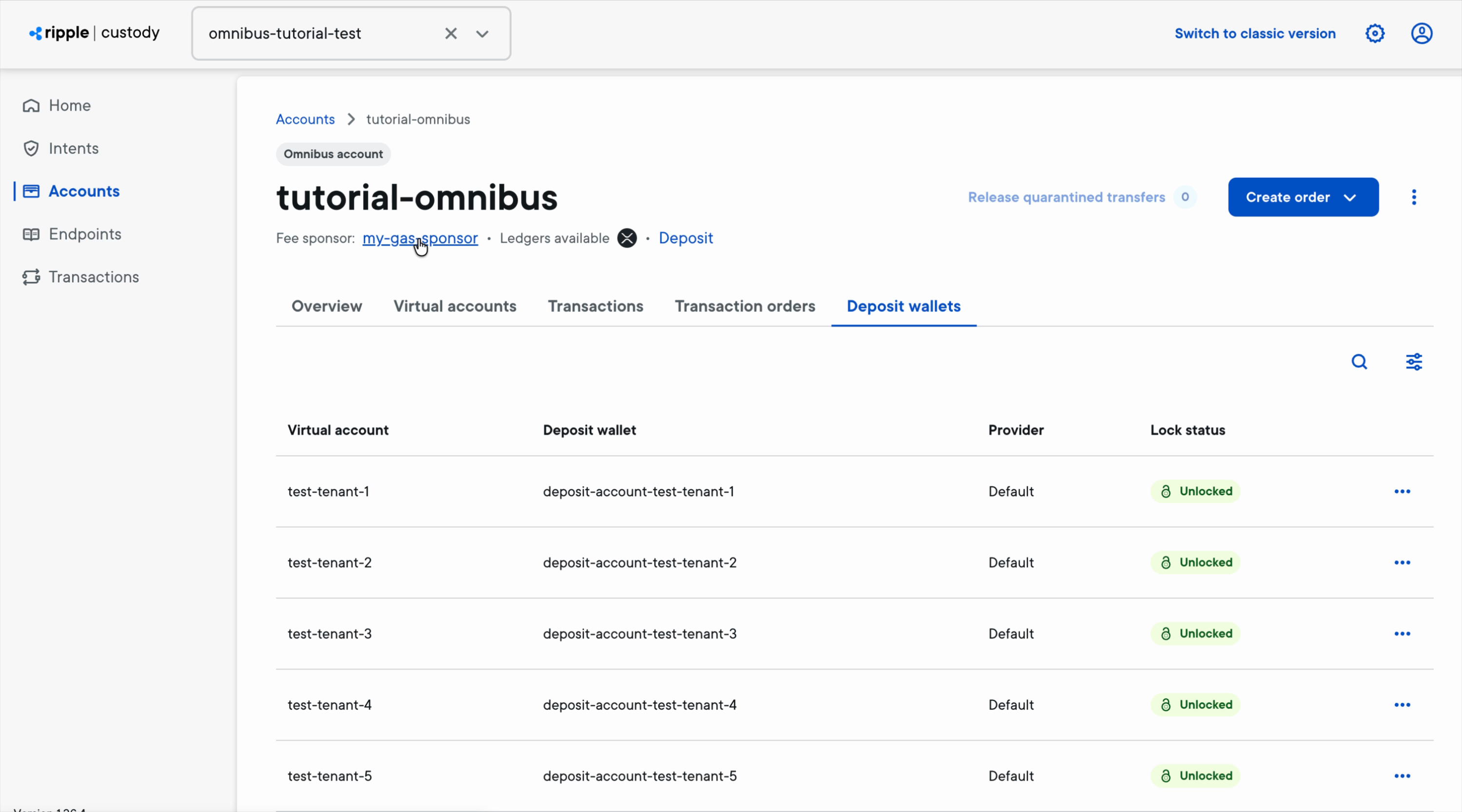
The Deposit wallets tab maps each virtual account to its deposit wallet, with the wallet's provider and lock status. Omnibus creates deposit wallets lazily when a tenant first requests a deposit address — see Create a deposit wallet for the API call.
The Transactions tab shows both movement types in one place: on-chain transactions (deposits and sweeps, with their ledger IDs) and off-chain internal transfers between virtual accounts, which have no ledger ID because they settle in the Accounting Service.
The Transaction orders tab lists the orders behind on-chain movements — including the sweeps the Omnibus service submits automatically — with their author, fee strategy, and status. Filter by ledger, account, or author.
When transaction screening holds incoming funds, the Release quarantined transfers counter in the header shows how many transfers wait. Omnibus does not sweep quarantined deposits.
- Select Release quarantined transfers.
- Choose the transfers to release.
- Select Submit for approval.
The release is an intent and follows your organization's policies. To release transfers automatically, configure an automatic quarantine release policy.
Open the header's actions menu and select Edit to change the account name, description, and custom properties. The change submits an intent for approval, like any other governed operation.
| Topic | Documentation |
|---|---|
| Omnibus concepts | Omnibus |
| Setup and governance | Setup and governance |
| API procedures | Manage omnibus with the API |
| Manage a gas station | Manage a gas station in the UI |
| Intents and approvals | Manage intents and approvals |