
Quarantined transfers need a policy that automates the release of quarantined transfers on child domains.
Alternatively, you can add a policy for manually releasing quarantined transfers. For more information, see Add a policy for a manual release of quarantined transfers.
To add a policy for automatically releasing quarantined transfers in your Elliptic or Chainalysis integration, complete these steps:
In the left navigation, select Integrations, and on the tile for your compliance solution provider, select Configure.
In the Integration window, next to Add policy for automatic release of quarantined transfers, select Start.
The Add a policy for automatic release of quarantined transfers window opens, displaying your previously configured risk scores.Example using Elliptic integration
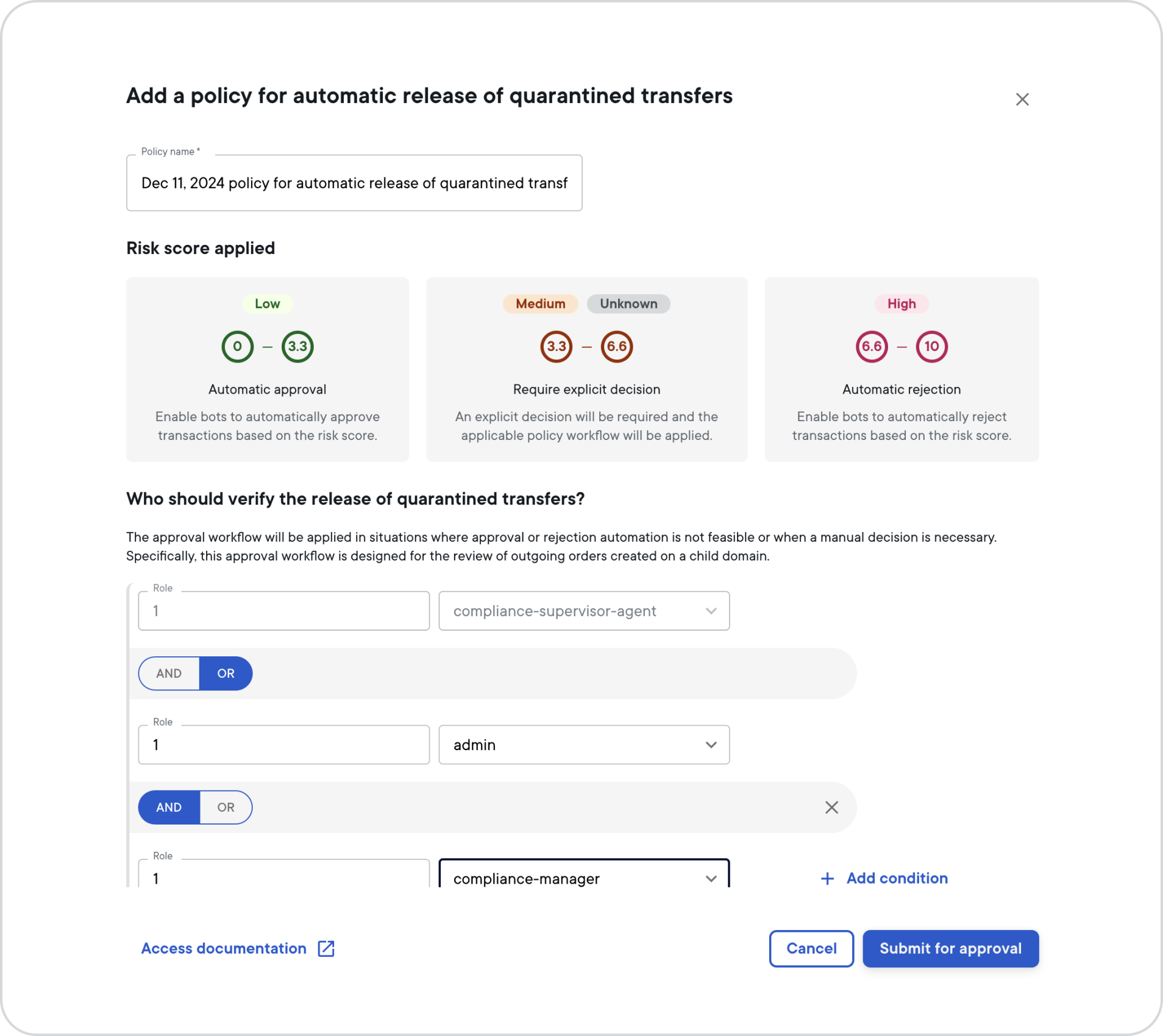
In the Policy name field, change the name to a unique name of your choosing.
In the Role fields, select the amount of users and the role type from the drop-down list, for example 1 and Admin.
If you want two or more different role types to be required for approving quarantine releases, select the AND condition. If you want either the role you already defined or another role to be required for approving quarantine releases, select OR.
Repeat step 4, for example 1 and Compliance manager.
Optional: If you wish to set up additional conditions that must be met for the approval of quarantined releases workflow, select Add condition and repeat step 4.
When you're done adding all conditions, select Submit for approval.
On your security device or the desktop app, sign the operation. For more information, see Sign intents.