A payment is a standard transfer of funds from your wallet to a counterparty or to another wallet. Ripple Custody (Wallet) supports payments on all blockchains. In the API, a payment is a transfer transaction.
New wallets are deposit-only. Before a wallet can send, it needs a transaction policy, an address book entry for the destination, and outgoing transactions enabled. See Unlock outgoing transactions.
To give a transaction your own ID, set an External ID in the console or an externalId on a transfer. Reusing the same externalId makes a transfer request safe to retry. See External IDs.
| Action | Console role | Console procedure | API procedure |
|---|---|---|---|
| Estimate the fee | - | - | Estimate the fee |
| Send a payment | Owner, Administrator, Proposer | Send a payment | Create a transfer |
| Send from an EVM wallet on another EVM chain | - | - | EVM cross-chain transfers |
| Track the transaction | All roles | View a transaction | Track the transaction lifecycle |
Permissions: In the console, owners, administrators, and proposers can create transactions, and owners, administrators, proposers, and approvers can approve them. See User roles and permissions. The API procedures need an API credential of type TRANSACTIONS. See Prerequisites.
Each transaction pays a network fee in the blockchain's base asset (for example, ETH on Ethereum). Fee estimation returns speed tiers (slowest, slow, average, fast, fastest): EVM chains, Bitcoin, and Solana return all five tiers, and TRON and XRP Ledger return only average. You can pay a higher fee for the transaction to be processed more quickly. The fee you set on a transfer is the maximum fee the transaction can pay. Fee estimation is currently API only. See Estimate the fee.
To send from the console or the API, you need:
- A funded wallet. For the API procedures, you need the wallet's
vaultIdandwalletId. See Create your first wallet. - An active policy that permits outgoing transactions. Without one, the policy check rejects transfers. See Unlock outgoing transactions.
- A destination address allowed by your policies, for example an address registered to a counterparty. See Manage address book.
For the API procedures, you also need:
- An API credential of type
TRANSACTIONS. It grants access to creating and managing transactions, including transfers and fee estimation. Create credentials in the console. See Manage API credentials and Credential types. - An access token. Exchange your credential's
clientIdandclientSecretfor an access token. See Authenticate.
For the base URLs, token lifetime, pagination, filtering, and error format that every endpoint shares, see API conventions.
Required role: Owner, Administrator, or Proposer.
To send a payment from the console:
In the console, open the wallet you want to send from and click Send transaction.
On the Type step, choose a Transaction type and click Next. The default is Payment.
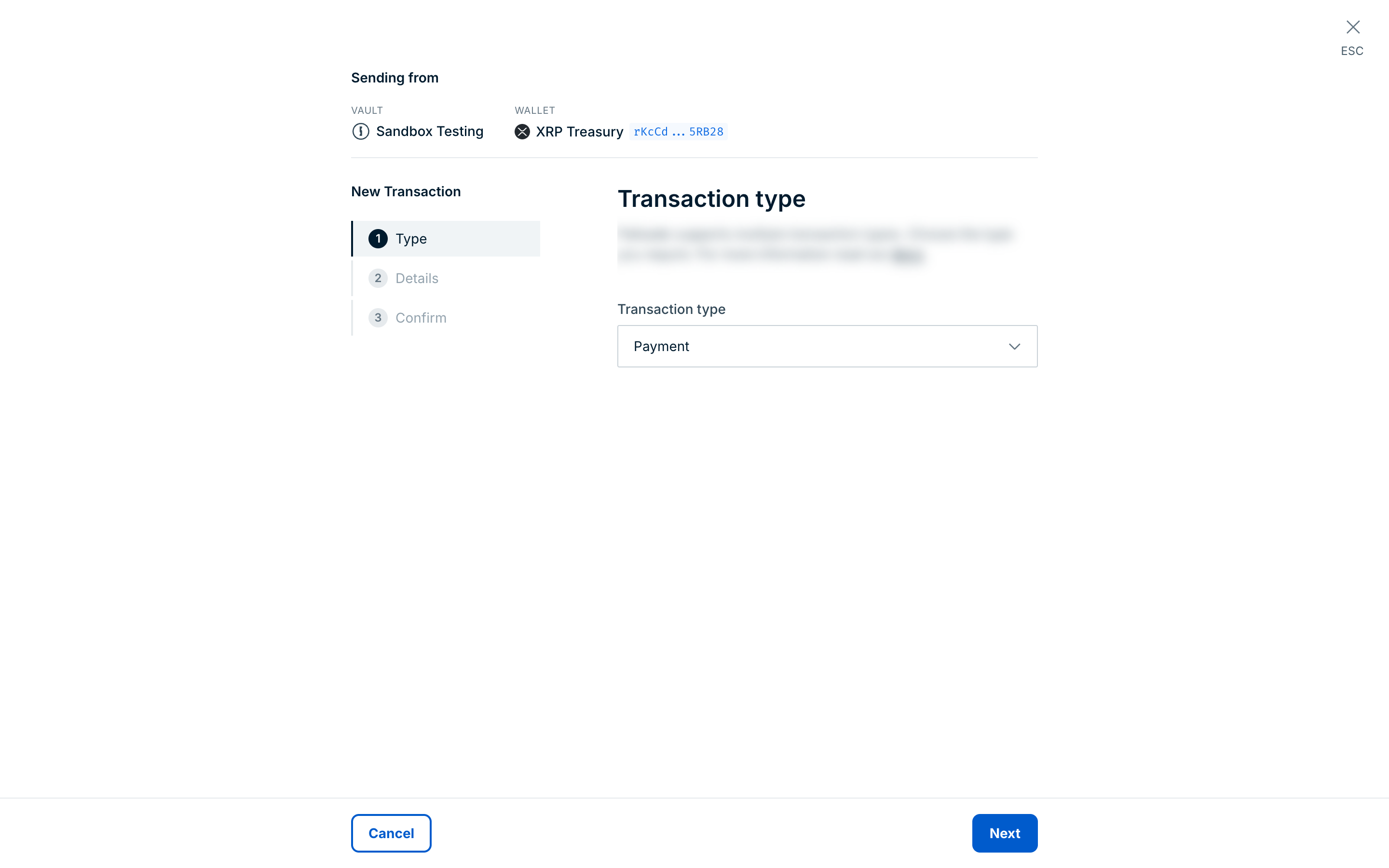
For XRP Ledger wallets, the Transaction type list also offers XRP Ledger–specific types such as OfferCreate, OfferCancel, and TrustLine. See XRP Ledger transactions in the console.
On the Details step, enter the payment details:
- Under Asset, select the asset you want to send. All assets in the wallet appear as options.
- Under Sending to, select the wallet or address book entry you want to send the payment to. If the external address you want doesn't appear, add it to the address book first.
- Enter the Amount to send, excluding blockchain fees. The console also shows the amount in USD.
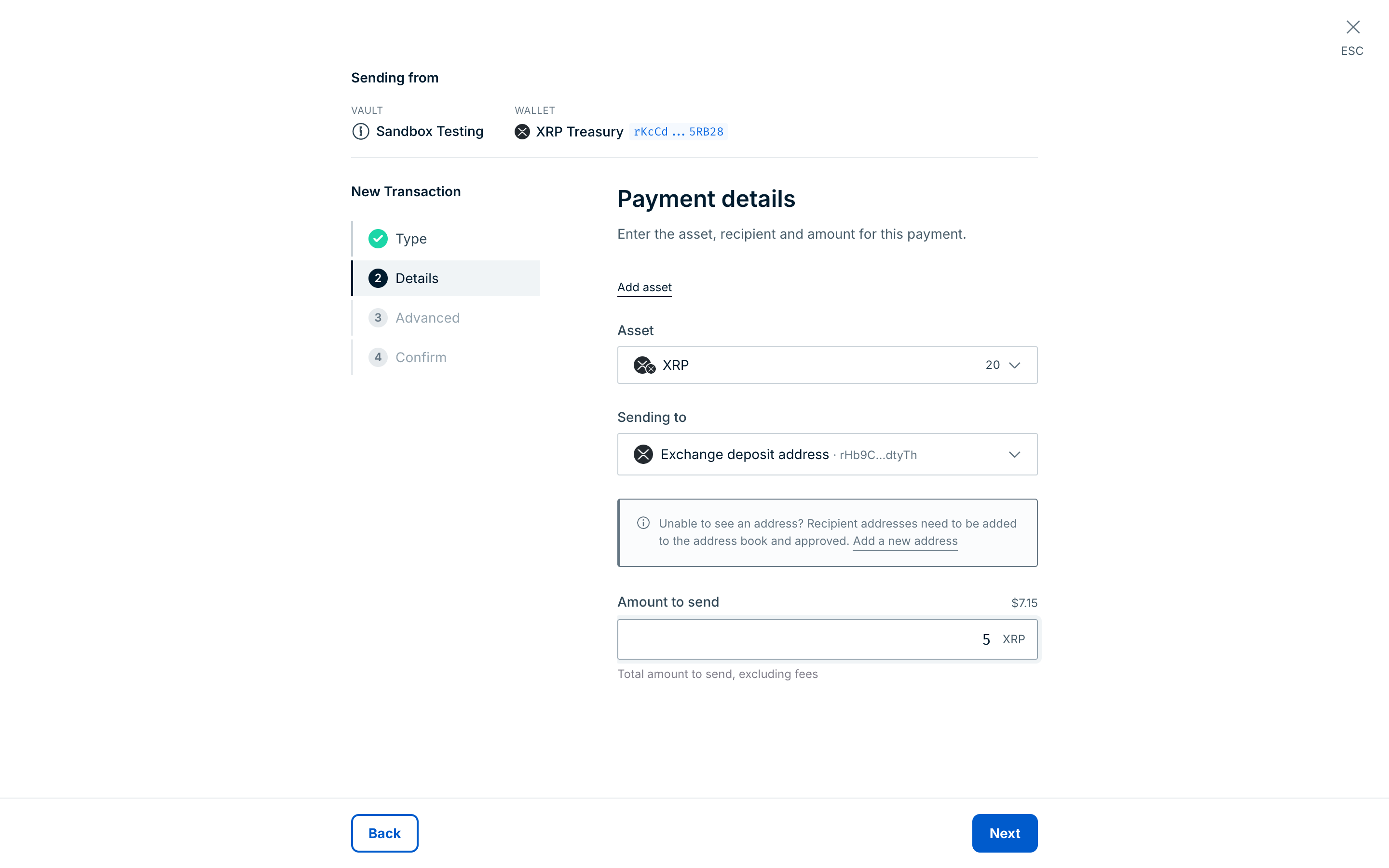
Click Next.
Optional: On the Advanced step, enter a Correlation ID and an External ID. For XRP Ledger wallets, you can also enter a Source tag and a Destination tag.
Click Review transaction.
On the Confirm step, check that the transaction details are correct. You can also view the transaction amount in USD. Once confirmed, the transaction details can't be changed.
Click Confirm transaction to submit the transaction.
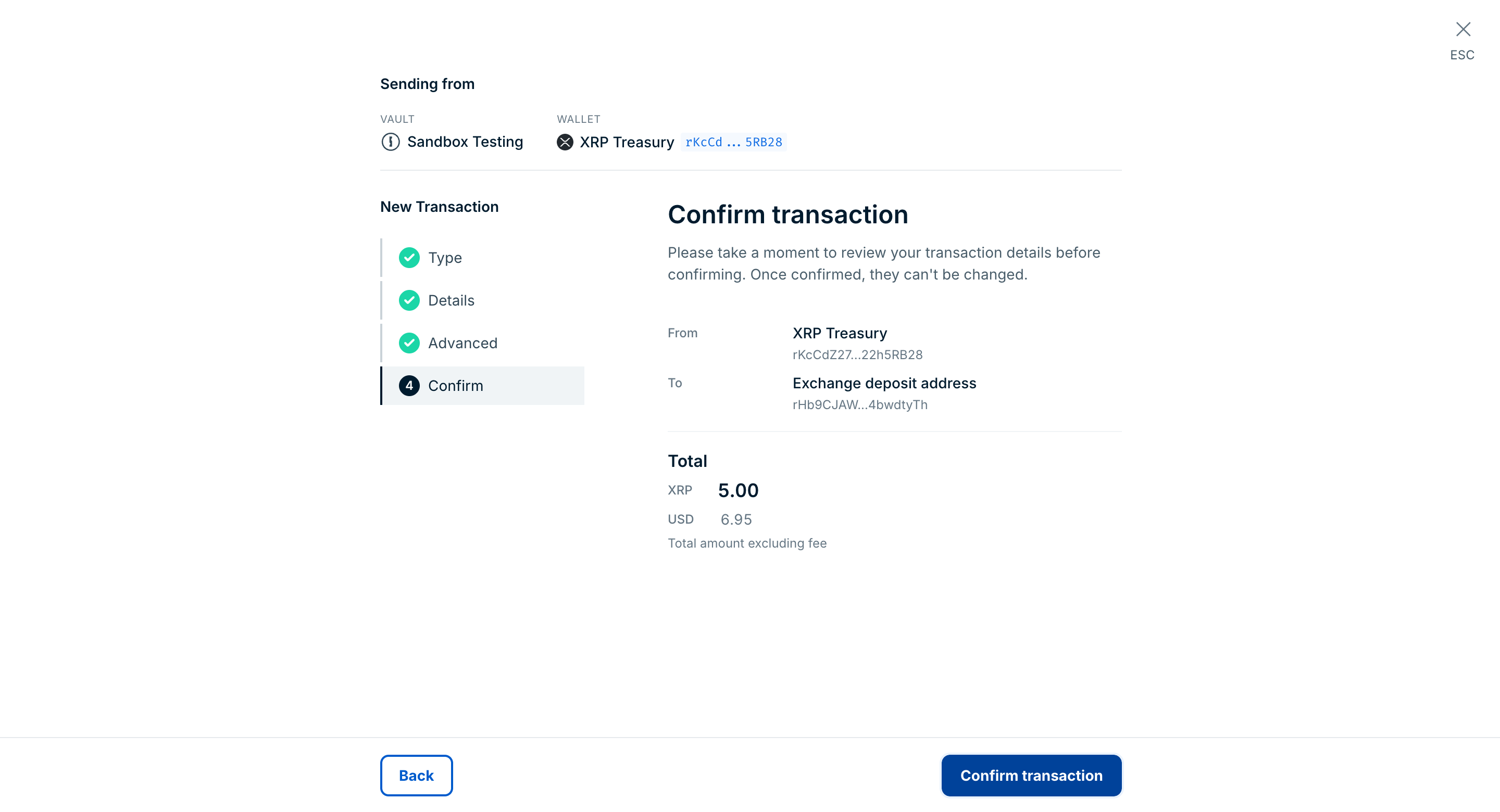
If you have approvals or MPC signing set up, the console sends the transaction for approval or signing. To follow the payment through to confirmation, see View a transaction.
API reference: Estimate the fee for a transfer transaction
Ripple Custody (Wallet)'s transaction fee estimation lets you preview network fees before you execute a transfer, so you can budget for transaction costs and choose the fee level that fits the urgency of the transaction.
This feature is currently API only. It will be available in the Ripple Custody (Wallet) console soon.
Before you send, estimate the network fee for a transfer with POST /v2/transactions/transfer/estimate-fee. blockchain, symbol, and originAddress are required. Include contract for token transfers. Include destinationAddress for a more accurate estimate on chains where transfer costs vary based on recipient state, such as TRON and Solana.
curl -X POST "https://api.sandbox.palisade.co/v2/transactions/transfer/estimate-fee" \
  -H "Authorization: Bearer $ACCESS_TOKEN" \
  -H "Content-Type: application/json" \
  -d '{
    "blockchain": "ETHEREUM",
    "symbol": "ETH",
    "originAddress": "0x2352d20fC81225c8ECD8f6FAA1B37F24FED450c9"
  }'
The response returns networkFees, a map of fee options keyed by speed (slowest, slow, average, fast, fastest) with values in base asset units (for example, ETH on Ethereum). EVM chains, Bitcoin, and Solana return all five tiers. TRON and XRP Ledger return only average. You can pay a higher fee for the transaction to be processed more quickly. For Ethereum and compatible EVM chains, it also returns an evm object with detailed gas information: gasPrice, baseFee, priorityFee (all in wei), and the estimated gasLimit. gasPrice is baseFee plus priorityFee.
{
  "evm": {
    "gasPrice": "5000000000",
    "baseFee": "3000000000",
    "priorityFee": "2000000000",
    "gasLimit": "21000"
  },
  "networkFees": {
    "slowest": "0.00005",
    "slow": "0.000084",
    "average": "0.000105",
    "fast": "0.00015",
    "fastest": "0.00021"
  }
}
On some EVM chains, several tiers can hold the same value. For an XRP Ledger wallet, the response has no evm object and a single tier:
{
  "networkFees": {
    "average": "0.00001"
  }
}
A request that omits a required field returns HTTP 400 with the reason PAL000.020. On Ethereum, an estimate for an origin address that can't fund the transfer, such as a new, unfunded address, can return HTTP 400 with the message connector data request rejected and the reason PAL020.004.
For a token transfer, include the token's contract. For example, to estimate the fee for a USDT transfer on Ethereum:
{
    "blockchain": "ETHEREUM",
    "symbol": "USDT",
    "contract": "0xdAC17F958D2ee523a2206206994597C13D831ec7",
    "originAddress": "0x55502b9d5a68b0F8a48384352295BeD968aD8AA4"
}
The response has the same shape:
{
    "evm": {
        "gasPrice": "300000000",
        "baseFee": "100000000",
        "priorityFee": "200000000",
        "gasLimit": "65156"
    },
    "networkFees": {
        "slowest": "0.0000065156",
        "slow": "0.0000195468",
        "average": "0.0000195468",
        "fast": "0.0001042496",
        "fastest": "0.0001694056"
    }
}
After you preview the fee options, pass one of the networkFees values as networkFee when you create the transfer. networkFee is the maximum fee the transaction can pay. For more about fee tiers, see Network fees.
API reference: Create a new transfer transaction
Create a transfer with POST /v2/vaults/{vaultId}/wallets/{walletId}/transactions/transfer. destinationAddress, symbol, and qty are required. Optional fields:
contract— the token contract or issuing address, for token transfers.networkFee— the maximum network fee to pay for this transaction, in base asset units (for example, ETH on Ethereum). The transaction returns it asfeeQtyLimit. On the XRP Ledger, the transaction pays exactly this fee. If you omit it, Ripple Custody (Wallet) sets the fee.sequence— the blockchain nonce or sequence to use.externalId— your ID for this transaction, 1 to 64 characters, unique within your organization. Reusing the sameexternalIdmakes the request safe to retry: the API returns the existing transaction instead of creating another. See External IDs.correlationId— an ID you use to correlate related actions.config— XRP Ledger options:sourceTaganddestinationTag. Pass the tags as strings, for example"destinationTag": "12345". A JSON number returns HTTP 400 with the messageinvalid value for string field destinationTag.blockchain— the EVM chain to execute the transfer on, if different from the wallet's blockchain. See EVM cross-chain transfers.
curl -X POST "https://api.sandbox.palisade.co/v2/vaults/$VAULT_ID/wallets/$WALLET_ID/transactions/transfer" \
  -H "Authorization: Bearer $ACCESS_TOKEN" \
  -H "Content-Type: application/json" \
  -d '{
    "destinationAddress": "0x55502b9d5a68b0F8a48384352295BeD968aD8AA4",
    "symbol": "USDC",
    "contract": "0x1c7D4B196Cb0C7B01d743Fbc6116a902379C7238",
    "qty": "155.672",
    "networkFee": "0.00015",
    "externalId": "ce4918bf-a199-4ce2-85a3-d0d296855384"
  }'
The response is the new transaction, with HTTP 200 and a status of REQUESTED. Store its id to track the transfer. The following example is abridged: the asset and feeAsset objects carry more asset registry fields, and the response also includes attributes, snapshotRevision, and signingPayloads.
{
  "id": "1d6f7a52-8c3e-4b09-9a41-2f6a0c1e9b77",
  "walletId": "3b8e2c14-5f6d-4a1b-8c2e-9d0f1a2b3c4d",
  "vaultId": "9a7b6c5d-4e3f-2a1b-0c9d-8e7f6a5b4c3d",
  "organizationId": "a9a1de05-0b19-4fca-8597-1199353bd569",
  "createdBy": "a55df9e0-e14a-4410-a983-12afae46662f",
  "createdAt": "2026-07-23T10:22:22.420Z",
  "updatedAt": "2026-07-23T10:22:22.420Z",
  "status": "REQUESTED",
  "action": "PALISADE_TRANSFER",
  "externalId": "ce4918bf-a199-4ce2-85a3-d0d296855384",
  "asset": {
    "id": "2:0x1c7d4b196cb0c7b01d743fbc6116a902379c7238:USDC",
    "standard": "ERC20",
    "symbol": "USDC",
    "blockchain": "ETHEREUM",
    "decimals": 6,
    "contract": "0x1c7D4B196Cb0C7B01d743Fbc6116a902379C7238",
    "createdAt": "2025-01-10T09:00:00.000Z"
  },
  "feeAsset": {
    "id": "2::ETH",
    "standard": "NATIVE",
    "symbol": "ETH",
    "blockchain": "ETHEREUM",
    "decimals": 18,
    "createdAt": "2025-01-10T09:00:00.000Z"
  },
  "blockchain": "ETHEREUM",
  "destinationAddress": "0x55502b9d5a68b0F8a48384352295BeD968aD8AA4",
  "originAddress": "0x2352d20fC81225c8ECD8f6FAA1B37F24FED450c9",
  "origin": {
    "id": "3b8e2c14-5f6d-4a1b-8c2e-9d0f1a2b3c4d",
    "vaultId": "9a7b6c5d-4e3f-2a1b-0c9d-8e7f6a5b4c3d",
    "type": "WALLET",
    "address": "0x2352d20fC81225c8ECD8f6FAA1B37F24FED450c9"
  },
  "destination": {
    "id": "6f1e2d3c-4b5a-4987-8a6b-5c4d3e2f1a0b",
    "counterpartyId": "0c1d2e3f-4a5b-4c6d-8e7f-9a0b1c2d3e4f",
    "type": "COUNTERPARTY",
    "address": "0x55502b9d5a68b0F8a48384352295BeD968aD8AA4"
  },
  "qty": "155.672",
  "feeQtyLimit": "0.00015",
  "signOnly": false,
  "freezeInfo": {
    "isFrozen": false,
    "history": [],
    "authority": "FREEZE_AUTHORITY_UNSPECIFIED",
    "freezeRevision": "0"
  },
  "history": [],
  "transactionType": "Transfer",
  "reasons": [],
  "proposedAssetChanges": [],
  "confirmedAssetChanges": [],
  "problems": []
}
A request that omits a required field returns HTTP 400 with the reason PAL000.020. A transfer that your policies don't allow is still created: the response returns HTTP 200, and the transaction moves to REJECTED within moments. Read the cause from its problems array. See Track the transaction lifecycle.
For a contract-token transfer such as USDC, once the transaction reaches COMPILED the top-level destination becomes the token contract and the top-level qty can be "0". Read the recipient and token quantity from the TRANSFER entry in proposedAssetChanges or confirmedAssetChanges. Use destination rather than the deprecated destinationAddress. See Read contract-token transfers.
For EVM wallets, you can create transactions on any supported EVM chain where you have a balance, because your address is the same on every EVM chain. The optional blockchain field sets the blockchain the transfer executes on, in place of the wallet's configured blockchain. It's valid only for EVM wallets executing on another EVM chain, and lets you recover deposits sent to your address on another chain.
When creating a transfer from an EVM wallet, include the optional blockchain parameter to specify the target chain:
POST /v2/vaults/{vault_id}/wallets/{wallet_id}/transactions/transfer
{
  "destinationAddress": "0x...",
  "symbol": "USDC",
  "qty": "100",
  "blockchain": "ARBITRUM"
}If you don't provide a blockchain parameter for an EVM wallet, the transaction defaults to the wallet's blockchain.
The blockchain parameter only applies to EVM wallets. Setting it to a chain other than the wallet's own on a non-EVM wallet, or to a non-EVM chain, returns HTTP 400 with the message blockchain override is only allowed between EVM-compatible chains and the reason PAL010.009. A blockchain value that the API doesn't recognize isn't rejected: the transfer runs on the wallet's own blockchain. See Behaviors to know.
Raw transactions don't use the blockchain parameter. For EVM wallets, the platform detects the target chain from the encoded transaction's chain ID. See Automatic chain routing (EVM).
To sign and submit a pre-encoded transaction instead of a transfer, use POST /v2/vaults/{vaultId}/wallets/{walletId}/transactions/raw. See Raw signing, and Create a new raw transaction in the API reference. For XRP Ledger transaction types such as trust lines and DEX offers, see Submit XRP Ledger transactions via the API.
- View and track transactions — Follow a payment through to confirmation in the console or via the API
- How transactions work — Transaction stages and statuses
- External IDs — Make transfer requests safe to retry
- Ripple Custody (Wallet) API reference — Full request and response schemas