The address book stores information about external counterparties and their blockchain addresses. When you send funds from the console or the API, Ripple Custody (Wallet) requires the destination to be an enabled address book entry or one of your organization's own wallets. WalletConnect transactions aren't checked against the address book. Keep the address book accurate, governed, and compliant.
Each address belongs to a counterparty, so you must create a counterparty before adding any addresses.
| Action | Console role | Console procedure | API procedure |
|---|---|---|---|
| Create a counterparty | Owner, Administrator | Create a counterparty | Create a counterparty |
| List and get counterparties | All except Viewer | List and get counterparties | List and get counterparties |
| Update a counterparty | - | - | Update a counterparty |
| Add an address | Owner, Administrator | Add an address | Add an address to a counterparty |
| List addresses | All except Viewer | List addresses | List addresses |
| Delete an address | Owner, Administrator | Delete a counterparty or address | Get or delete an address |
| Delete a counterparty | Owner, Administrator | Delete a counterparty or address | Delete a counterparty |
| Require approval for new addresses | Owner, Administrator | Require approval for new entries | - |
Permissions: In the console, owners and administrators can create and delete counterparties and addresses. Updating a counterparty is available only through the API, and you can't update an address. Owners, administrators, proposers, and approvers can approve addresses. See User roles and permissions. The API procedures need an API credential of type CONTROLS. See Prerequisites.
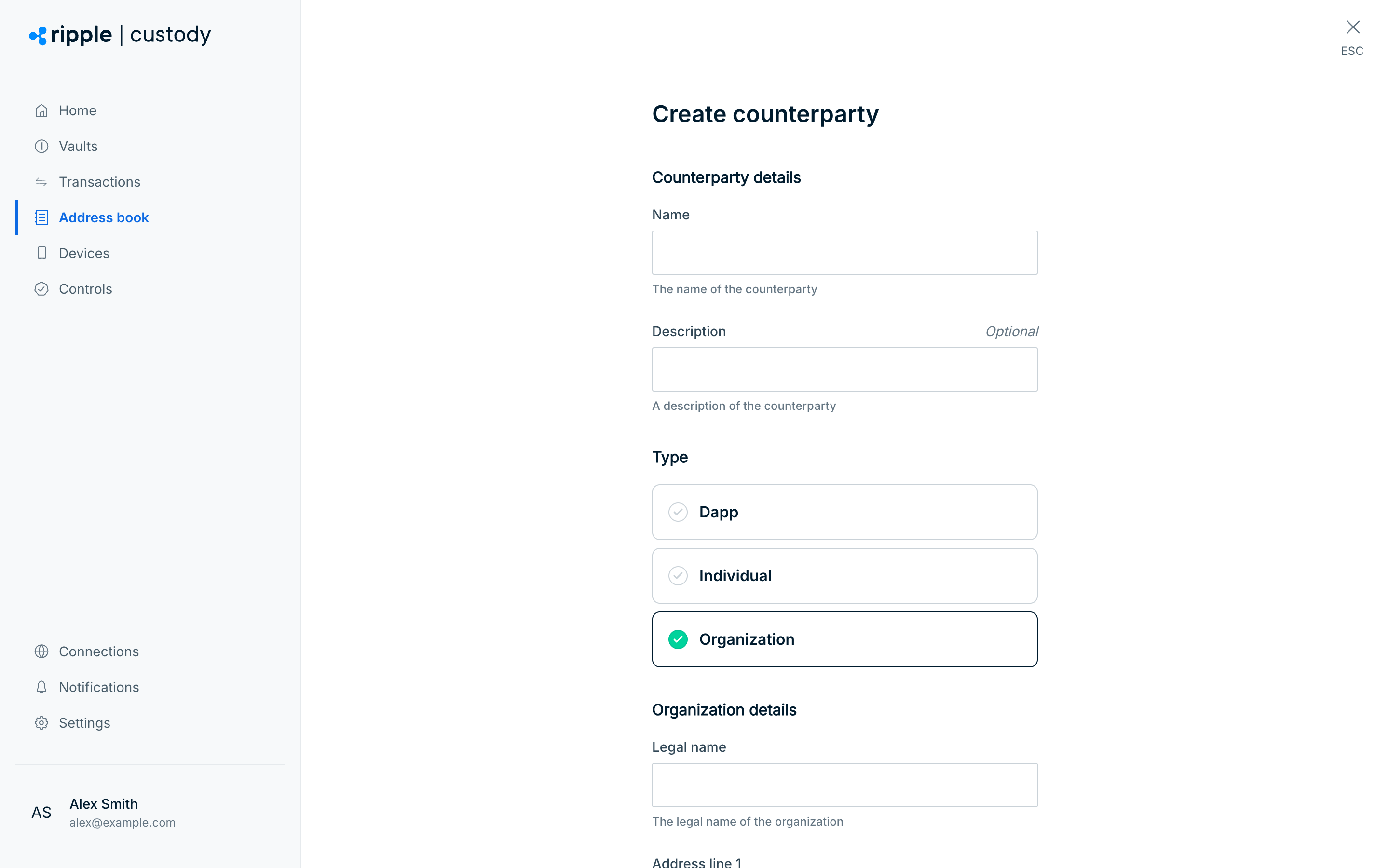
Required role: Owner or Administrator.
- Go to Address book > Counterparties.
- Select Add counterparty.
- Enter the counterparty name and optional description (up to 100 characters).
- Select the Type. Organization is selected by default:
- Individual: A person. Enter their first name, last name, and address details: Address line 1, optional Address line 2, City, State, Postcode, and Country.
- Organization: A company or institution. Enter the legal name (at least 5 characters) and the same address details.
- Dapp: A decentralized application (smart contract).
- Select Next. Ripple Custody (Wallet) creates the counterparty.
New addresses go through a compliance step before Ripple Custody (Wallet) enables them, so a new address isn't available for immediate use. Counterparties don't go through this step and are available immediately.
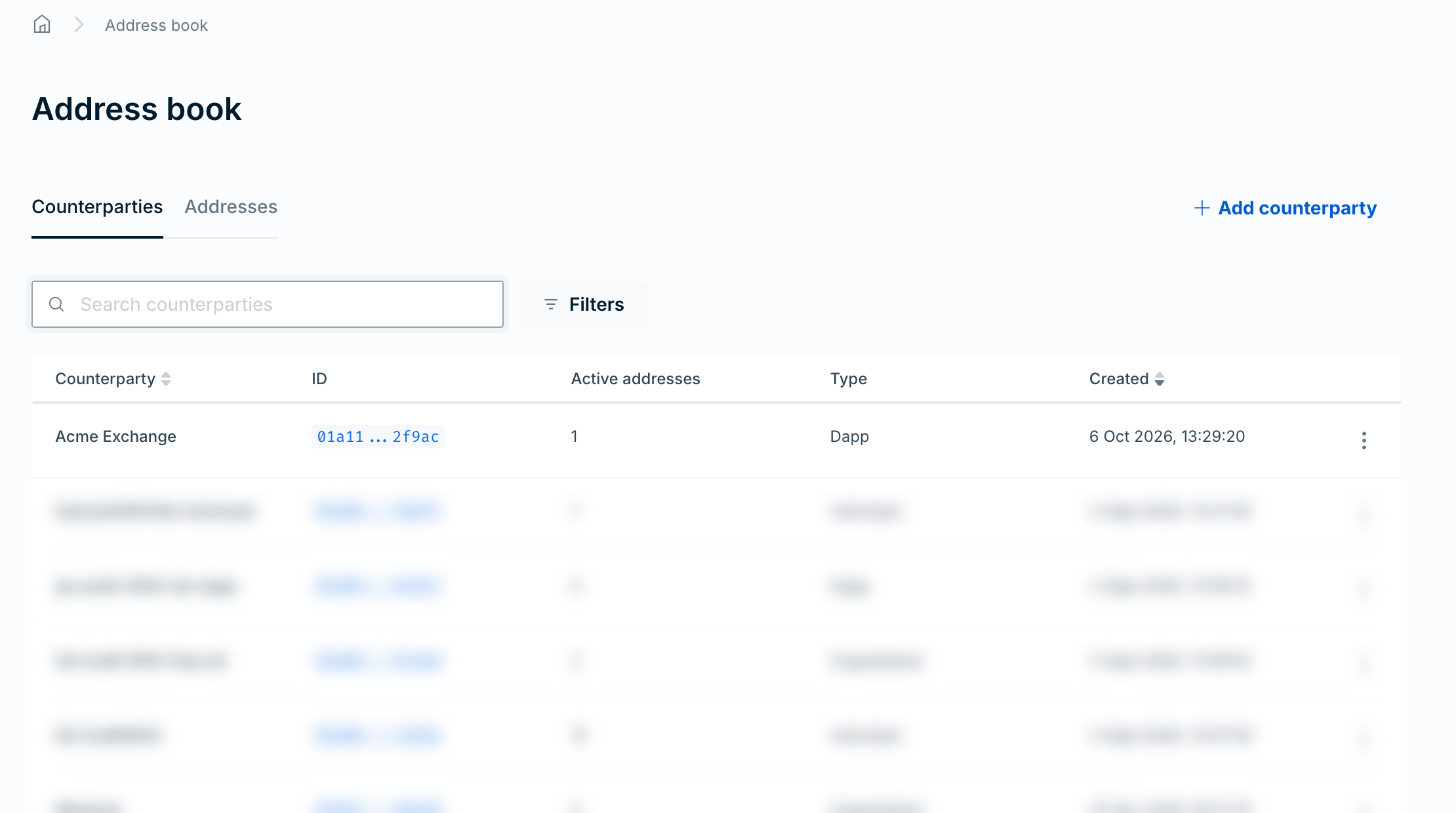
Required role: Owner, Administrator, Proposer, Approver, or Auditor.
- Go to Address book > Counterparties. The table lists each counterparty with its Counterparty name, ID, number of Active addresses, Type, and Created date.
- To find a counterparty, enter text in Search counterparties. To clear the search, select Clear search.
- To filter by type, select Filters, select Type, and then select Dapp, Individual, or Organization. The active filter appears as a chip above the table. To remove it, select Clear all.
- To sort the table, select the Counterparty or Created column heading.
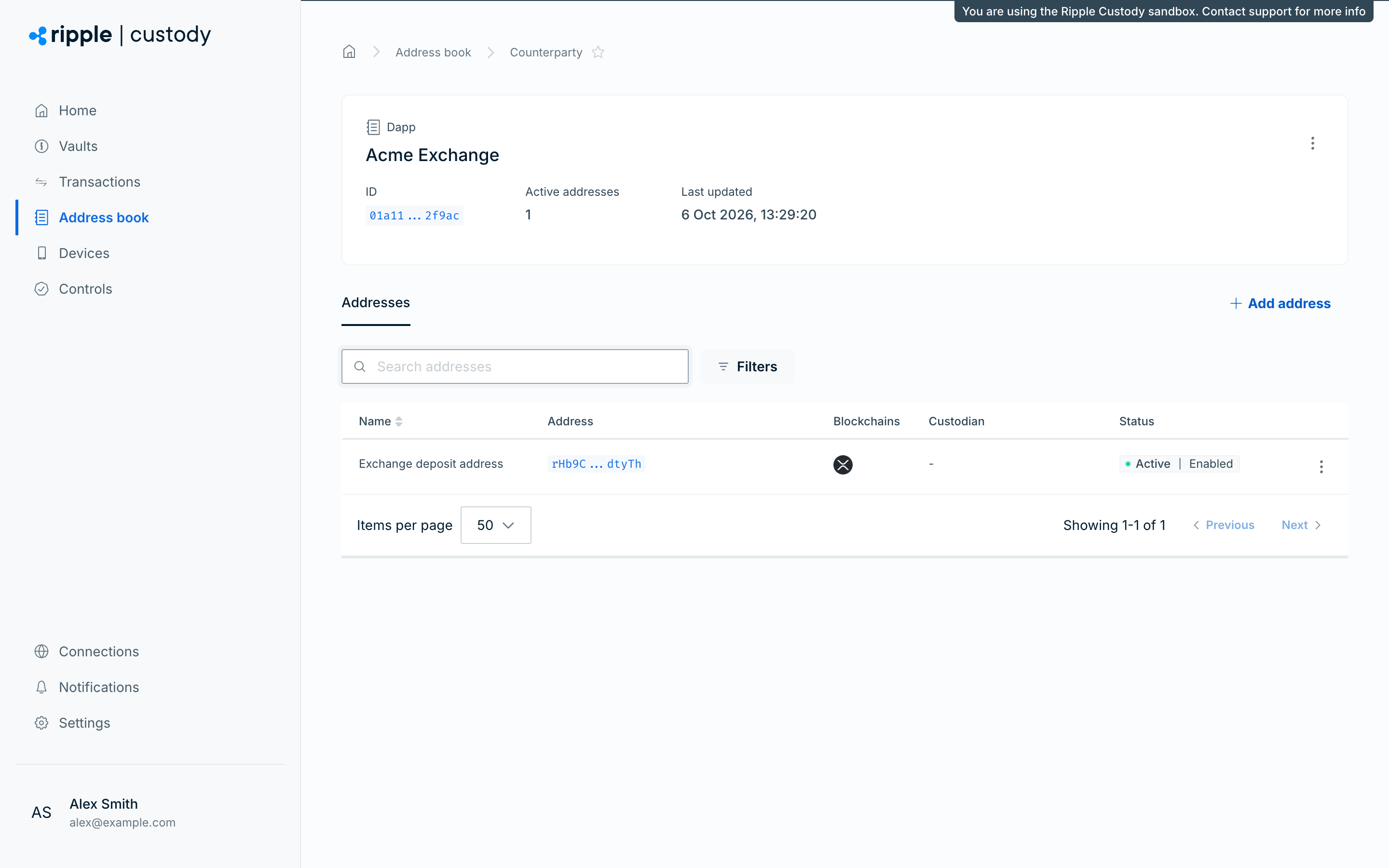
- To get a counterparty's details, select its row. The counterparty page shows its type, ID, Active addresses, and Last updated date. It also shows the Legal name and Registered office of an organization, or the Name and Postal address of an individual.
The counterparty page's Addresses tab lists the counterparty's addresses, with the same search and filters as the Addresses tab of the address book, except the Counterparty filter. From the counterparty page, you can also select Add address to add an address to this counterparty, or delete the counterparty.
Required role: Owner or Administrator.
- Go to Address book > Addresses.
- Select Add address.
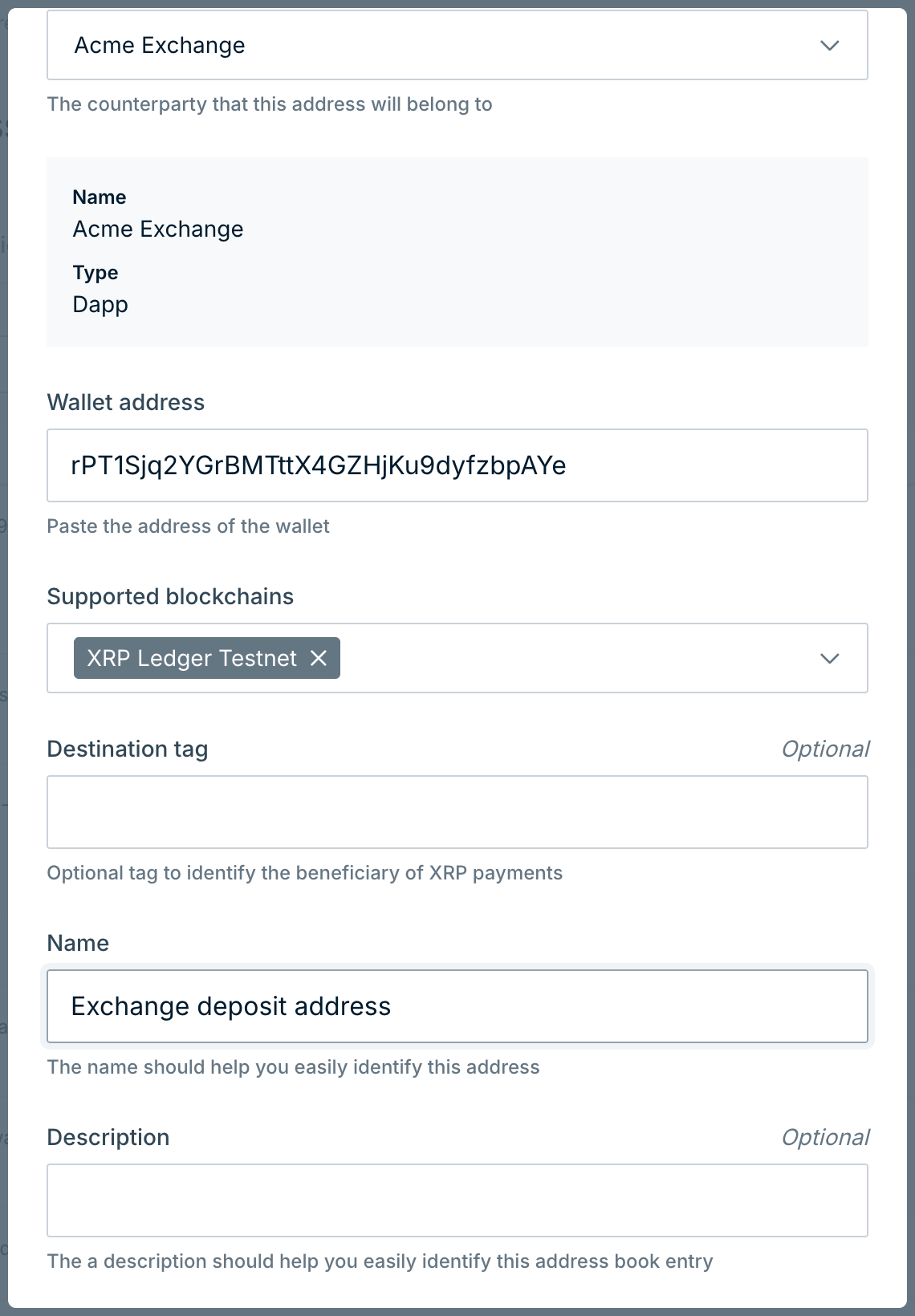
- Select the counterparty the address belongs to.
- Enter the destination address in Wallet address.
- Under Supported blockchains, select one or more blockchains supported by the address.
- If you selected XRP Ledger, you can optionally enter a Destination tag to identify a specific counterparty at this r-address. See XRP Ledger destination tags.
- Enter a name for the address. A description is optional, but if you enter one, it must be at least 5 characters.
- If the destination is custodial (controlled by a custodian such as Coinbase), select Add custodian details. Under Select custodian, enter the custodian's name, select Search, and then select the custodian. You can choose only a custodian that the search returns from the Notabene VASP directory, so you can't identify a custodian that isn't listed there.
- Select the submission checkbox to confirm that the custodial information you're submitting about ownership of the destination wallet is correct.
- Select Add address.
A new address shows Inactive | Approval pending, whether or not your organization has an Addresses approval group. Without a group, Ripple Custody (Wallet) approves the address automatically a moment after you add it. With a group, the address stays pending until approvers approve it, and the group might require more than one approval. After approval, the address shows Inactive | Compliance pending while the compliance scan runs, and then Active | Enabled. It shows Inactive | Rejected if approvers reject it, the approval window (the group's timeout) expires, or the scan fails. You can't send to the address until it's Active | Enabled.
Required role: Owner, Administrator, Proposer, Approver, or Auditor.
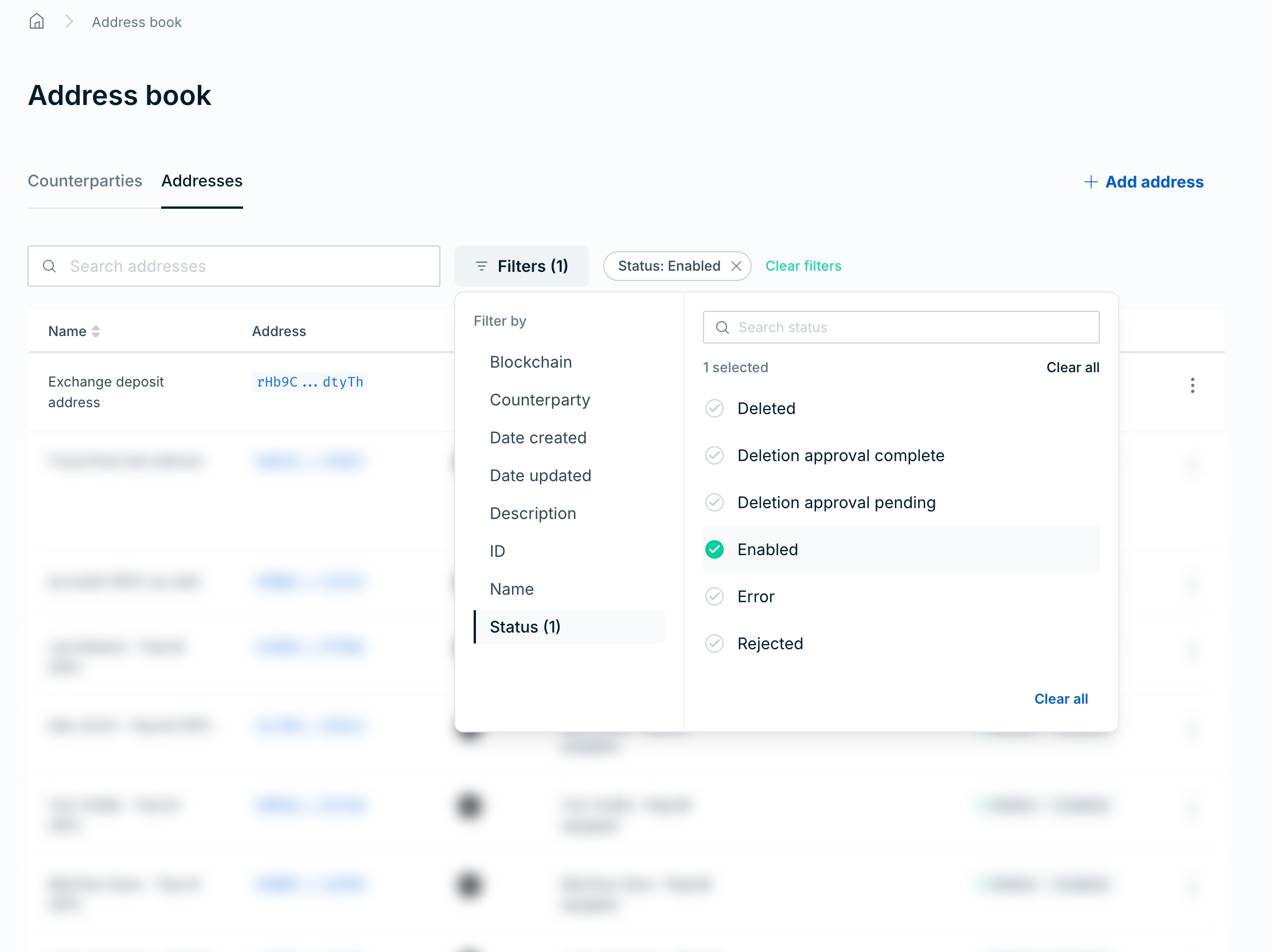
Go to Address book > Addresses. The table lists each address with its Name, Address, Blockchains, Counterparty, 3rd party custodian, and Status.
To find an address, enter text in Search addresses. To clear the search, select Clear search.
To filter the table, select Filters, select a category under Filter by, and then set the filter:
- Blockchain: Select one or more blockchains.
- Counterparty: Enter a counterparty ID.
- Date created and Date updated: Select Today, Last 48 hours, Last 7 days, Last 30 days, or This month, or pick a From and To date in the calendar to set a custom range. Custom appears in the list only while the selected range doesn't match one of the presets.
- Description, ID, and Name: Enter a value.
- Status: Select a status, for example Enabled, Creation approval pending, or Deletion approval pending.
For the counterparty, description, ID, and name filters, select Include to show matching addresses or Exclude to hide them. The first two active filters appear as chips above the table, and any others collapse into a + N more label. Filters shows the number of categories with an active filter. To remove the filters in a category, select Clear all. To remove all filters, select Clear filters.
To sort the table by name, select the Name column heading.
Destination tags are optional 32-bit unsigned integers (0 to 4,294,967,295) that identify a specific counterparty at an XRP Ledger r-address. Exchanges commonly use a single r-address for many customers and rely on the destination tag to route funds to the correct account.
When adding an XRP Ledger address, you can enter a destination tag alongside the r-address. Ripple Custody (Wallet) treats the r-address and destination tag together as a unique address, so you can add multiple entries that share the same r-address but differ by tag.
You can leave the destination tag empty for r-addresses that don't require a tag. A tagless entry is distinct from any entry with a tag — matching is exact.
- Address lookup — When Ripple Custody (Wallet) resolves a transaction's destination, it matches the full r-address and destination tag combination, so two address book entries with the same r-address but different tags resolve independently. Searching the address book matches any part of the text instead, so a search for an r-address returns every entry that shares it.
- Transaction history — New transactions display the counterparty whose r-address and destination tag exactly match the transaction's destination, when the destination includes the tag in the
rAddress:tagformat. A tag that you send separately, inconfig.destinationTag, isn't used for matching. Ripple Custody (Wallet) matches a transfer with only a separate tag against the tagless entry, or the transfer fails withPAL010.006if only tagged entries exist. Ripple Custody (Wallet) doesn't backfill historical transactions. - Policies — Policies that reference an address book entry apply to the specific r-address and destination tag combination on that entry.
Required role: Owner or Administrator.
- Find the counterparty or address in its respective table.
- Open the Actions menu and select Delete address or Delete counterparty.
- In the dialog, select Delete address or Delete counterparty again to confirm.
With an Addresses approval group, an address deletion takes effect after approvers approve it, and the address shows Active | Approval pending until then. Counterparty deletions take effect immediately.
You must delete all of a counterparty's addresses before you can delete the counterparty. You can't delete an address while it shows Compliance pending, Creation approval pending, or Deletion approval pending: the Delete address button in the dialog is unavailable, and the dialog says that you can't delete an address when it's pending an approval. The Delete counterparty button is unavailable while the counterparty still has addresses. If you delete an address that shows Rejected or Error, it stays in the counterparty's list as Deleted, and you can then no longer delete the counterparty. See Get or delete an address via the API. Review any transaction policies that reference the deleted entries. Removing an address may unintentionally narrow what a policy permits.
Address book entries are global: a counterparty and its addresses are available to all wallets in your organization. But the address book alone doesn't grant permission to send. For a transfer that you create in the console or through the API, two conditions must be true:
- You registered the address in the address book under a counterparty, and its status is Active | Enabled.
- A transaction policy on the sending wallet permits that address (or its counterparty) as a destination.
Registering counterparties and writing policies are separate permissions, but in the console you can't split them between users: only Owners and Administrators can create counterparties and addresses, and both roles can also create and delete policies. To split the duties, use API credentials: grant one credential the counterparty and address permissions, and grant another the policy permissions.
If the destination isn't an enabled address book entry or one of your organization's own wallets, the transfer fails when you create it with PAL010.006 ("address not found"). If the address exists but isn't enabled, because it's pending approval, in compliance review, rejected, or deleted, the message says that the address "exists but is not enabled". This also applies to your own wallet's address if it has an address book entry that isn't enabled. After you delete an address, transfers to it fail.
Some transactions don't follow these rules. Transactions that a dApp submits through WalletConnect, and passkey transactions, aren't checked against the address book, so address, counterparty, and wallet matchers in policies never match them, even when the destination is in the address book. They still need approval and pass limit evaluation. See Matchers. For a raw-signed transaction, the check applies to the decompiled destination address. On EVM chains, that's the transaction's to address. Cross-chain raw signing to a chain that Ripple Custody (Wallet) doesn't natively integrate skips the check. For an ERC-20 transfer, the to address is the token contract, so Ripple Custody (Wallet) doesn't check the recipient in the calldata.
Transfers between wallets within your own organization don't require address book entries. The address book is only for external destinations: Ripple Custody (Wallet) rejects the address of one of your own wallets with the error "you cannot add an internal address".
Uncontrolled address book modifications are a significant risk: a malicious or compromised user could register a fraudulent address and then send funds to it. Mitigate this with layered controls.
Set up an approval group for address book entries so that new addresses require review before they become active, and address deletions require review before they take effect. Counterparties don't go through approval.
- Go to the Controls section of the console and select the Approval groups tab.
- Create an approval group with the type Addresses.
- Select approvers and set a threshold.
See Create an approval group for the full setup.
Only users with the Owner or Administrator role can create address book entries. Assign the Proposer, Approver, Viewer, or Auditor role to users who must not modify the address book. See Roles and permissions.
Ripple Custody (Wallet) logs all address book modifications (creates, updates, deletes). Use audit logging to track who changed what and when, and to detect unauthorized modifications.
The address book helps you meet regulatory requirements for counterparty due diligence:
- EU Transfer of Funds regulation — requires custodians and wallet providers to collect and verify counterparty information (travel rule data) for inbound and outbound transactions. The address book provides a structured way to record this information. When adding an address, mark custodial destinations and identify the custodian.
- Counterparty due diligence — record legal names, physical addresses, and custodian information to support your organization's know-your-customer (KYC) and anti-money laundering (AML) processes.
- Provider checks on new addresses — Every new address goes through a compliance step before Ripple Custody (Wallet) enables it. If your organization has Elliptic enabled, Ripple Custody (Wallet) submits the address to Elliptic wallet analysis, but the result doesn't decide whether Ripple Custody (Wallet) enables the address: only a provider error, such as an outage during the scan, rejects it. If your organization has Notabene enabled, Ripple Custody (Wallet) validates organization counterparties whose address has a custodian DID. Counterparty details aren't otherwise screened.
To exchange Travel Rule data with counterparty VASPs, see Travel Rule.
- Verify addresses through an independent channel — before registering a new external address, confirm it with the counterparty through a separate communication channel (phone, in-person). Don't rely solely on email.
- Review the address book regularly — remove stale counterparties and addresses that are no longer needed. Each active entry is a potential transaction destination.
- Coordinate with policies — when you delete an address, review any transaction policies that reference it. Deleting an address may unintentionally narrow what a policy permits.
- Document counterparty relationships — use the description field to record the business context for each counterparty (who they are, why they are in the address book, who requested the addition).
- Use counterparty types accurately — classify each entry correctly (Individual, Organization, or Dapp) to support compliance reporting and filtering.
To manage the address book programmatically, see Manage the address book via the API.
- Address book overview — Conceptual overview
- Manage policies via the console — Reference addresses in policies
- Configure approval flows — Require approval for new addresses
- Configure audit logging — Track address book changes