Wallet-as-a-Service (Palisade) supports Single Sign-On (SSO) using a third-party login.
SSO allows organization employees to use their existing third-party platform login details (for example, via Google, Okta, PingFederate etc.) to login to Wallet-as-a-Service (Palisade), rather than a separate Wallet-as-a-Service (Palisade)-specific username and password. This can greatly simplify the login process for customers.
- You are confident in your existing security posture and SSO configuration
- You want to keep sign-in controls consistent across your organization
- You want to segregate both authentication and authorization from your organization's single sign-on
- You are not confident that your organization's SSO controls are strong enough to also protect your access to Wallet-as-a-Service (Palisade)
Important: Once you switch to using SSO with Wallet-as-a-Service (Palisade), it is your responsibility to secure your SSO access and ensure you have adequate governance controls in place that prevent unauthorized access to Wallet-as-a-Service (Palisade).
You must have administrator access (or equivalent) on your existing authentication platform, and administrator access in Wallet-as-a-Service (Palisade) to carry out the following steps.
- Navigate to the ‘Settings’ section of the Wallet-as-a-Service (Palisade) console and click on ‘Security’
- Username/password will be displayed as the default authentication method. Click ‘Add new method’.
- Click ‘Create connection’ --> ‘Get Started’ and then select your third-party platform
- Follow the setup wizard to connect your SSO platform to Wallet-as-a-Service (Palisade)
- Once complete, the new authentication method will be displayed in the ‘authentication methods’ table.
Set the new authentication method to be the default method by clicking on the three dots in the ‘actions’ column. This is very important as once a user has been invited to Wallet-as-a-Service (Palisade), it is not possible to change the authentication method they use.
- Invite users as normal to Wallet-as-a-Service (Palisade) using their existing SSO email address
- The user can then accept their invite as normal and login to Wallet-as-a-Service (Palisade) by clicking ‘Continue with SSO’
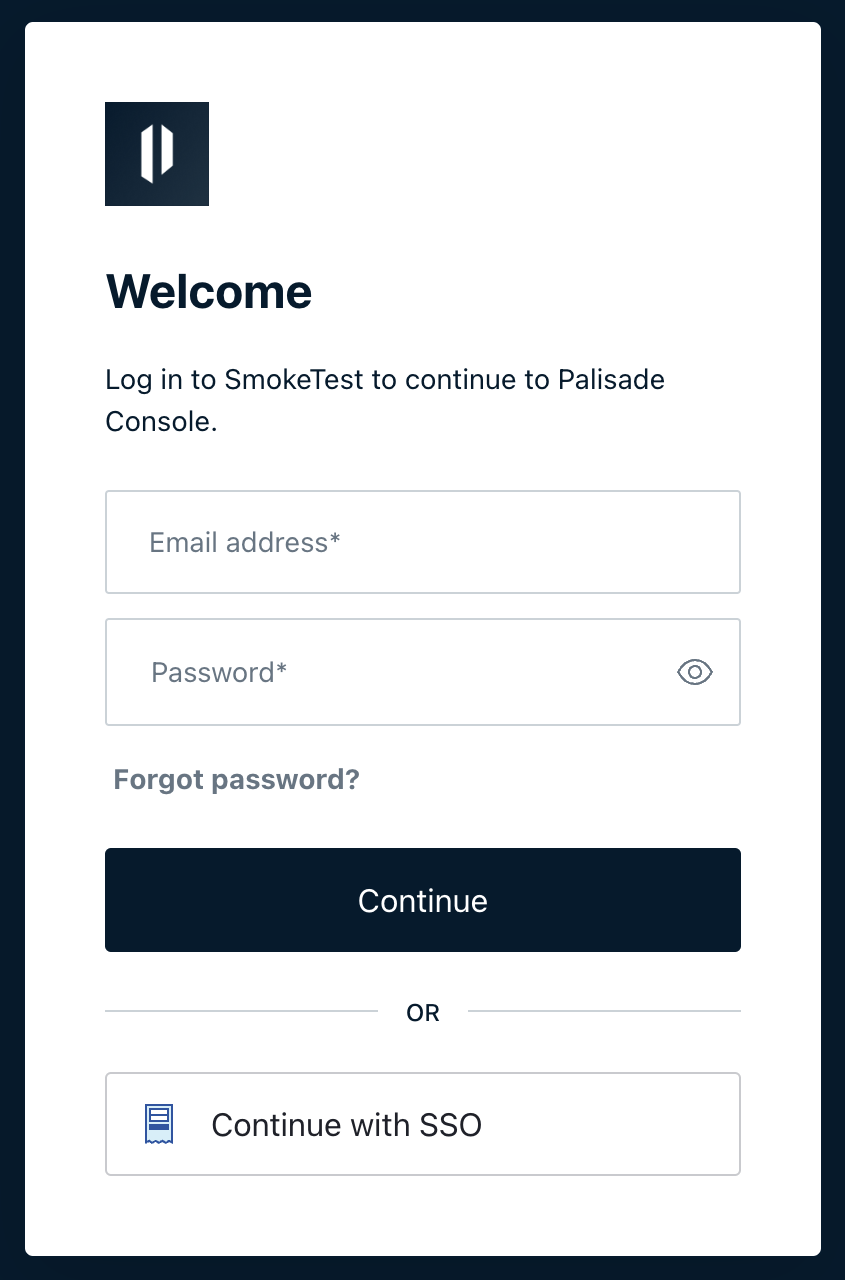
If you would like the authentication method to vary depending on which user you are inviting to Wallet-as-a-Service (Palisade), simply change the default authentication method to your desired method before sending the invite.